Settings · Service Setup
Recurring Services
Recurring Services lets ServiceTitan membership customers see and book the maintenance visits their plan includes, straight from your web scheduler.
Quick Answer - 30 Seconds
To offer membership visits online: Account settings → Service Setup → Recurring Services → switch on Membership booking → for each ServiceTitan service type, pick the matching Serviceable Type and Service Type → done. Rows save themselves.
Unmapped types never appear to customers, so nothing breaks if you map only the ones you want online.
What this controls
If you sell maintenance plans in ServiceTitan (a "Comfort Club" with a spring AC tune-up and a fall furnace tune-up, say), ServiceTitan tracks the visits each member is owed as recurring service events.
With Membership booking on, a returning customer that the web scheduler recognises as an active member sees their pending visits and can book one directly, instead of describing a new problem. The mapping below tells OnePath which of your services each ServiceTitan service type corresponds to, so the visit gets the right duration and questions.
"Membership" here means ServiceTitan's customer maintenance program. It has nothing to do with your team members in OnePath.
Where to find it
Location: Account settings → Service Setup → Recurring Services
→ app.onepath.ai/settings/account/recurring_services
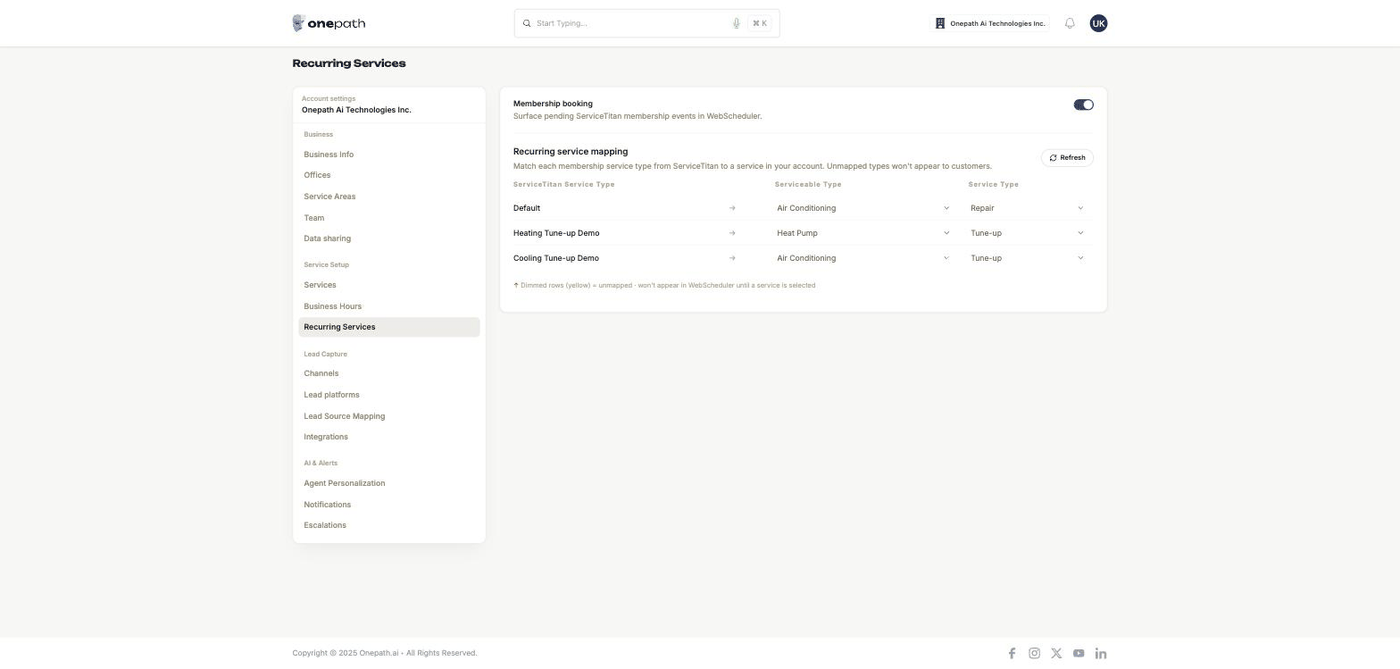
The page only appears in the sidebar when your connected field service software is ServiceTitan. Company Owners and Account Admins can open it. Housecall Pro, AccuLynx and accounts without field service software do not have it.
Membership booking
Surface pending ServiceTitan membership events in WebScheduler.
Switch it on and OnePath pulls every recurring service type from ServiceTitan. You see Customer membership booking enabled. N recurring service type(s) fetched. Switch it off and members book like any other customer.
The same switch is offered in the setup wizard's Field Service Software phase once ServiceTitan is connected. Your ServiceTitan tenant needs the Memberships API enabled; if the fetch fails, ask your account manager.
Visit window
Which open membership visits customers can book, counted from today.
The sentence Offer open visits dated up to [3] months back and [3] months ahead. sets how far either side of today a member's pending visits are offered. Both numbers start at 3. Type a whole number from 0 to 60 and leave the field; it saves itself and shows Visit window saved.
Raise the months back if your members carry an unused visit forward instead of losing it. With 24, a member whose February visit from last year is still open in ServiceTitan is offered it today. Visits you dismissed in ServiceTitan are never offered, however far back you look.
A number outside 0–60, or anything that is not a whole number, is refused with Enter a whole number of months from 0 to 60. and the field goes back to the saved value.
Recurring service mapping
Match each membership service type from ServiceTitan to a service in your account. Unmapped types won't appear to customers.
| Column | What to pick |
|---|---|
| ServiceTitan Service Type | The recurring service type as named in ServiceTitan (read-only) |
| Serviceable Type | What is worked on, from your active services under Services |
| Service Type | The kind of work under that serviceable type |
Pick the two dropdowns on a row and wait for Saved. Unmapped rows are dimmed yellow: Dimmed rows (yellow) = unmapped · won't appear in WebScheduler until a service is selected.
Only services that are switched on under Services can be chosen. If the one you need is missing, switch it on there first.
Refresh (shown while membership booking is on) pulls new service types from ServiceTitan. You see N new recurring service type(s) found. or All recurring service types are up to date. If the page tells you the cached types are stale, press Refresh before mapping.
What members see in the scheduler
Once a customer is identified in the web scheduler and has an active ServiceTitan membership, OnePath lists their pending visits for mapped service types inside your visit window (three months either side of today unless you changed it), one per recurring service: the oldest open one. Visits already past their due date are flagged overdue.
A member with no pending visit inside the window is greeted by name but offered no membership visit, the same as a customer without a membership.
The customer picks a visit, and availability is searched on the recurring service's own ServiceTitan job type and business unit, not the service's usual mapping. After booking, the recurring service event is marked complete in ServiceTitan.
The customer-facing steps are described in Booking flow.
Quick Tips
- ✅ Switch the target services on first - the dropdowns only list active services.
- ✅ Press Refresh after adding plans in ServiceTitan - new service types don't appear on their own.
- ✅ Widen the visit window if visits roll over - members whose visit is older than the window aren't offered it.
- ❌ Don't map internal-only service types - anything mapped becomes bookable by members online.
Still stuck?
Reach out in your OnePath Slack channel or email your account manager. Include the ServiceTitan service type name so we can help fast.