Settings · Lead Capture
Channels
Channels are the ways leads reach you. Switch one on and every lead arriving there is answered by your AI assistant in seconds.
Quick Answer - 30 Seconds
To turn a channel on: Account settings → Lead Capture → Channels → open the card → flip its switch. It saves on its own.
Web and Email work right away. Text messages and Voice need a phone number first, picked under Voice & RCS Text Messaging.
What this controls
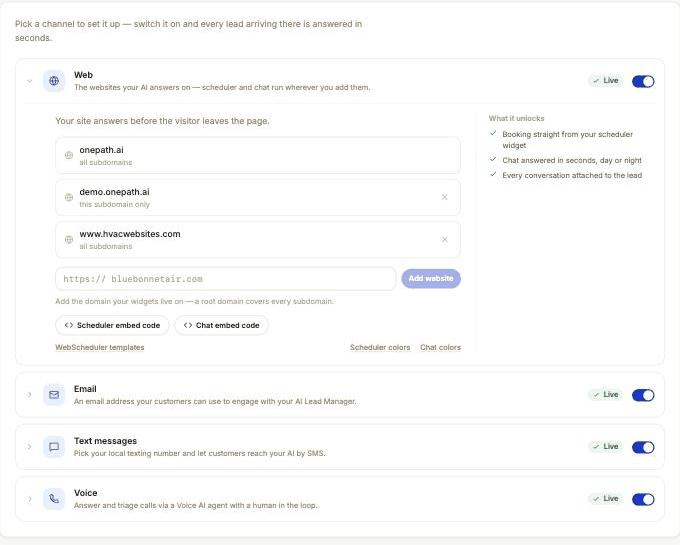
The page has four cards, one per channel. Each card has a switch, a status chip, and a "What it unlocks" list. A chip at the top of the page counts how many are answering, for example 2 of 4 answering.
| Card | What it is | Details |
|---|---|---|
| Web | The scheduler and chat widgets on your website | Web Scheduler, Web Chat |
| A lead inbox you forward lead emails to | Email lead inbox | |
| Text messages | Two-way texting on your OnePath number | Text messaging |
| Voice | Calls to your OnePath number, answered by the AI | AI voice |
Google Local Services Ads, Facebook Lead Ads and Yelp are connected on Lead platforms, not here. Angi lead emails go through the Email card's inbox.
Where to find it
Location: Account settings → Lead Capture → Channels
→ app.onepath.ai/settings/account/channels
How the switches work
- Flipping a switch saves immediately and shows a toast such as "Web has been enabled".
- Only one card is open at a time. Web opens first; after you flip a switch, that card stays open.
- Company Owners and Account Admins can flip switches. Other team members can view the page.
- The Text messages and Voice switches are greyed out until a phone number is on file.
- A channel can be on but not answering yet. When the thing it is waiting on arrives (for example carrier approval), it switches to answering by itself. You do not need to come back and flip it again.
Status chips
| Chip | Card | Meaning |
|---|---|---|
| Live | Web | On, and at least one website is on the allowed list |
| Needs a website | Web | On, but no website on file yet |
| Live | On (nothing else is needed) | |
| Live | Text messages, Voice | On, with a number and carrier approval; the AI is answering |
| Awaiting carrier | Text messages, Voice | On, but carrier registration of your number is still in review |
| Forwarding | Voice | Off, but a number is on file; calls forward to your own line |
| Off | Any | Switched off |
Web card
The Web switch turns the Web Scheduler and Web Chat widgets on or off together, along with booking by AI agents in the visitor's browser (see Booking by AI agents). Inside the card:
Allowed websites. The list of domains where the widgets are allowed to load. The website from Business Info is always first and cannot be removed here. To add another, type a bare domain such as acme.com into the field (the https:// is already there) and click Add website. A root domain covers every subdomain (www, book, quote); the list marks it all subdomains. A subdomain entry covers only that subdomain (this subdomain only). Remove an extra domain with its ×.
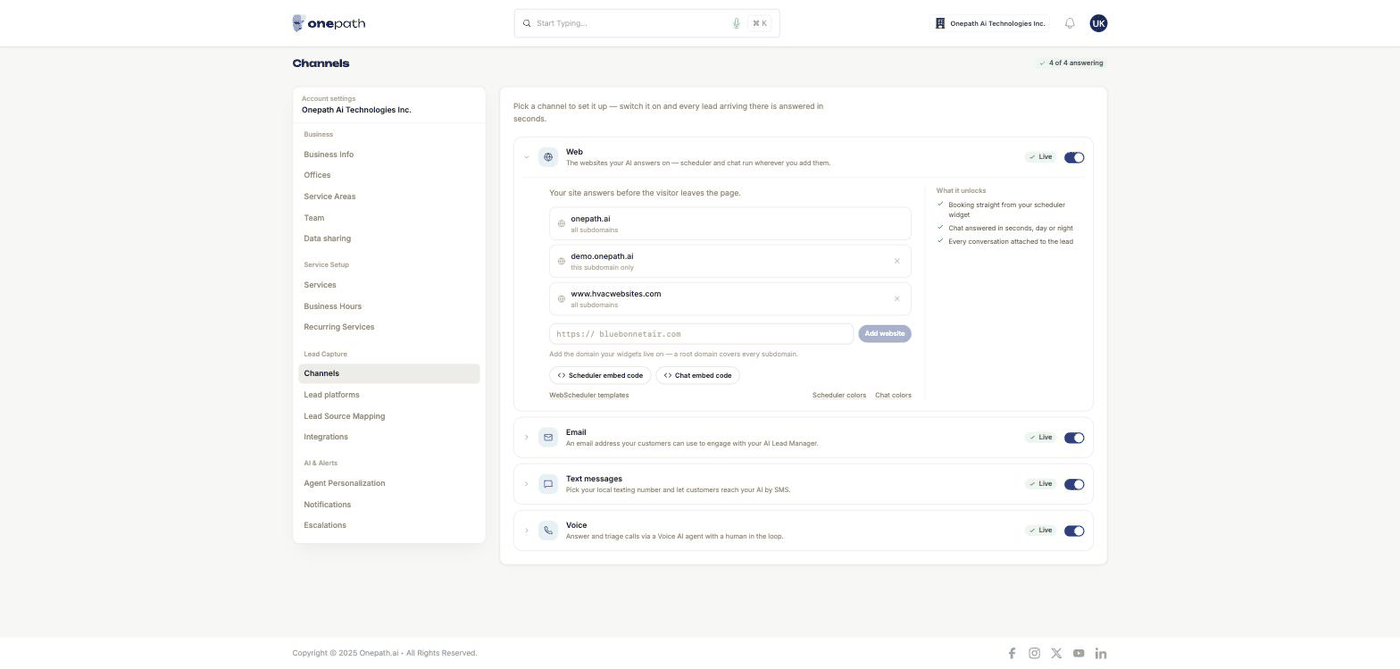
Scheduler embed code and Chat embed code. Each opens a modal with the two snippets your web developer needs: the loader script for the page head and a trigger button. Send your developer to the Web Widgets install guide; it covers WordPress, Webflow, Squarespace, Wix and Tag Manager.
Scheduler colors, Chat colors and WebScheduler templates. Small links at the bottom of the card. Colors open a modal with brand and text color pickers. Templates open the page where you shape the scheduler's first screen. See Web Scheduler.
The widget only loads on listed domains
If a domain (including a staging domain) is not on the allowed list, the button on that site does nothing. Add it here first.
Email card
Shows your Lead inbox address, <your-handle>@handler.onepathmail.net, with a copy button. Forward lead emails there (Angi or Yelp alerts, website form notifications) and the AI answers each one as a new lead. If you see a "Legacy address" line underneath, older threads still route through it; nothing to do. Details: Email lead inbox.
Text messages card
With no number on file, the card shows an amber note and a Pick a number button that opens Voice & RCS Text Messaging. With a number, it shows the number and whether the AI answers texts now or once carrier approval lands. Details: Text messaging.
Voice card
Same rule: pick a number first. Once on, the AI answers calls to your OnePath number. While it is off (or still waiting on approval) calls forward to your own line. Details: AI voice.
Quick Tips
- ✅ Add every domain you use - production, staging and any landing-page domain the widgets live on.
- ✅ Pick the phone number early - text and voice wait on carrier registration, which takes days, not minutes.
- ✅ Leave a pending channel on - it goes live by itself when approval arrives.
- ❌ Don't flip Web off to "test" - it disables the scheduler and chat on every site at once.
Still stuck?
Reach out in your OnePath Slack channel or email your account manager. Include the channel name and its status chip so we can help fast.