Your Workspace
Your workspace
The OnePath app at app.onepath.ai is where you watch your AI assistant work: every lead, conversation, opportunity and appointment, in four areas.
The main screens
Dashboard
The home page: job requests, booked jobs, what needs a look, your funnel, and what your ads cost and brought back.
Customers
Every customer and lead, with their addresses, opportunities, appointments and interactions.
Interactions
The inbox: every call, chat, form, text and email your AI answered, with full transcripts.
The area buttons sit at the top of the screen: Dashboard, Customers, Interactions, Tasks and Outreach. Dashboard is the home page. Wherever you are, ⌘K takes you to any area.
Pages you reach by search or direct link
| I want to… | Go here |
|---|---|
| See appointments on a day, week or month view | Calendar (direct link only) |
| Subscribe to appointments in Google, Apple or Outlook calendar | Calendar feed |
| See a customer's opportunities | Opportunities tab (Customers → the customer → Opportunities) |
| Send a promotion to past customers | Outreach campaigns (top bar → Outreach) |
| Understand an email OnePath sent me | Emails OnePath sends you |
| Change how the AI or the account behaves | Account settings |
Search (⌘K)
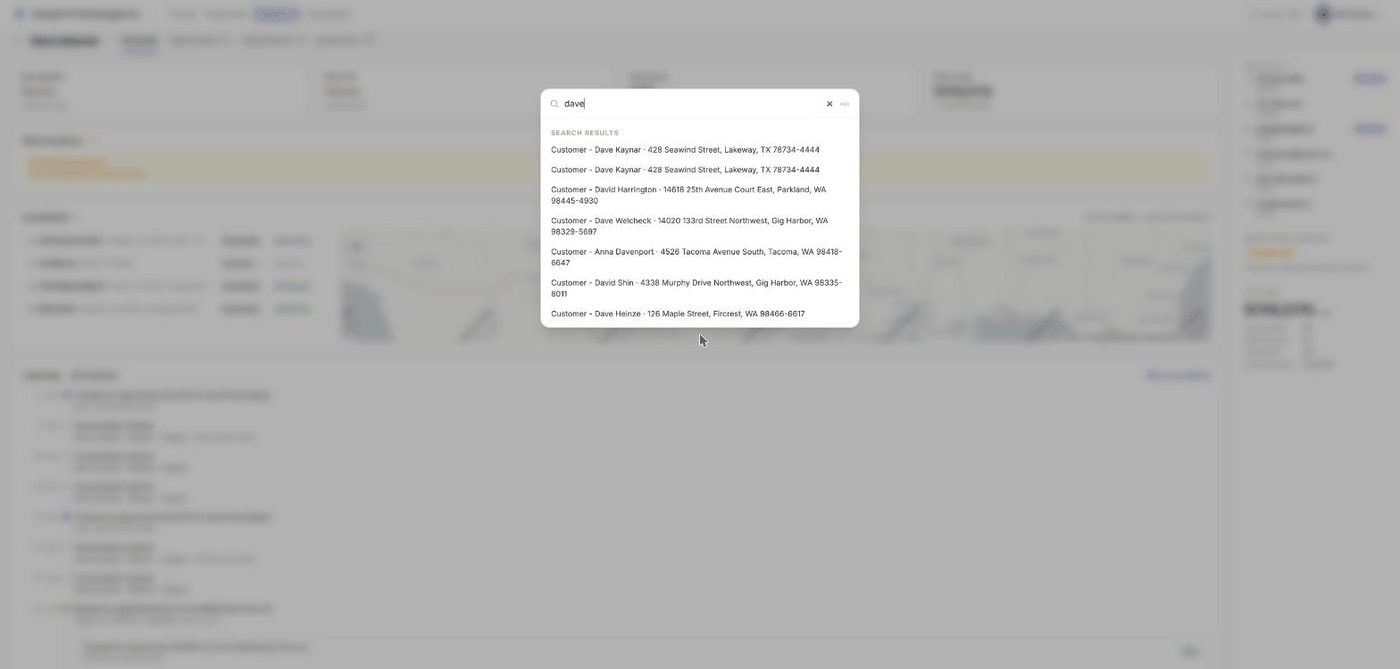
Press ⌘K (or click Search in the top bar) to open the command panel. It has two sections:
- Pages - shortcuts: Customers, Interactions, Dashboard, Tasks, Outreach, and every Account settings page you can see (listed as "<page> — Account settings").
- Search results - live matches on your customers. Type any part of a customer name, a phone number, an email address or a street address. Each result reads "Customer - <name> · <address>" and opens that customer's overview. Up to 10 results show, most recent activity first.
Search does not look inside conversation text, opportunities or settings values. For message text, use the search box in Interactions.
Switching accounts
If you belong to more than one account, the account name at the top left becomes the account switcher (Switch account). Click it to see every account you belong to with your role in each; the current one is marked active. Pick another and the page reloads with that account's data. With more than five accounts a Filter accounts box appears.
Everything in the app is scoped to the active account. See Roles, sign-in & switching accounts.
Your user menu
Click your initials at the top right. The menu shows your name, email and "<Role> · <Account>", then Your profile, Security & privacy, Account settings, Team, Company (Company Owners only) and Sign out. Account settings pages are for Company Owners and Account Admins; see Account settings.
What you can act on here
Dashboard, Customers, Interactions and the Calendar are for monitoring. Your AI assistant does the work: it answers, qualifies, books, follows up and escalates. You read the results here; you do not reply to customers, edit records or move opportunities from these screens. The one action you can take is Decline appointment. It appears in a customer's appointment drawer when your field service software flagged that customer as inactive or do-not-service and your account allows such bookings. See Decline an appointment.
To change what the AI does, use Account settings. To reach a customer yourself, use the contact details on their overview.
Quick Tips
- ✅ Start from Interactions when something feels off - the need a person chip shows how many conversations are waiting on someone.
- ✅ Use ⌘K for phone numbers - type the last few digits and the customer pops up.
- ❌ Don't look for a reply box - conversations are read-only here; the AI and OnePath's team handle replies.