Settings · Lead Capture
AI voice
With Voice on, calls to your OnePath number are picked up by your AI assistant, which books appointments and hands off to a person when it should.
Quick Answer - 30 Seconds
To turn it on: pick a number under Voice & RCS Text Messaging → Account settings → Lead Capture → Channels → Voice card → flip the switch on.
Off means calls to your OnePath number simply forward to your own line. Nothing is lost either way.
What this controls
| Voice on | Voice off |
|---|---|
| The AI answers calls to your OnePath number with your voice greeting | Calls to your OnePath number forward to your own line |
| Bookings are taken over the phone | Your existing phone setup is untouched |
| Calls the AI cannot handle are escalated to your line |
The card's own summary: "Missed calls answered and triaged", "Bookings taken over the phone", "Escalation to your line when AI can't".
Where to find it
Location: Account settings → Lead Capture → Channels → Voice card
→ app.onepath.ai/settings/account/channels
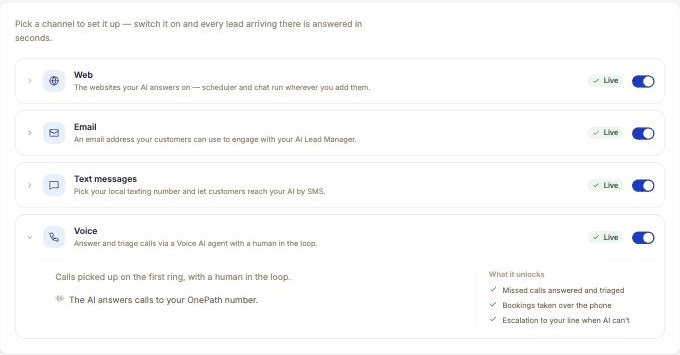
Turning it on and off
The switch is greyed out until a phone number is on file. Once you have one, flip it and the card saves right away.
| Chip | What you see in the card |
|---|---|
| Live | "The AI answers calls to your OnePath number." |
| Awaiting carrier | A blue note: "Turned on — the AI answers the moment carrier approval lands. Until then calls forward to your own line." with the estimate Typically 1–2 weeks |
| Forwarding | Off, with a number on file: "Calls to your OnePath number forward to your own line." |
| Off | No number yet: pick one first |
If turning voice on fails, OnePath puts the number back on forwarding and the switch returns to off, so callers are never stranded. You may see "Reserve a phone number before enabling voice" if no number is on file yet.
Where calls go while voice is off
Calls forward to your forwarding number. You set it in the account setup wizard's Channels step (the "Calls to … forward to" field on the Voice card). If you never set one, calls forward to the business phone from Business Info. There is no forwarding field on the Channels settings page; if you need it changed after go-live, ask your account manager.
What callers experience
- The AI answers with your Voice greeting. The default is: "Thank you for calling <your business>, this is Amy, an AI assistant. I can help you book appointments or answer your questions. If you'd like to speak with a live agent, just let me know. How can I help you today?"
- It asks what the caller needs, confirms the address and service, and offers available times.
- It books the appointment, or hands the call to a person when the caller asks or when the request needs one.
The greeting, the assistant's name and how your business name is pronounced are set under Agent Personalization. The greeting field stays locked until Voice is switched on.
Call records
Every call lands in Interactions alongside texts and emails. A call record shows its direction (inbound, outbound or a handoff to a person), status, duration, the recording, a transcript and an AI summary. Open the customer to see the call next to everything else they have done.
Quick Tips
- ✅ Turn it on before approval lands - the card waits and flips itself to Live.
- ✅ Record the greeting you want - write it in Agent Personalization; the AI reads it as written.
- ✅ Check your forwarding number during setup - it is where every call goes whenever voice is off.
- ❌ Don't publish the OnePath number as your main line - it is the number the AI texts from and answers on; your own numbers stay as they are.
Still stuck?
Reach out in your OnePath Slack channel or email your account manager. Include your OnePath number and the chip shown on the Voice card so we can help fast.