Settings · Service Setup
After-Hours Job Type
The after-hours mapping decides where an after-hours booking lands in your field service software, so after-hours work shows up under its own job type for dispatch, reporting and payroll.
Quick Answer - 30 Seconds
To route after-hours jobs: Account settings → Service Setup → Services → scroll to Urgent & after-hours mappings → After-hours bookings card → switch on → pick a Job type (and a Business unit on ServiceTitan). It saves automatically.
Leave it off and after-hours bookings use each service's normal mapping. Nothing breaks.
What this controls
Your Business Hours page already decides whether each booking is regular or after-hours. This card decides what the after-hours ones are written as.
The card's own description: "Optional — jobs booked into after-hours write into <your software> under this mapping, if it helps your reporting. Availability never comes from it." In other words, it never changes which time slots are offered; it only changes how the job is labelled.
It follows the price, automatically
Nobody picks "after-hours" when booking. OnePath uses the same rule as your pricing: if the slot is quoted at the after-hours fee (outside your regular window, a closed day or a holiday), the job also gets the after-hours mapping. The two always agree.
Where to find it
Location: Account settings → Service Setup → Services → Urgent & after-hours mappings → After-hours bookings
→ app.onepath.ai/settings/account/service_details
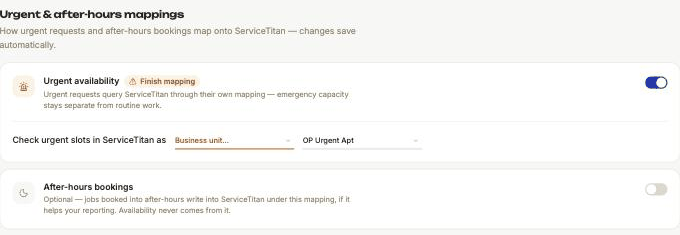
- The card appears only with ServiceTitan or Housecall Pro connected. AccuLynx, Fyxify and accounts without field service software do not see it.
- The list is your own job types (and business units), pulled straight from the connected system.
- The same card appears in the account setup wizard's Services step.
Options
| Field | Shown for | What it does |
|---|---|---|
| Card switch After-hours bookings | ServiceTitan, Housecall Pro | On or off. Off by default. |
| Business unit… | ServiceTitan only | The business unit after-hours jobs are written under |
| Job type… | ServiceTitan, Housecall Pro | The job type after-hours jobs are written under. Required for the mapping to take effect. |
Every change saves after about a second; the card shows Saving… then Saved.
How it behaves
- Booking - an after-hours slot creates the job under your after-hours mapping. A regular-hours slot uses the service's own mapping.
- Rescheduling - moving a booking into after-hours writes it under the after-hours mapping; moving it back uses the normal one.
- Urgent bookings win - an overbooked urgent job keeps its urgent mapping even when it falls after hours.
Turning it off
Flip the switch off. Every booking, including after-hours ones, then uses the service's normal mapping.
If your chosen job type disappears
If the job type or business unit is later removed in your software, the nightly sync emails your Service escalation list an "Action Needed - Broken FSM Mappings" report listing "After-hours job type". Open this card and pick a new one.
Quick Tips
- ✅ Pair it with Business Hours - that page sets what an after-hours slot costs, this card sets where the job goes.
- ✅ Fill in the job type - the switch alone does nothing until a job type is chosen.
- ✅ Want a technician on the job too? - on ServiceTitan, After-Hours Auto-Assignment assigns one when nobody would see the booking in time.
- ❌ Don't expect it to change availability - it is a label on the job, not a schedule.