Settings · Service Setup
Services
Services is where you tell OnePath what you sell: which trades and property types you serve, which catalog services your AI assistant may book, how each one lands in your field service software, what the assistant asks the customer, and what a visit costs.
Quick Answer - 30 Seconds
To make a service bookable: Account settings → Service Setup → Services → pick your trades → switch the service to Open → click its pencil → fill in the FSM Job Type (and FSM Business Unit on ServiceTitan) → done. Every change saves automatically.
A service that is switched off is never offered to customers.
What this controls
| Setting | What it changes |
|---|---|
| Trades you offer | Which services appear in the list at all |
| Property types | Whether you serve residential, commercial or both; fees are set per type |
| Service Closed/Open switch | Whether your AI assistant can book that service |
| Per-service editor | How the job is created in your field service software, what the assistant asks, and the fee it quotes |
| Urgent & after-hours mappings | Where urgent and after-hours jobs go in ServiceTitan or Housecall Pro |
You cannot add your own services. Every account gets the same catalog; you switch on the ones you offer and tune them.
Where to find it
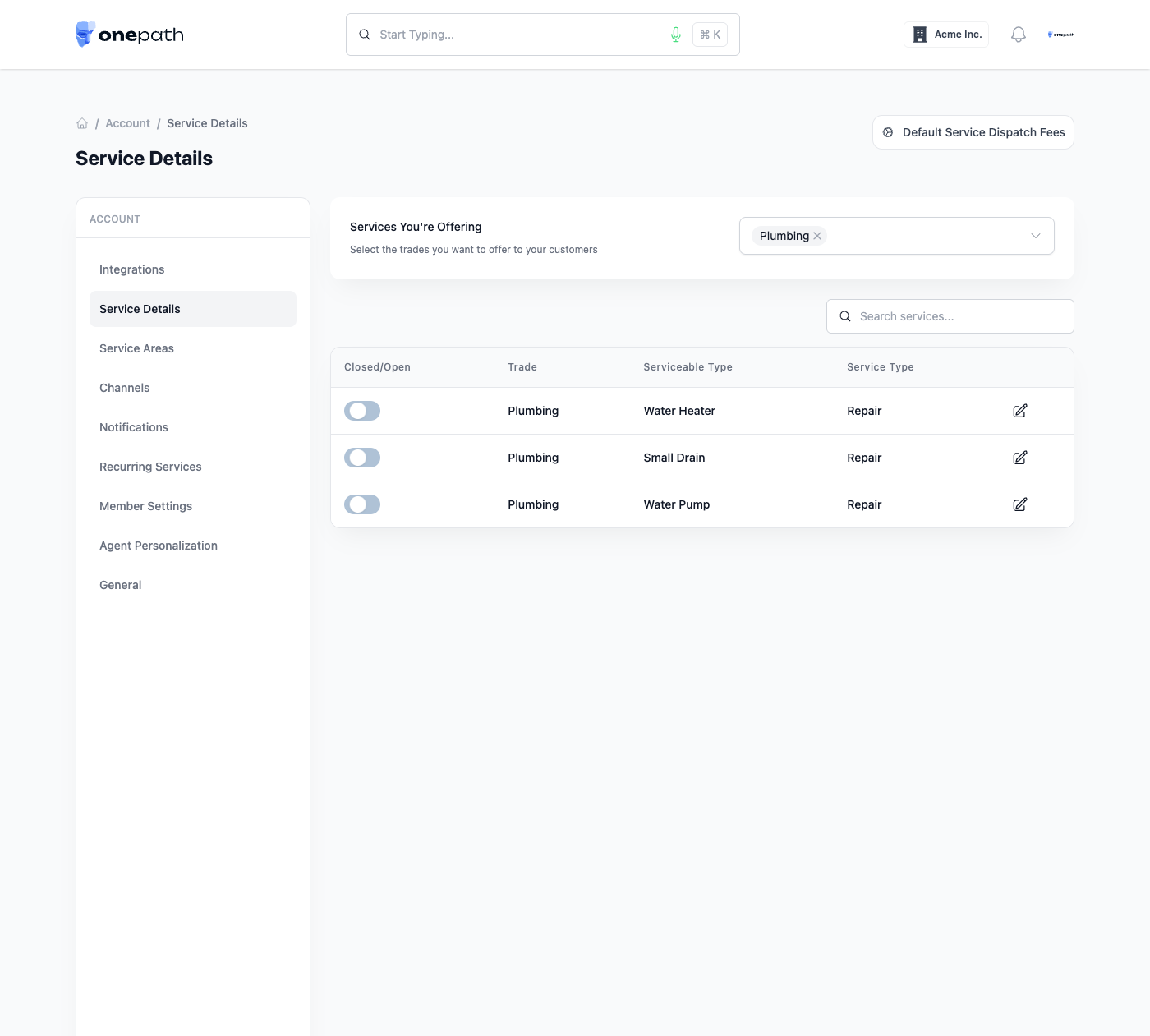
Location: Account settings → Service Setup → Services
→ app.onepath.ai/settings/account/service_details
Company Owners and Account Admins can edit. Account Members see the page read-only.
Trades you offer
Search and pick from the nine trades: HVAC, Plumbing, Electrical, Window Cleaning, Roofing, Water Services, Garage Doors, Solar, Septic. New accounts start with none, so the service list is empty until you pick at least one.
Removing a trade hides every service under it and switches those services off. Nothing is deleted: add the trade back and its services return, switched off.
Property types
Pick Residential, Commercial or both. This decides which fee groups you can fill in, and the assistant only quotes fees for the types you serve. Until you pick at least one, you cannot set dispatch fees.
The services list
Each row shows the Serviceable Type (what is worked on, e.g. Water Heater) and the Service Type (the kind of work, e.g. Repair). Use the Search services box to filter by either.
- Closed/Open switch: turn a service on to let the assistant book it. All services start off. The first time you switch one on, OnePath creates a default configuration for it (all priorities, all customer types, all your service areas). Add your Service Areas first, or the switch cannot save.
- Pencil: opens the service editor. It is only active once the service is switched on.
If you see Configure Field Service Management integration first instead of the list, connect your field service software under Integrations.
Service Configurations
The top card of the service editor. Everything here autosaves.
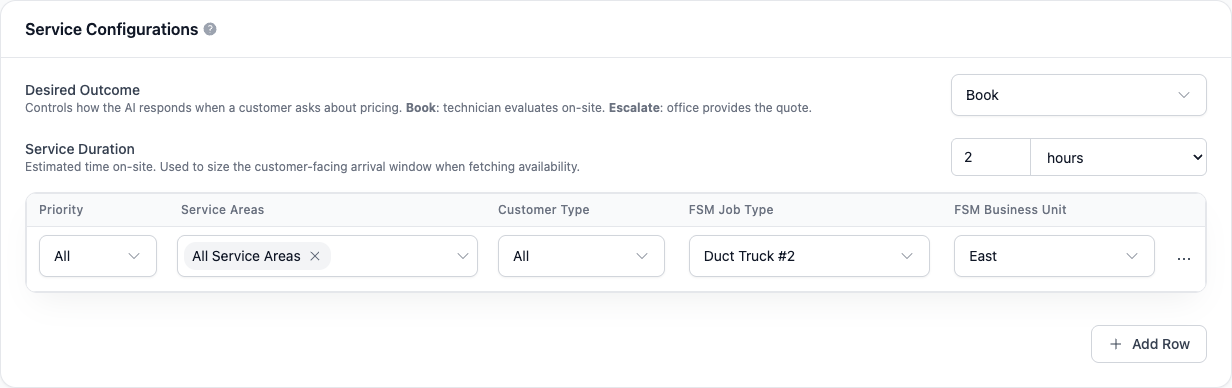
Desired Outcome
- Book: the assistant schedules the appointment. Pricing is evaluated by a technician on-site.
- Escalate: your office takes the request over. The assistant collects the service address, the qualification answers and the customer's email, then hands off to your Escalations inbox. Remove the qualification questions if you want a leaner handoff.
Service Duration
The estimated time on-site. It sizes the arrival window customers see. New services start at 120 minutes.
Once you map a job type, OnePath fills the duration in from that job type's duration in your field service software, and refreshes it nightly. If several job types are mapped, the longest wins. As soon as you edit the duration by hand it is never overwritten again.
The mapping rows
Each row tells OnePath how one slice of this service is created in your field service software. Columns:
- Priority: All, Urgent, High, Normal or Low.
- Service Areas: one or more of your service areas, or All Service Areas.
- Customer Type: All, Residential or Commercial.
- Provider columns:
| Your software | Columns on the row |
|---|---|
| ServiceTitan | FSM Job Type + FSM Business Unit |
| Housecall Pro | FSM Job Type + Price Book Service (availability is searched by the price book service, so fill it in) |
| AccuLynx | AccuLynx Calendar (the calendar availability is read from) |
| No field service software | Capacity Pool |
At booking time OnePath picks the first row whose priority and customer type match (or are All) and whose service areas contain the customer's ZIP. Use Add Row to send, say, commercial jobs to a different job type. Rows that overlap an existing one are rejected with an error, and a new row only saves once every required cell is filled.
Fix a service's job type
If a job type is deleted in your field service software, every row still pointing at it breaks and bookings for that service stop landing. OnePath checks your mappings every night and emails your Service escalation inbox (subject Action Needed - Broken FSM Mappings) when it finds one.
Bookings suddenly failing for a service?
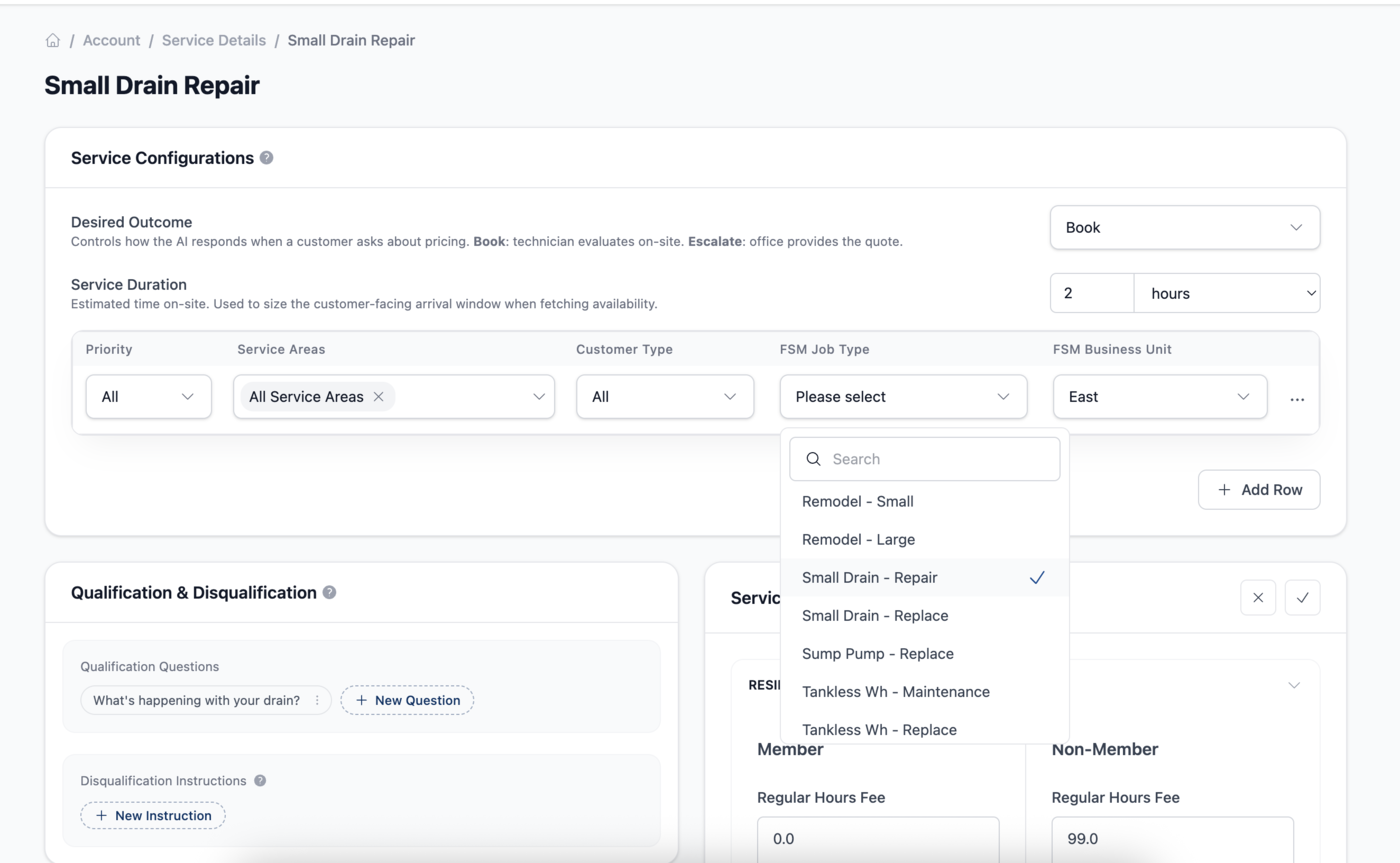
A deleted job type is the usual cause. Open the service and re-pick a valid job type on every row, not just the first one.
Click the FSM Job Type dropdown on the row. It is searchable and only lists job types that exist in the last sync. If the one you need is missing, press Refresh on your Integrations page first, then come back.
Qualification & Disqualification
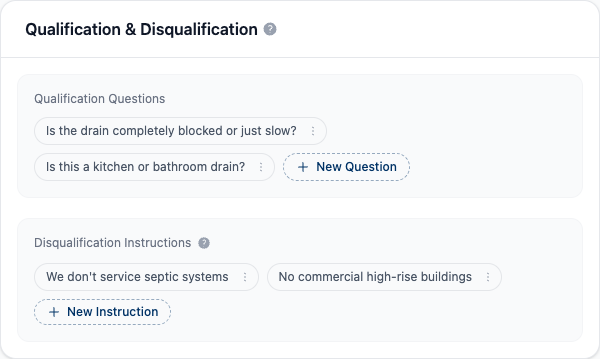
Qualification Questions are what the assistant asks to understand the job and pass details to you. Each service starts with the catalog's questions. Once you change them, catalog updates never overwrite your version.
Click New Question to add one:
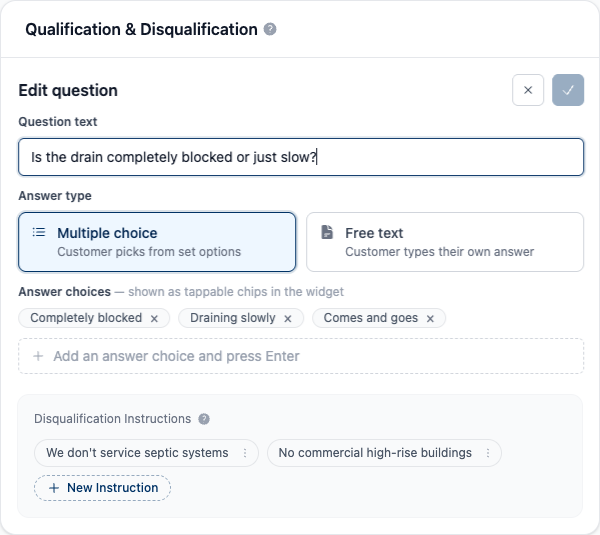
- Type the Question text.
- Pick an Answer type: Multiple choice (customer picks from chips), Free text, or Photo upload (customer attaches an optional photo).
- For multiple choice, add Answer choices and press Enter after each. Leave the choices empty and click out of the question text, and OnePath suggests choices for you (Generating suggestions…). Keep or edit them.
- Use the Required toggle if the customer must answer. Questions start optional. Photo questions are always optional.
Each pill has a menu: Edit details, Disable (keep it saved but stop asking; Enable brings it back), Make optional / Make required, and Delete.
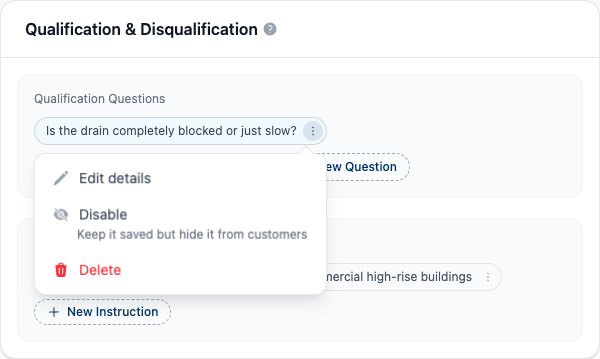
Disqualification Instructions are plain-English rules for when a lead should not be serviced, for example We don't service mobile homes. Click New Instruction, type the rule, press Enter. OnePath summarises them for the assistant automatically.
Service Dispatch Fees
Each fee reads as a sentence: pay [regular-hours fee] in regular hours, and [after-hours fee] after-hours, grouped by Residential / Commercial, then Member / Non-Member. Tap a fee to edit it (up to 140 characters), for example $79 dispatch fee (waived with repairs), CAD $95 or No fee for estimates. It saves when you click out.
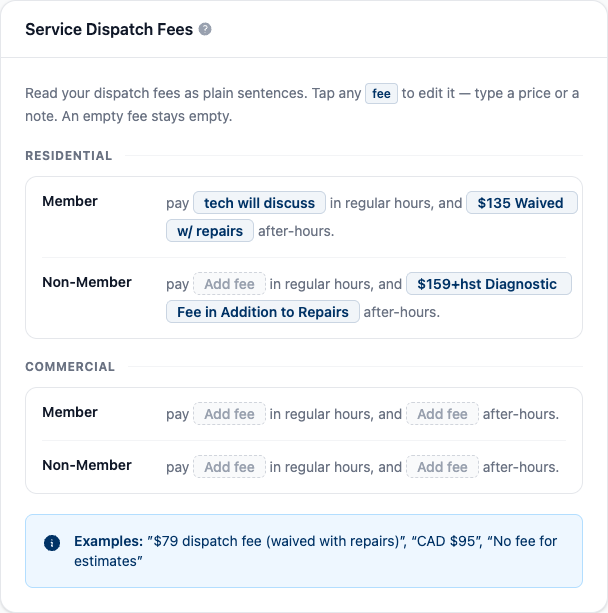
- Leave a service's fees empty and it uses your account defaults. The badge Fee not set for service, using account configuration's default fee. tells you so.
- Once a service has any fee of its own, every property type you serve needs one.
- Which fee is quoted (regular or after-hours) depends on the slot's start time and your Business Hours.
Default Service Dispatch Fees (button at the top of the Services page) opens the same fee grid for the whole account, with Cancel / Save buttons. It asks you to pick property types first if you have none.
Urgent & after-hours mappings
Shown at the bottom of the Services page for ServiceTitan and Housecall Pro accounts. Both cards autosave.
- Urgent availability: switch it on and pick a Job type (plus Business unit on ServiceTitan, or Pricing form on Housecall Pro). When a request is scored urgent and the service is one the catalog marks overbookable, OnePath searches this mapping for emergency slots on top of the normal search, and creates the job under it. The chip reads Mapped when every column is filled, Finish mapping otherwise.
- After-hours bookings: optional. Jobs booked into after-hours (as classified by your Business Hours) are written to this business unit / job type instead of the service's own. Availability never comes from it. See After-Hours Job Type.
- Auto-assign technicians to after-hours bookings (ServiceTitan only): when nobody in your office will be in before the job starts, OnePath assigns a technician ServiceTitan lists as Available. See After-Hours Auto-Assignment.
Quick Tips
- ✅ Switch a service on before configuring it - the pencil only works on open services.
- ✅ Fill every provider column - availability is searched, and the job created, through the row's mapping.
- ✅ Fix every row - a service with Residential and Commercial rows needs a valid job type on both.
- ❌ Don't hand-edit durations you want synced - a manual duration stops following the job type for good.
Still stuck?
Reach out in your OnePath Slack channel or email your account manager. Include the service name so we can help fast.