Settings · Service Setup
Business Hours
Business Hours decides which dispatch fee a booking is quoted at and where after-hours jobs are routed. Your hours never add or hide booking slots.
Quick Answer - 30 Seconds
To set your hours: Account settings → Service Setup → Business Hours → tap any day, time or pricing token in the sentences → done. Everything saves automatically; there is no Save button.
Your week reads as a few plain sentences. Days that share hours are grouped, so you usually edit two or three lines.
What this controls
This sets pricing, not availability
The time slots customers can book come from your field service software. Your hours never hide a slot; only the Earliest offer setting limits how soon the first one can be. See How availability works.
What you set here does three things:
- Pricing: for each slot a customer picks, OnePath checks that date's regular pricing window to decide between your regular fee and your after-hours fee (set under Services).
- After-hours routing: a booking priced after-hours can be written to a dedicated job type in your field service software. See After-Hours Job Type.
- Earliest offer: how soon the first slot your AI assistant offers may be.
So a customer can still book 7 PM or a Sunday if your field service software has a slot then. This page decides what that slot costs.
Where to find it
Location: Account settings → Service Setup → Business Hours
→ app.onepath.ai/settings/account/business_hours
Only Company Owners and Account Admins can open this page. Times are in the account's time zone, which is shown on Business Info.
Regular hours vs after-hours
Each open day has two windows:
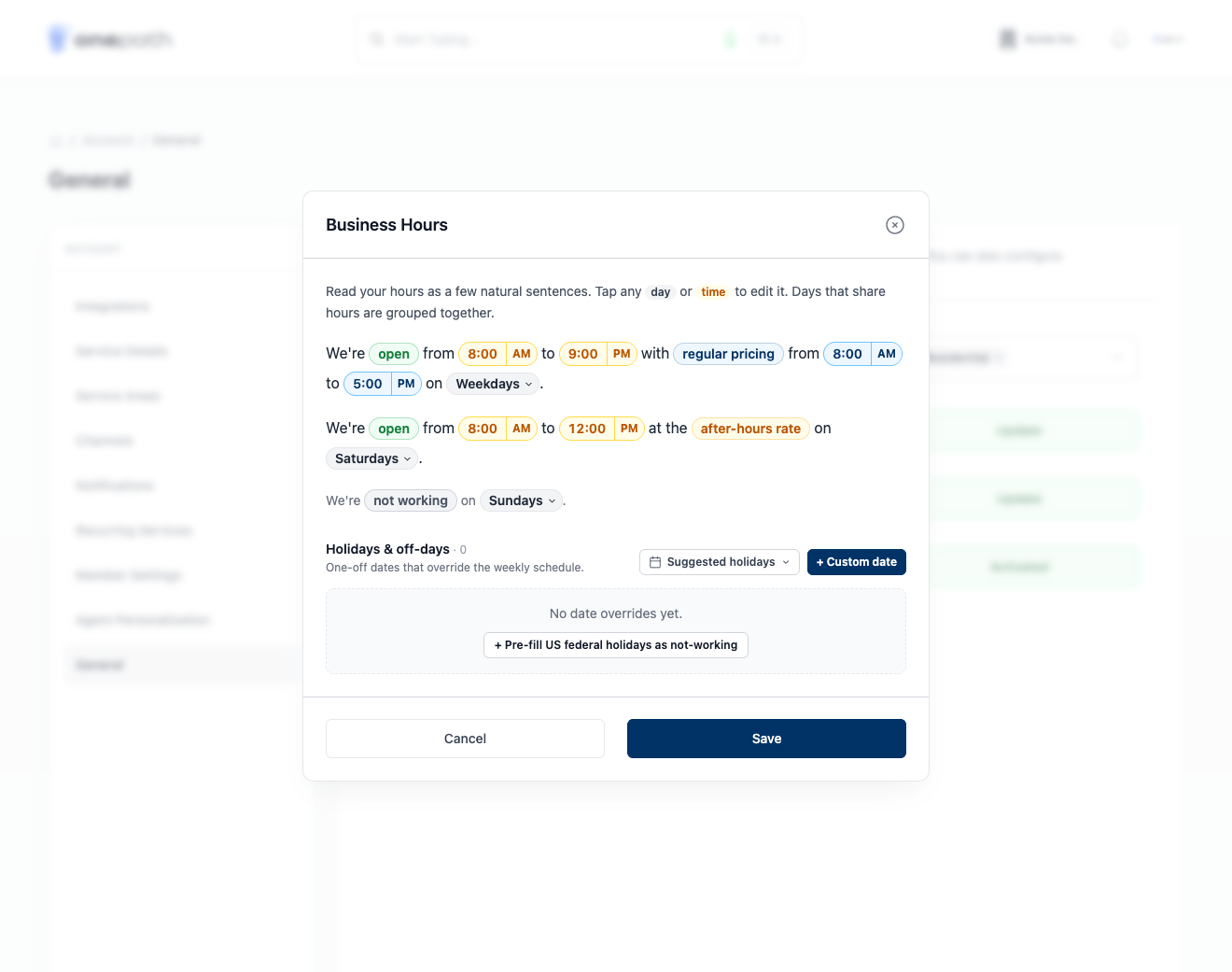
- Business hours: your wider operating window, We're open Weekdays from 8:00 AM to 5:00 PM.
- Regular pricing: the part of that window priced at your normal rate, with regular pricing from 8:00 AM to 5:00 PM. It must sit inside business hours.
| When the slot starts… | Fee quoted |
|---|---|
| Inside the day's regular pricing window | Your regular fee |
| Anywhere else: after-hours band, a day priced at the after-hours rate, a closed day, or a date closed by an exception | Your after-hours fee |
No after-hours pricing? Keep it simple.
If you charge the same at any time, keep regular pricing equal to business hours. Every booking is then your regular fee.
Editing a day
Everything in a sentence is tappable:
- Tap open / closed to change whether those days are open.
- Tap a time to type a new one, or use the AM/PM button. The end time must be later than the start.
- Tap regular pricing to switch it off; the sentence then reads at the after-hours rate and every booking that day is priced after-hours. Handy for emergency-only Saturdays.
- Use Add hours group to give some days their own sentence, and the trash icon to remove a group.
Changes save as you stop editing. You see Saving…, then Saved. If a value is invalid (for example regular pricing wider than business hours), the toast tells you what to fix and the change is not saved.
Grouping days
Days with identical hours share one sentence, for example Weekdays. Tap the day pill to choose exactly which days belong to that group.
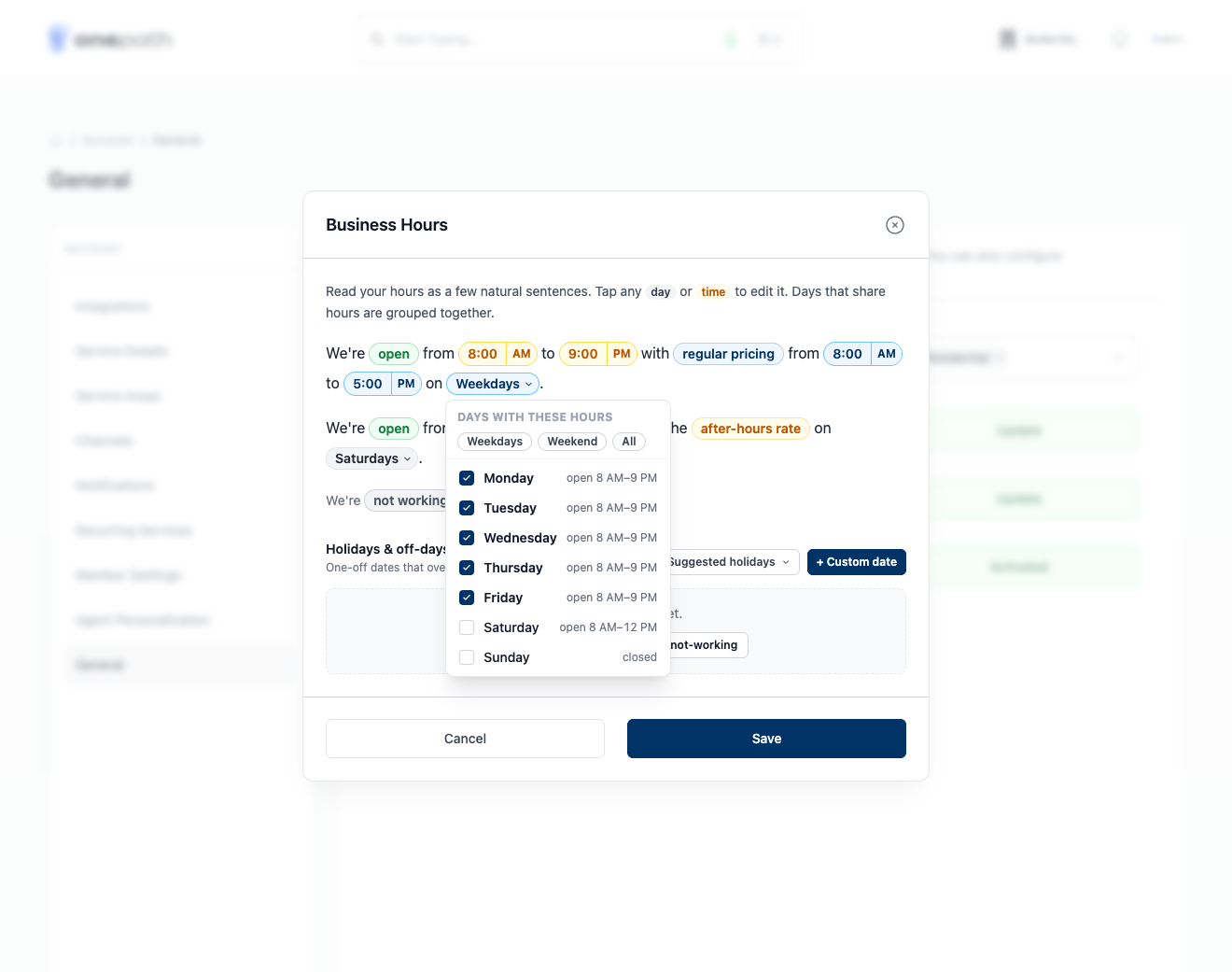
When a day's hours differ, it becomes its own sentence, so a typical setup ends up as Weekdays, Saturdays and Sundays.
New account?
A brand-new account has no hours at all until the setup wizard writes them. The wizard suggests Monday to Friday, 8:00 AM to 5:00 PM with regular pricing all day, weekends closed. Change it here any time after.
Exceptions & holidays
One-off dates that override the weekly schedule: different hours, a different pricing window, or closed.
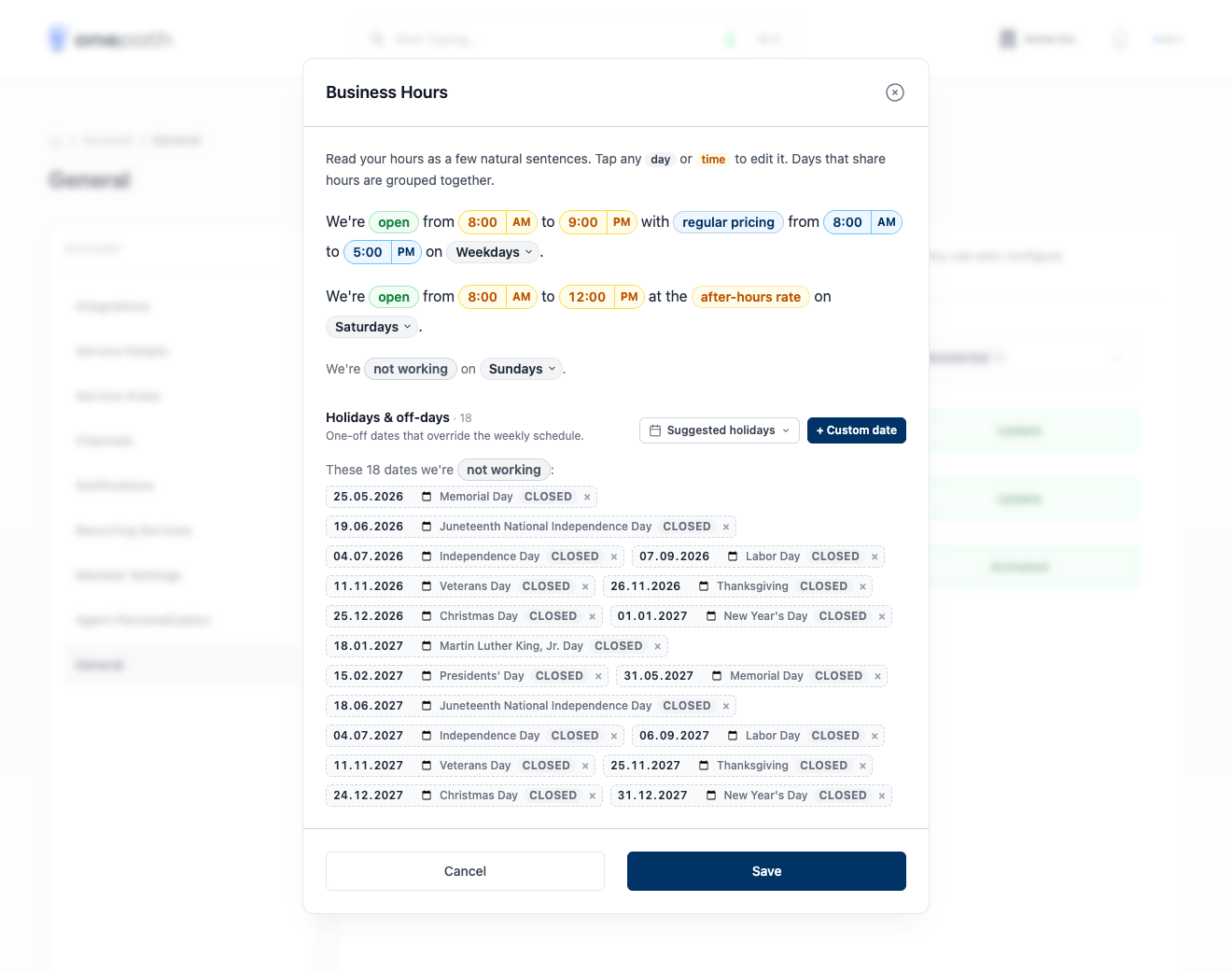
- Suggested holidays lists upcoming US federal holidays (observed dates, through the end of next year). Pick one and it is added as closed.
- Custom date adds your own date with an optional label, for example Company retreat.
- With no exceptions yet, Pre-fill US federal holidays as not-working adds them all at once.
Each exception reads as its own sentence (On Christmas Day we're closed). Tap its tokens to give that date hours or a pricing window, or the trash icon to remove it. Past dates are cleaned up automatically, so you never delete last year's holidays by hand.
Earliest offer
When a customer wants the soonest visit, offer nothing earlier than 60 minutes from now.
Change the number and unit (minutes, hours or days) to give your dispatchers breathing room. The default is 60 minutes; the maximum is two weeks. Your AI assistant never offers a slot that starts sooner than this.
Common setups
| You want… | How to set it |
|---|---|
| Same price all day, no after-hours | Keep regular pricing equal to business hours |
| Regular price 8 to 5, higher rate in the evening | Business hours 8:00 AM to 9:00 PM, regular pricing 8:00 AM to 5:00 PM |
| Emergency-only Saturday, all priced after-hours | Open Saturday, tap regular pricing so it reads at the after-hours rate |
| One date priced entirely after-hours | Add it under Exceptions & holidays as closed |
| No same-day bookings | Set Earliest offer to 1 day |
Quick Tips
- ✅ Pair it with your fees - regular and after-hours fees live on each service under Services.
- ✅ Add holidays once a year - the suggestions list runs through the end of next year.
- ❌ Don't expect closed days to block bookings - slots still come from your field service software; a closed day only changes the price.