Settings · AI & Alerts
Job Details Agent
The Job Details Agent writes the dispatch summary for every job your AI assistant books, and applies your job tags in your field service software, following rules you write in plain English.
Quick Answer - 30 Seconds
To tag booked jobs automatically: Account settings → AI & Alerts → Agent Personalization → scroll to Job details instructions → write your tagging rules → click outside the editor. It saves itself.
Leave the instructions blank and nothing changes: summaries stay on the standard format and jobs stay untagged.
What this controls
Every booking creates a job in your field service software with a summary your technicians read before arriving. Your instructions steer two things:
- The summary: what it should always mention, how long it should be.
- The tags: which of your job tags to apply, and when.
If your team prioritises or routes jobs by tags (system age, member vs non-member, install opportunities), the AI applies the tag to every booked job. No manual tagging.
Where to find it
Location: Account settings → AI & Alerts → Agent Personalization → Job details instructions
→ app.onepath.ai/settings/account/agent_personalization
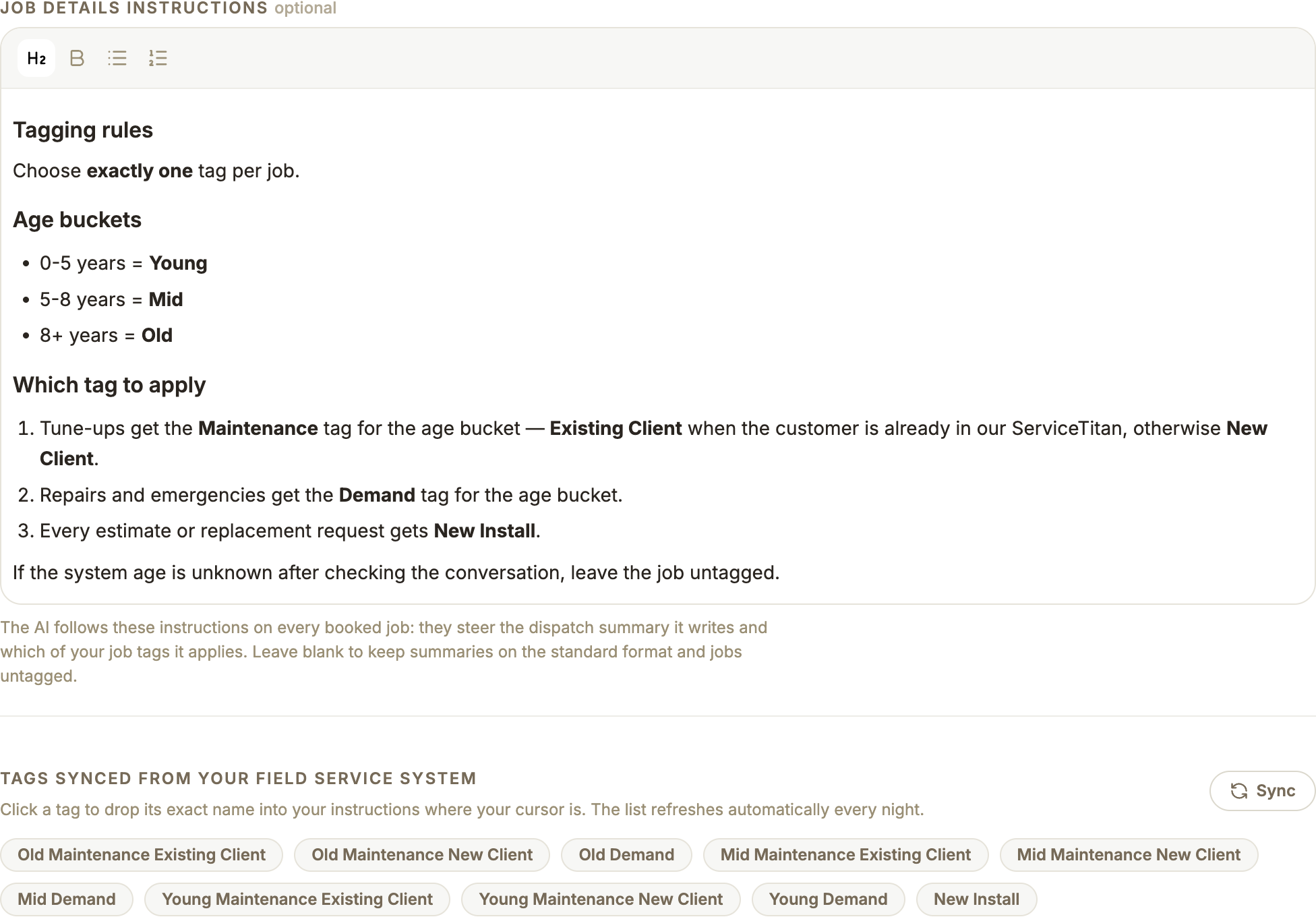
Company Owners and Account Admins can edit. The rest of the Agent Personalization page (assistant name, greetings, follow-ups) has its own guide.
1. Check your synced tags
Below the editor, Tags synced from your field service system lists the exact tag names from your connected software. It only appears once your field service software is connected.

- The list refreshes automatically every night. The first 10 tags show; +N more expands the rest.
- Just created tags? Press Sync. The button reads Syncing… and the list updates in place when the sync finishes.
- Click any tag pill to drop its exact name into your instructions at the cursor. That guarantees the spelling matches.
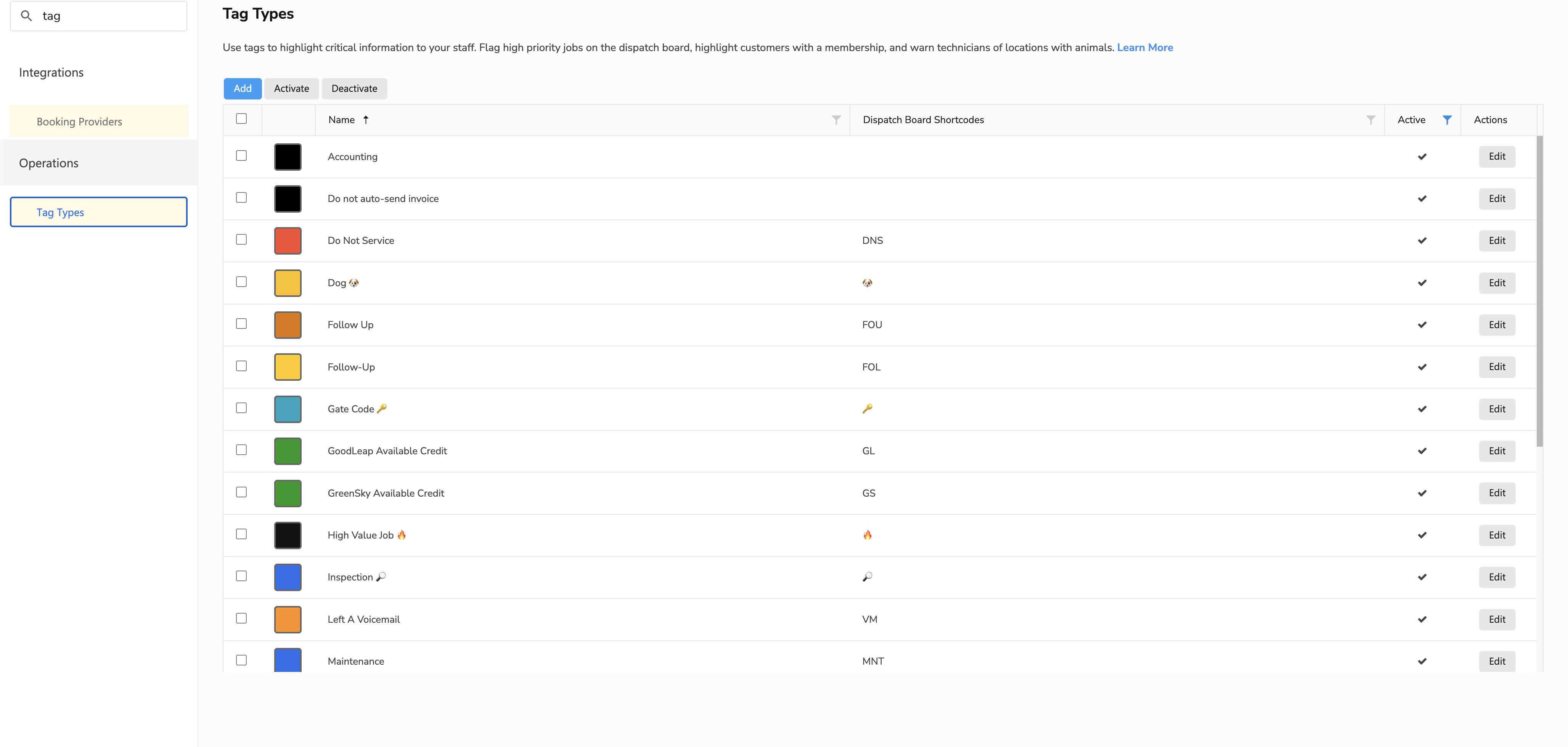
No tags showing?
Tags are created in your field service software, not in OnePath. In ServiceTitan: Settings → Operations → Tag Types. Create them there first, then press Sync here. You will see No tags synced yet until then.
2. Write your instructions
Use the editor like a simple document: headings, bold and lists. Describe which tag applies in which situation, and what to do when a detail is unknown. Up to 5,000 characters.
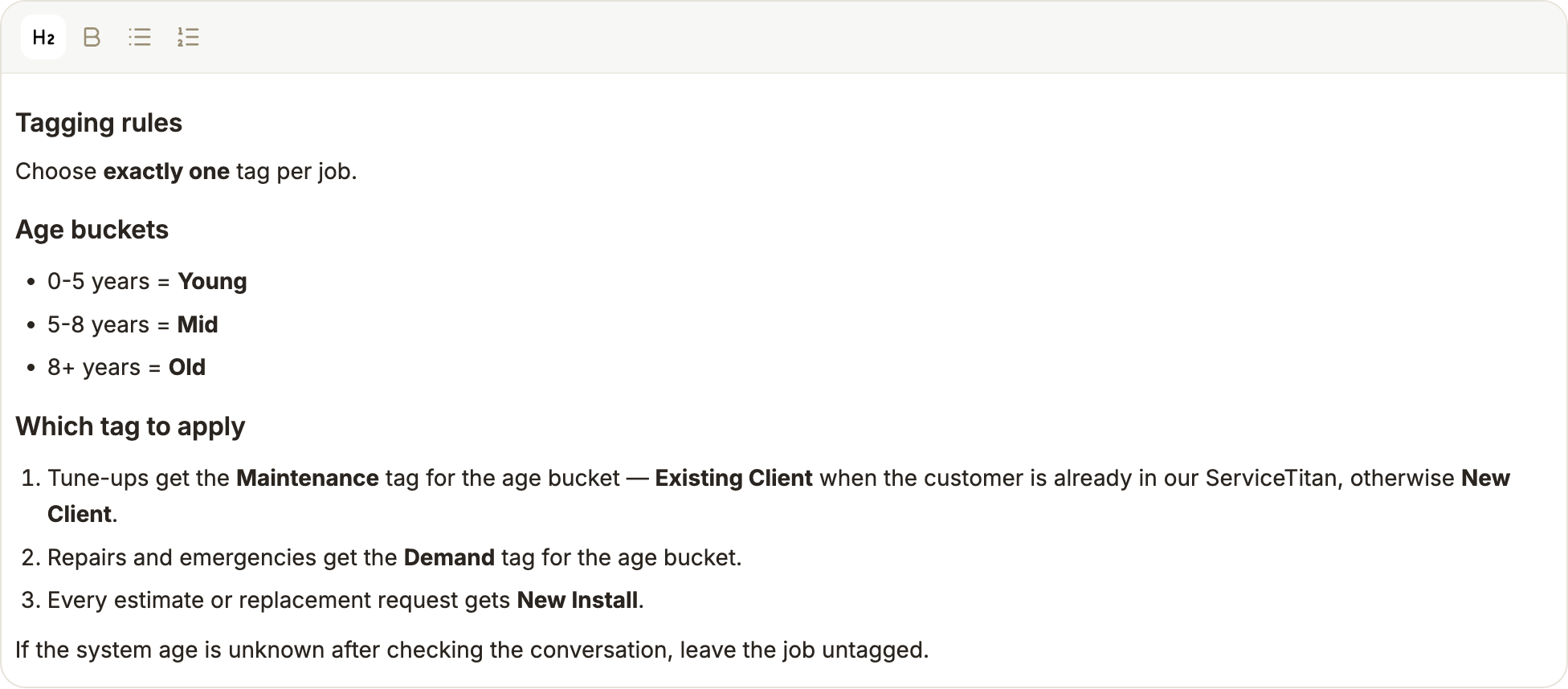
A good set of instructions answers three questions:
- Which tag for which situation? Repairs get the Demand tag for the age bucket.
- How many tags per job? Choose exactly one tag.
- What if something is unknown? If the system age is unknown, leave the job untagged.
It steers summaries too
The same instructions shape the summary, for example Always mention the equipment brand when the customer names it or Keep summaries under three sentences.
3. It saves itself
There is no save button. Your instructions save when you click outside the editor. A small Saved toast confirms it; Couldn't save — check your entries means the text was rejected (usually too long).
FAQ
Do I need to turn anything on? No. Writing instructions is turning it on. Clear the instructions to turn it off.
Which field service systems are supported? Tags come from the software connected under Integrations. ServiceTitan tag types are synced as described above. If your synced list stays empty after a Sync, ask your account manager whether tagging is available for your software.
Can it apply more than one tag? Yes, if your instructions call for it. Say how many tags a job should get, for example Choose exactly one tag.
How do I check what was applied? Open the job in your field service software. The tag and the summary are on the job itself.
Does the wizard have this too? Yes. The Your Customer Service Rep phase of the setup wizard shows the same editor, without the Sync button.