Settings · Lead Capture
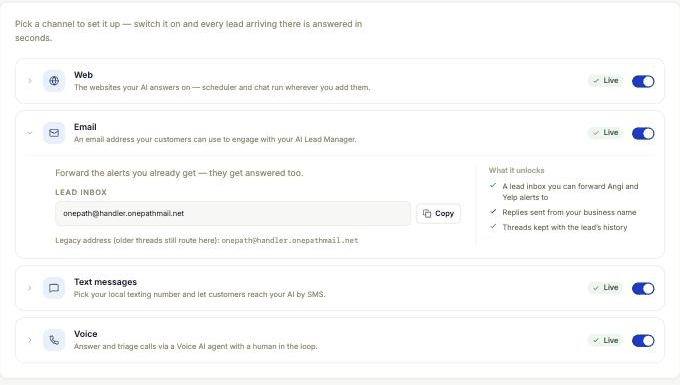
Email lead inbox
The Email channel gives you one inbox address. Forward any lead email to it and your AI assistant treats it as a new lead and replies.
Quick Answer - 30 Seconds
To use it: Account settings → Lead Capture → Channels → Email card → flip the switch on → copy the Lead inbox address → forward your lead emails to it.
Nothing else is required. The chip reads Live as soon as the switch is on.
What this controls
| On | Off |
|---|---|
| Emails sent to your lead inbox become conversations the AI answers | Emails to the inbox are not answered |
| Replies go out under your business name | |
| The whole thread is kept with the lead's history |
The card's own summary: "A lead inbox you can forward Angi and Yelp alerts to", "Replies sent from your business name", "Threads kept with the lead's history".
Where to find it
Location: Account settings → Lead Capture → Channels → Email card
→ app.onepath.ai/settings/account/channels
Your inbox address
The card shows Lead inbox with a read-only address and a copy button:
<your-handle>@handler.onepathmail.net
<your-handle> is your account's URL handle, the same one in your booking page link book.onepath.ai/<your-handle>. It does not change after go-live.
If a line reads "Legacy address (older threads still route here):" with a second address, leave it alone. Older forwarding rules that point at it keep working.
What to forward
Anything that arrives as an email and is really a lead:
- Angi lead alerts. Angi has no connection on Lead platforms; email is how Angi leads reach OnePath.
- Yelp lead alert emails, if you have not connected Yelp on Lead platforms.
- Website contact-form notifications.
- Any other lead-alert email your marketing tools send you.
Set up an automatic forwarding rule in the mailbox that receives those alerts, so nothing depends on someone remembering to forward.
What the assistant does with a forwarded email
- OnePath reads the email, picks out the customer's details and request, and opens a conversation on the Email channel.
- Your AI assistant replies, asks what it needs to know, and books when it can. If the email came from a lead platform, OnePath recognises it as a platform lead.
- Requests the AI cannot handle are escalated to your team under your Escalations settings.
You can read every thread under Interactions. Email leads with no other source are credited to Email — Direct on Lead sources. Map it there, or jobs booked from them arrive in your field service software as "OnePath".
Quick Tips
- ✅ Forward automatically - a mail rule beats a person remembering.
- ✅ Forward the original alert - the AI needs the customer's contact details in the message.
- ❌ Don't send internal mail there - everything arriving at the inbox is treated as a lead.
Still stuck?
Reach out in your OnePath Slack channel or email your account manager. Include the subject line of the email you forwarded so we can help fast.