Settings · Lead Capture
Lead sources
Lead sources is where OnePath answers "where did this lead come from?", and where you decide how jobs from each source are credited in your field service software.
Quick Answer - 30 Seconds
To map a source: Account settings → Lead Capture → Lead sources → Configure on the source's row → pick its <your software> lead source → Save.
Anything you leave unmapped still books. It just arrives as "OnePath".
What this controls
Every conversation is stamped with the lead source it came from: Google Ads, Yelp, Website form, Phone — Direct and so on. A source can hold campaigns, the individual ads or listings under it.
When OnePath books a job in your field service software, it sets the job's lead source there. By default that is "OnePath". Mapping a source, or pinning one of its campaigns, credits the job correctly instead.
| Your software | What the mapping sets on the job |
|---|---|
| ServiceTitan | The campaign |
| Housecall Pro | The lead source, by name |
| AccuLynx | The lead source |
| Fyxify | The lead source |
Where to find it
Location: Account settings → Lead Capture → Lead sources
→ app.onepath.ai/settings/account/lead_sources
Any team member can open the page. Adding, editing and mapping sources needs a Company Owner or Account Admin.
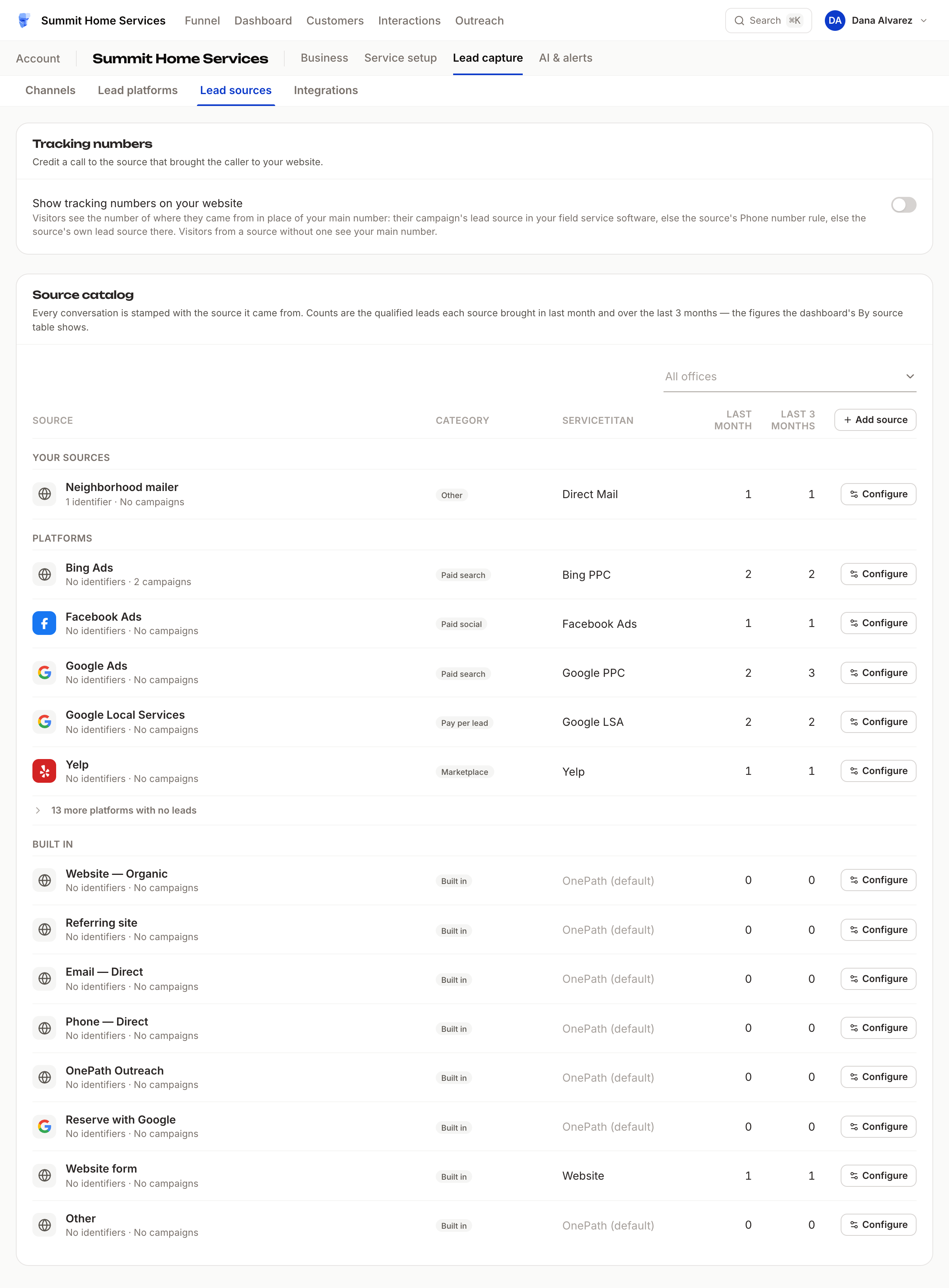
The source catalog
The Source catalog lists every source with the qualified leads it brought Last month and over the Last 3 months. These are the same figures as Job requests by source under the Dashboard's Sources tab → Details and trends. With more than one office, the select above the list shows one office's counts.
Sources come in three groups:
- Your sources - the ones you added: a referral partner, a mailer, a truck wrap.
- Platforms - Google Ads, Google Local Services, Facebook Ads, Bing Ads, Yelp and the other ad platforms. Platforms with no leads fold under N more platforms with no leads.
- Built in - Website — Organic, Website form, Email — Direct, Phone — Direct, OnePath Outreach, Reserve with Google, and Other last.
If your field service software takes a lead source, an extra column, named after it, shows each source's mapping, or OnePath (default).
Map a source
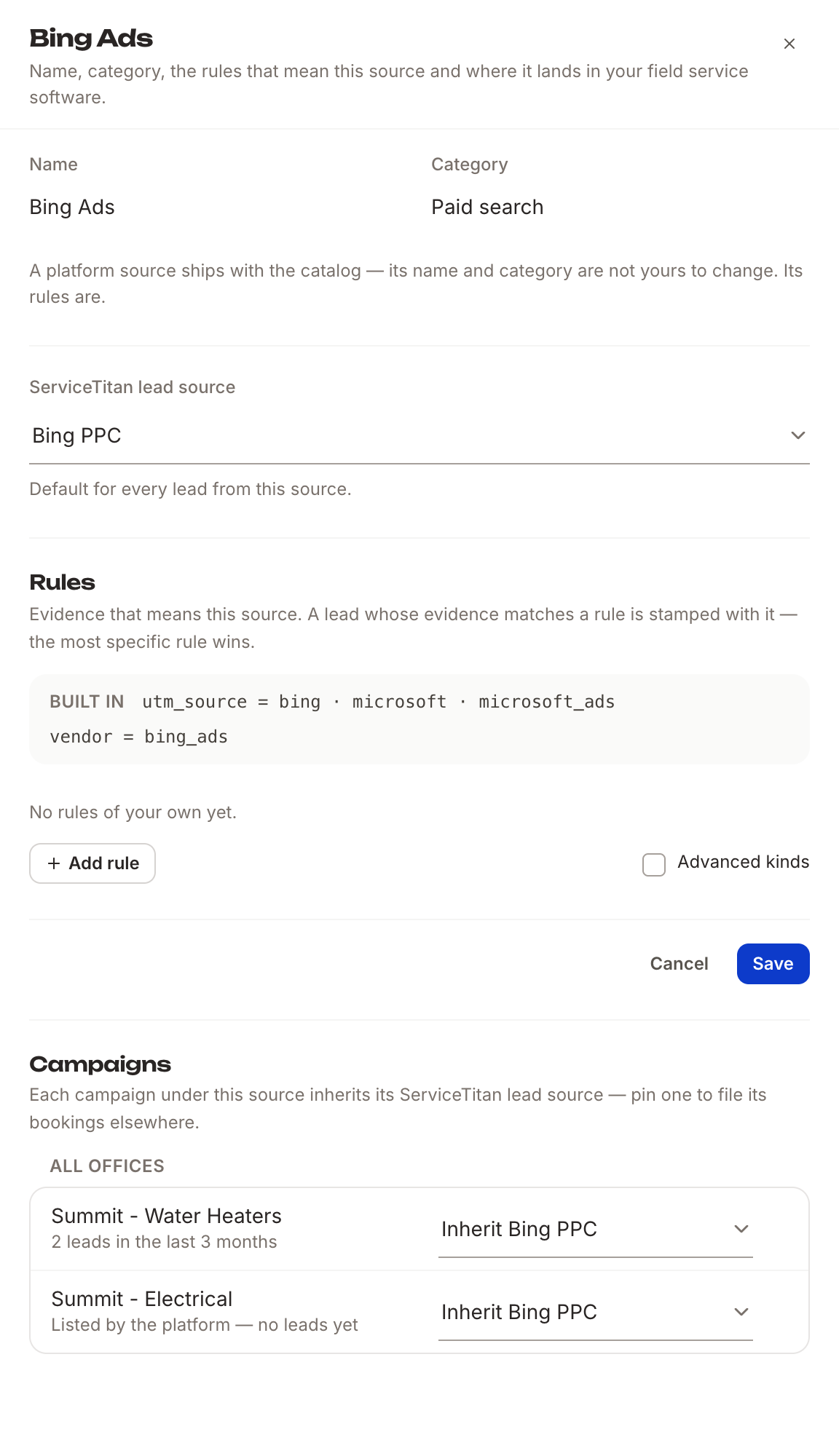
- Click Configure on the source's row. A drawer opens.
- Pick the <your software> lead source, for example ServiceTitan lead source. It reads "Default for every lead from this source." Leave it on OnePath (default) to keep the default.
- Click Save.
The list comes from your field service software. If the source you want is missing there, add it in your software first; the list refreshes on the next sync.
Pin a campaign
Below the form, the Campaigns section lists the source's campaigns. Each one inherits the source's mapping until you pin it to something else. Pin a campaign when its jobs belong somewhere other than the rest of the source. For example, your Electrical ads go to "Bing PPC — Electrical" while the rest of Bing Ads goes to "Bing PPC".
- Open the source's Configure drawer.
- In Campaigns, find the campaign and open its dropdown. It shows Inherit <source mapping> until you pin it.
- Pick the lead source. A spinner shows, then a green tick. It saves on its own.
To undo a pin, pick Inherit … again. With more than one office, campaigns are grouped by office, so each office's campaign can be pinned on its own.
Map campaigns before their first lead
Normally a campaign appears here only once its first lead arrives. That first job would book under the source's mapping before you had a chance to pin it.
Connect Google or Microsoft Advertising on Lead platforms and pick your ad accounts under Campaign accounts. OnePath then lists those accounts' campaigns ahead of time:
- They show under Google Ads or Bing Ads with the line Listed by the platform — no leads yet.
- Pin them now, and the first lead from each one books under your pin.
- New campaigns are added every night, and right after you change your picks.
- Removed campaigns are not listed. Rename a campaign on Microsoft Advertising and its row follows the new name, pin included.
Once a lead arrives, the line changes to its lead count as usual.
Add your own source
Click Add source at the top of the list. Give it a Name and a Category, then add Rules: the evidence that means this source.
A rule reads like a sentence: UTM source · is · nextdoor. The everyday kinds are UTM source, UTM campaign, Sender domain, Phone number, Referrer host and Click id. Tick Advanced kinds for the rest. When several rules match a lead, the most specific one wins.
Saving a rule regroups past campaigns too: the toast tells you how many moved. Platform and built-in sources show their Built in evidence and keep their name and category, but you can add rules to them.
To retire a source of your own, open it and click Archive. Its campaigns fall back to a built-in source or Other.
Needs review
Campaigns no rule recognises land on Other. When some do, a Needs review card appears above the catalog. For each campaign, choose:
- Assign to source - pick a source, or New source… to create one. OnePath writes a rule, so similar campaigns follow.
- Keep in Other - hides it from the card.
Tracking numbers
The Tracking numbers card has one switch: Show tracking numbers on your website. On, a visitor sees the phone number of where they came from instead of your main number, so a call is credited to the right source. It is off until you turn it on.
The reminder email
When a job from an unmapped source is sent to your software, OnePath emails your Service escalation list (see Escalations). The subject reads "Lead Source Not Mapped - <source> - <time>". You get at most one per source per day. Its Map <source> in OnePath button opens this page.
Quick Tips
- ✅ Map your top sources first - Google Ads, Google Local Services and Facebook Ads usually matter most.
- ✅ Pin campaigns only where they differ - everything else inherits the source's mapping.
- ✅ Pick only your own ad accounts - an agency login can reach other businesses' accounts too.
- ❌ Don't worry about unmapped sources - jobs still book; they're credited as "OnePath" until you map them.
Still stuck?
Reach out in your OnePath Slack channel or email your account manager. Include the lead source and campaign name so we can help fast.