Account Settings
Account settings
Account settings is where you shape how OnePath represents your business: contact details, services, hours, lead channels, and how your AI assistant behaves.
Quick Answer - 30 Seconds
To open settings: click your initials (top right) → Account settings → pick a page in the left sidebar.
Direct link: app.onepath.ai/settings/account (it opens on Integrations). Every settings page is also in search (⌘K).
Who can open settings
| Role | Account settings |
|---|---|
| Company Owner | Every page, plus Company (accounts & billing) |
| Account Admin | Every page |
| Account Member | No settings sidebar. Members work in Dashboard, Customers and Interactions. |
If a member opens a restricted settings page, they see "Access denied. You don't have permission to perform this action." and are sent back. See Roles, sign-in & switching accounts.
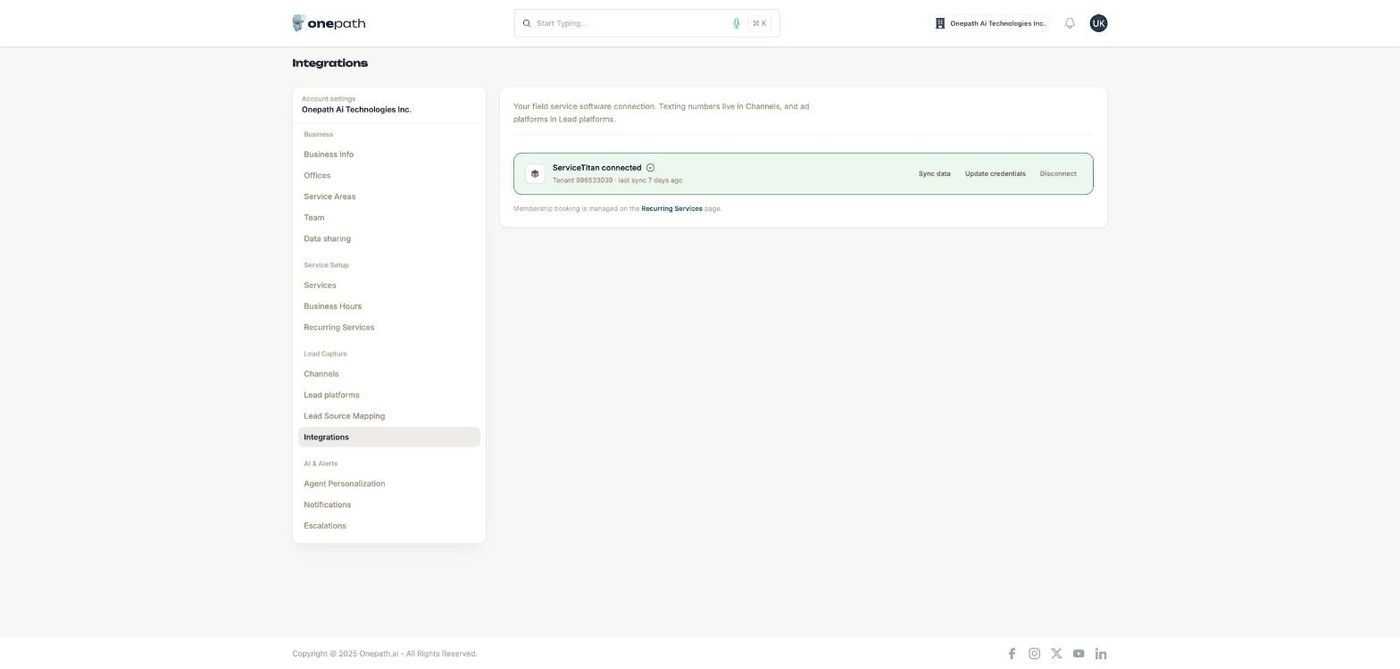
Business
| Page | What it controls |
|---|---|
| Business Info | The phone and email your AI assistant gives out, plus your logo and brand colours |
| Offices | Your locations, each with its own booking link, and Book Now on Google |
| Service Areas | The ZIP or postal codes you serve; anything else is outside your service area |
| Team | Who can sign in to this account and their role |
| Data sharing | Whether a referring agency may see your monthly totals |
Service Setup
| Page | What it controls |
|---|---|
| Services | What customers can book, qualification questions, fees, and the job type each service creates |
| Business Hours | Your weekly schedule, holidays, and regular vs after-hours pricing (see also After-Hours Job Type and After-Hours Auto-Assignment) |
| Recurring Services | Membership visits customers can book. ServiceTitan accounts only; hidden otherwise |
How booking slots are chosen is explained in How availability works.
Lead Capture
| Page | What it controls |
|---|---|
| Channels | Which ways customers can reach you are on: Web Scheduler, Web Chat, text, voice and email |
| Lead platforms | Google Local Services, Facebook Lead Ads, Yelp and Microsoft Advertising connections, and the ad accounts your campaigns are listed from (Angi leads arrive by email) |
| Lead sources | Where your leads come from, and which lead source in your field service software each source and campaign is booked under |
| Integrations | Your field service software connection, and your phone number for voice and texting |
AI & Alerts
| Page | What it controls |
|---|---|
| Agent Personalization | Your AI assistant's name (default Amy), greetings, follow-up limits, CSR Instructions and the Job Details Agent |
| Notifications | Emails and webhooks when appointments are created, rescheduled or cancelled |
| Escalations | Who is emailed when your AI assistant hands a conversation to your team, by topic |
Pages with no sidebar entry
These are reached by direct link only:
| Page | Direct link | Notes |
|---|---|---|
| Calendar feed | app.onepath.ai/settings/account/calendars/feed | Subscribe to your appointments in Google Calendar or any calendar app. See Calendar & calendar feed. |
| Notification preferences | app.onepath.ai/settings/notification_preferences | A short form for appointment emails only. Company Owner and Account Admin. See Your profile, security & notification preferences. |
Your own settings and your company
The user menu (your initials, top right) also holds Your profile and Security & privacy, which every user can open, and Company, which only the Company Owner sees. Read about them in Your profile, security & notification preferences and Company: accounts & billing.