Settings · Business
Business Info
Business Info holds the contact details your AI assistant hands to customers and the brand your web widgets and booking pages wear. Changes save automatically.
Quick Answer - 30 Seconds
To change the number or email the AI gives out: Account settings → Business → Business Info → edit Phone or Email → click away. A toast confirms "Phone saved" or "Email saved".
There is no Save button. Every field saves the moment you leave it.
What this controls
| Field | What it changes |
|---|---|
| Phone, Email | When a customer asks how to reach you directly, your AI assistant gives out exactly these. |
| Logo, Background, Text | The look of your Web Scheduler, Web Chat and hosted booking pages. Nothing to set up on those pages. |
| Business, Website, Timezone | Shown for reference only; they are not edited here (see below). |
Nothing on this page is sent to your field service software.
Where to find it
Location: Account settings → Business → Business Info
→ app.onepath.ai/settings/account/business_info
Company Owner and Account Admin can open it.
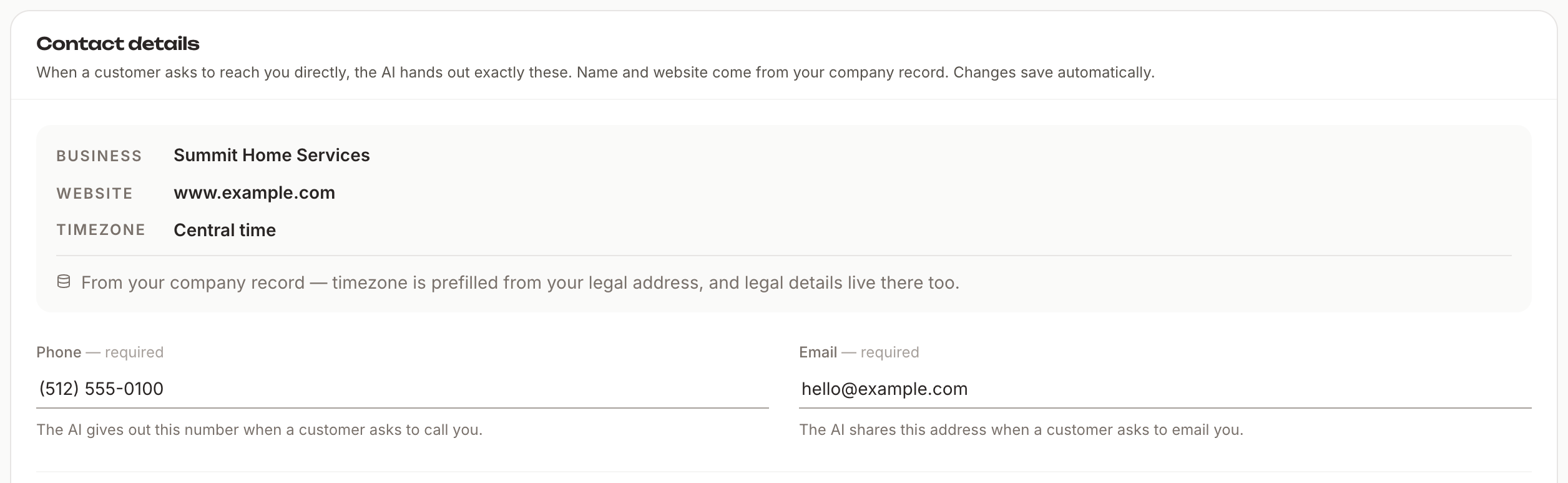
Your business record (read-only)
The top card shows three values from your company record:
- BUSINESS — your account name.
- WEBSITE — your website, or "Not set yet".
- TIMEZONE — for example "Eastern time" or "Pacific time". It drives every time shown in the app and every booking slot.
The time zone is derived from your primary office address. To change it, make a different office primary on Offices, or edit the primary office's address. The account name is edited by the Company Owner under Company: accounts & billing.
Contact details
Phone — the number the AI gives out when a customer asks to call you. Must be a real, 10-digit US number; placeholder numbers starting with 555 are rejected.
Email — the address the AI shares when a customer asks to email you. Must be a valid email. As you type, addresses used during setup are suggested.
Both are marked required. If a save fails you see the reason, or "Couldn't save — please try again", and the field is marked as rejected.
Brand
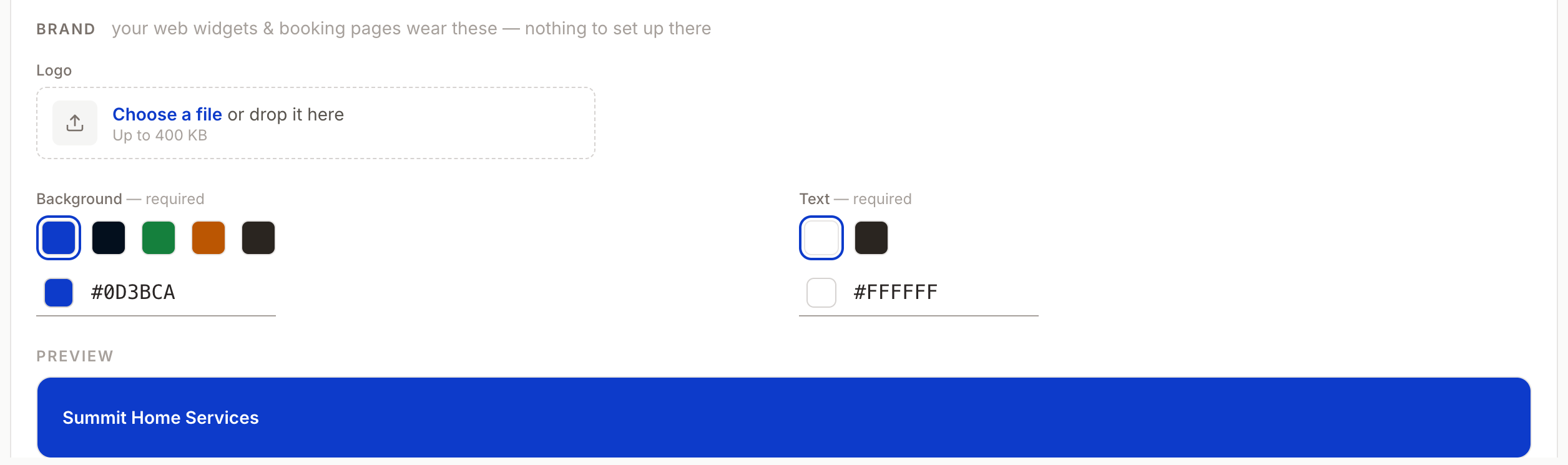
Your web widgets and booking pages wear these; there is nothing to set up on those pages.
Logo
Click Upload logo (or Change logo). Accepted: PNG, JPEG, SVG or WebP, under 400 KB. A larger file shows "Logo must be under 400 KB" and nothing changes. The logo is the brand image on every web widget and on your booking page. There is no remove button; upload a new file to replace it.
Background and Text colours
- Background — five presets (Path blue
#0D3BCA, Midnight#030F1D, Forest#15803D, Clay#BB5602, Ink#2A2520), a colour picker, or type a hex value. Default: Path blue. - Text — White
#FFFFFF(default) or Ink#2A2520, or your own hex value.
Type something that isn't a colour and you see "That isn't a colour — use a hex value like #0D3BCA". A valid change shows "Brand saved".
Preview
The Preview banner shows your logo and business name on the chosen colours, as your widgets and booking pages will show them.
Not on this page
| You want to change… | Go to |
|---|---|
| Account name, DBA / friendly name, address, time zone | Company: accounts & billing (Company Owner). The friendly name creates your booking-link handle, which locks once your account goes live. |
| Office addresses and booking links | Offices |
| The websites your widgets may run on | Channels |
Quick Tips
- ✅ Use the number you want customers to dial - the AI quotes it word for word.
- ✅ Keep the logo small - a 400 KB limit means a compressed PNG or SVG, not a print file.
- ✅ Check contrast in the Preview - white text on a light background is unreadable.
- ❌ Don't look for a Save button - if the toast said "saved", you are done.
Still stuck?
Reach out in your OnePath Slack channel or email your account manager. Include the field name and the message you saw so we can help fast.