Settings · Business
Company: accounts & billing
Company settings are where the Company Owner manages every OnePath account under the company, for example one per brand or location group.
Quick Answer - 30 Seconds
To add an account: click your initials (top right) → Company → Manage Accounts → Add Account → fill in the form → Add Account.
Only the Company Owner sees Company. Deleting an account removes everything on it and can't be undone.
What this controls
A company can run several OnePath accounts. Each account has its own leads, team, services, channels and settings. From here the Company Owner can:
- see every account under the company,
- add a new account,
- edit an account's name, time zone, address, phone, friendly name and email,
- delete an account.
Where to find it
Location: your initials (top right) → Company
→ app.onepath.ai/company (opens on Manage Accounts)
The left sidebar, titled Company, has two pages: Manage Accounts and Billing.
Only the Company Owner sees the Company menu item. An Account Admin who follows the link is told "You don't have permission to view the accounts list."
Manage Accounts
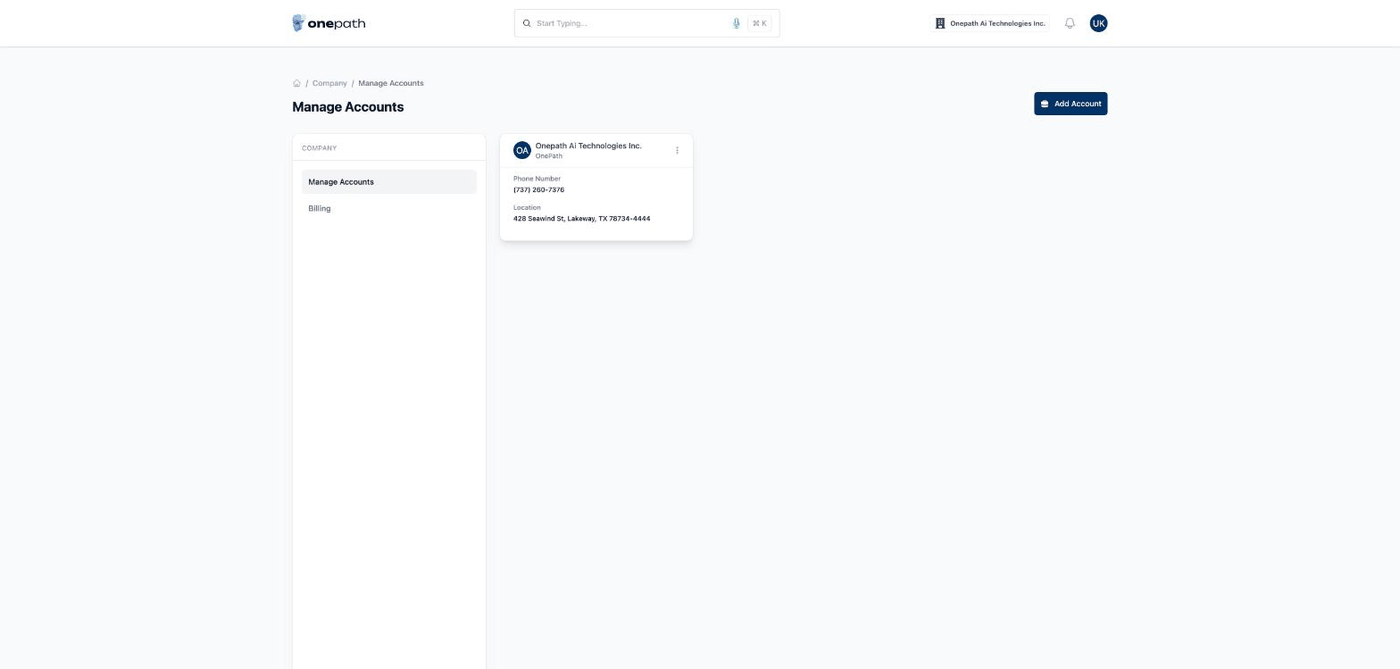
The All Accounts grid shows one card per account: its name and friendly name, Phone Number and Location (a dash when blank). Each card has a ⋮ menu with Edit and Delete.
Add an account
Click Add Account and fill in:
| Field | Notes |
|---|---|
| Account Name | Required. Must be unique within your company. |
| Time Zone | Pick from the list. Once the account has a primary office, that office's address sets the time zone (see Offices). |
| Address | Required. Pick the full address from the suggestions. |
| Phone Number | Required. A real 10-digit US number. |
| Friendly Name | Required. It creates the account's handle in its booking links. |
| Optional. |
Click Add Account. You see "Account was successfully created."
You're added to the new account, so it appears in your account switcher. It starts with default services and channels for you to adjust. Nobody else is added; invite your team from its Team page.
The friendly name locks at go-live
The Friendly Name becomes the handle in every booking link for that account. Once the account is live, the handle can't be changed. Choose it before go-live.
Edit an account
Click ⋮ → Edit, change the fields, then click Update Account. You see "Account was successfully updated." The account name you set here is the one shown on Business Info.
Delete an account
Click ⋮ → Delete. The Remove Account dialog asks "Are you sure you want to delete this account? This action cannot be undone." Click Remove to confirm.
Deleting is permanent
Deleting an account removes it and everything on it: offices, leads, team access and integrations. OnePath cannot restore it. If you only want to stop using an account for a while, talk to your account manager first.
Switching between accounts
Everything you see in OnePath belongs to one account at a time. If you belong to two or more, use the account switcher to move between them. On company pages, open your avatar menu and use the Accounts list. The details are in Roles, sign-in & switching accounts.
Billing
The Billing page has nothing to view or change yet. Billing is handled with your OnePath contact.
Quick Tips
- ✅ One account per brand or system you run - each keeps its own leads, services and booking links.
- ✅ Double-check the friendly name - it shows in customer-facing links and locks at go-live.
- ❌ Don't delete an account to "reset" it - everything goes with it, and it can't come back.
Still stuck?
Reach out in your OnePath Slack channel or email your account manager. Include the account name so we can help fast.