Your Workspace
Interactions
Interactions is the inbox: every call, chat, form, text and email your AI assistant answered, in one list with the full transcript beside it.
Quick Answer - 30 Seconds
To see who is waiting on a person: top bar → Interactions → sort by Needs a person first → open the top row. The transcript shows Sent to the office or Task opened, telling you who has it.
You read here; you don't reply here. Replies come from the AI, or from the person the conversation was handed to.
Where to find it
Location: top bar → Interactions (⌘K → Interactions)
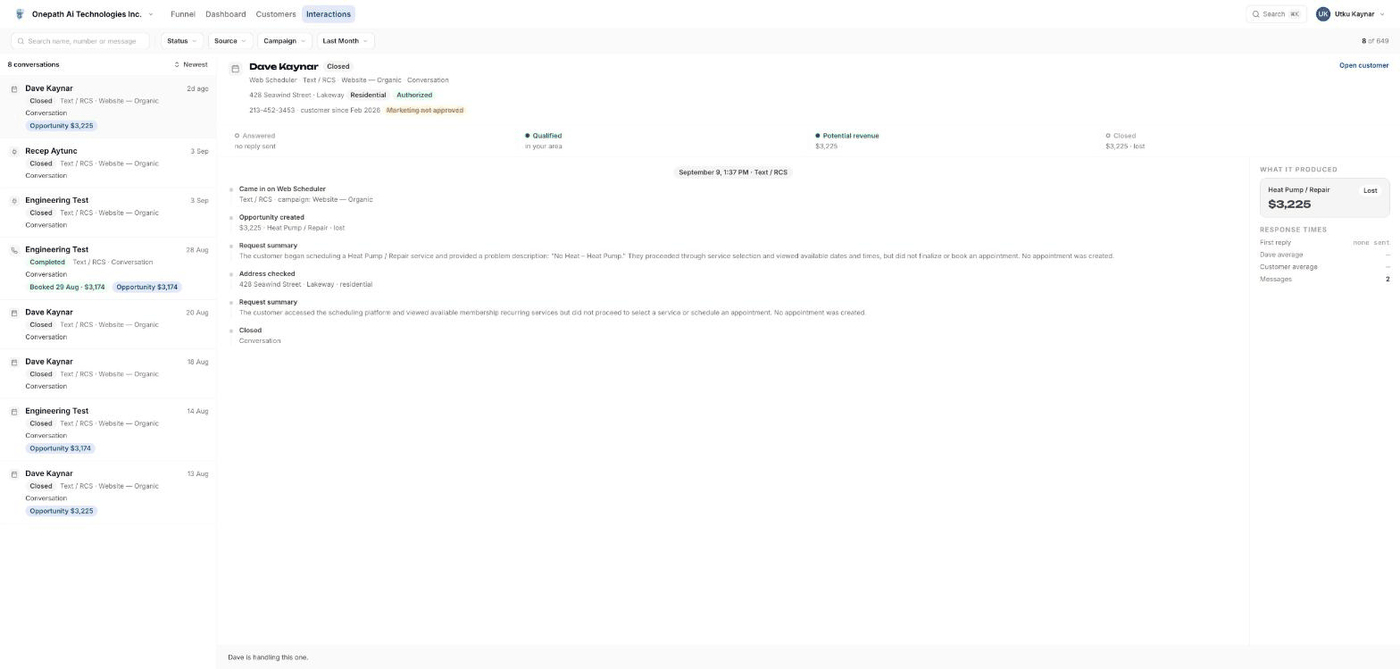
Filters
| Control | Options |
|---|---|
| Search name, number or message | Matches the customer's name, any phone or email, the AI summary and the text of every message. |
| Status | Active, Handed off to Live Agent, Escalated, Closed, Completed |
| Channel | How the dialogue is carried: Text / RCS, Voice, Email, or the channel's name. |
| Source | The platform or channel that brought the lead in. |
| Campaign | The campaign name, or No campaign. |
| Date range | Last 5 Days, Last 2 Weeks, Last Month (default), Last 3 Months, Last 6 Months, Last Year, All Time, applied to last activity. |
Clear all resets. The head of the list shows N conversations matching, the amber N need a person chip, and Sort: Needs a person first, Longest waiting, Newest first (default). The list loads 25 rows at a time as you scroll.
Reading a row
Each row shows who is on the other end (name, or their number, or Unknown caller), a status chip, channel · campaign, and the last thing the customer said. Rows waiting on a person have an amber edge and show how long they have been waiting. Chips at the end show what the thread produced: Opportunity $X, Booked <date> · $X, Scheduled for <window>, or Needs a person, Complaint, Authorization, Reschedule when a person was brought in.
Reading a conversation
Click a row and the thread opens on the right (on a phone it slides over the list; Back to the list returns).
- Head: name, status, source · channel · campaign, the address with its property and authorization chips (or No address captured yet), contacts, customer since, a Marketing approved / Marketing not approved chip, and Open customer.
- Progress ribbon: four steps. Answered (first reply time), Qualified (in your area, no address or outside every service area), Potential revenue or Booked (the window), and the standing step: Needs you, Closed, Done (visit on the books) or Waiting (follow-up queued or not).
- Transcript, oldest first. See the legend below.
- Planned follow-ups: when the customer went quiet, the AI's follow-up plan with its status (PLANNED, RUNNING, SUCCEEDED, MISSED, CANCELLED), Text + email, and each attempt as in 2 hours, due now or sent. Remaining attempts cancel the moment the customer replies.
- Context (right rail, or the Context button on narrower screens): Assigned (who has it), What it produced, Response times (First reply, the assistant's average, the customer's average), Messages and Attachments.
The footer says either "<assistant name> is handling this one." or "<assistant name> is paused on this conversation — a person picks it up from the task it opened."
Transcript legend
| What you see | What it is |
|---|---|
| Bubble on the left | The customer. Labelled with their first name, or Them when no name is known. |
| Bubble on the right, in your brand colour | Your side: your AI assistant (by its name), a live agent by full name, or Business for a reply someone at your company sent from Yelp's or Google's own app. Those imported replies are shown for context only; OnePath never re-sends them. |
| System event | Something the customer did without typing, such as editing a Yelp request or submitting a Facebook lead form. |
| System note / Request summary | Narration added by the platform, for example the summary of a web scheduler session. |
| Grey-dot rows | Milestones woven into the timeline: Came in on <source>, Address checked / Address is outside every service area / No address captured, Opportunity created, Appointment booked, Task opened, Sent to the office, Closed (with the AI's summary). |
| Day separators | The date, whenever the conversation spans more than one day. |
| Attachment cards | Photo, PDF or File with its size. Click a photo to open the viewer; other files open in a new tab. |
Calls
A phone conversation shows a call log block: direction (Inbound, Outbound or Human handoff), the call status (Completed, No answer, Busy, Failed and so on), a Call recording player, and Call transcription behind Show transcription. If nothing was kept you see No recording was kept for this call. or No transcription.
What the statuses mean
| Status | Meaning | Who has it |
|---|---|---|
| Active | The AI is working it or waiting for the customer. | Your AI assistant |
| Handed off to Live Agent | The AI opened a task for a person; the transcript shows Task opened. | A live agent on OnePath's side |
| Escalated | The AI emailed your office; the transcript shows Sent to the office and names the list it went to (service, accounting or general) and why. | You, via your Escalations lists |
| Closed | Finished without a booking. | Nobody |
| Completed | Finished with an appointment. | Nobody |
Escalated and Handed off to Live Agent together are what the need a person chip counts. A conversation closes on its own 5 minutes after a booking, or 90 minutes after the last follow-up message when nothing was booked.
Quick Tips
- ✅ Sort by Longest waiting on Monday morning - it surfaces anything that sat over the weekend.
- ✅ Widen the date range before assuming a conversation is missing - the default is the last month.
- ✅ Use the customer's Interactions tab for one person's history; use this inbox for the whole account.
- ❌ Don't expect to type here - there is no reply box. Escalated threads reach you by email; use the contact details to call or text the customer yourself.