Your Workspace
Outreach campaigns
An Outreach Campaign sends a promotion by text and email to a list of your customers. You describe the offer in a sentence and upload a customer list; the AI writes personalised messages and OnePath sends them inside the hours you choose.
Quick Answer - 30 Seconds
To send one: ⌘K → Outreach Plan → Create Outreach Campaign → describe the offer → Upload Customer List (.csv) → Create Outreach Campaign → check the parameters → Preview Messages → adjust → Schedule Outreach Campaign → pick the date, hours and days → Schedule Outreach Campaign.
Nothing goes out until the last step. Customers without marketing consent or valid contact details are skipped automatically.
Where to find it
Location: ⌘K → Outreach Plan (there is no menu entry)
→ app.onepath.ai/outreach/plans
Any member of the account can view and create campaigns. A campaign can be edited only while it is Draft or Scheduled.
The campaign list
Columns: Outreach Campaign Name, Prompt, Status, Created and Actions. The actions depend on status: Continue Setup (Draft), Edit (Scheduled), View, and Delete (Draft) or Cancel Outreach Campaign (Scheduled, Sending or Active).
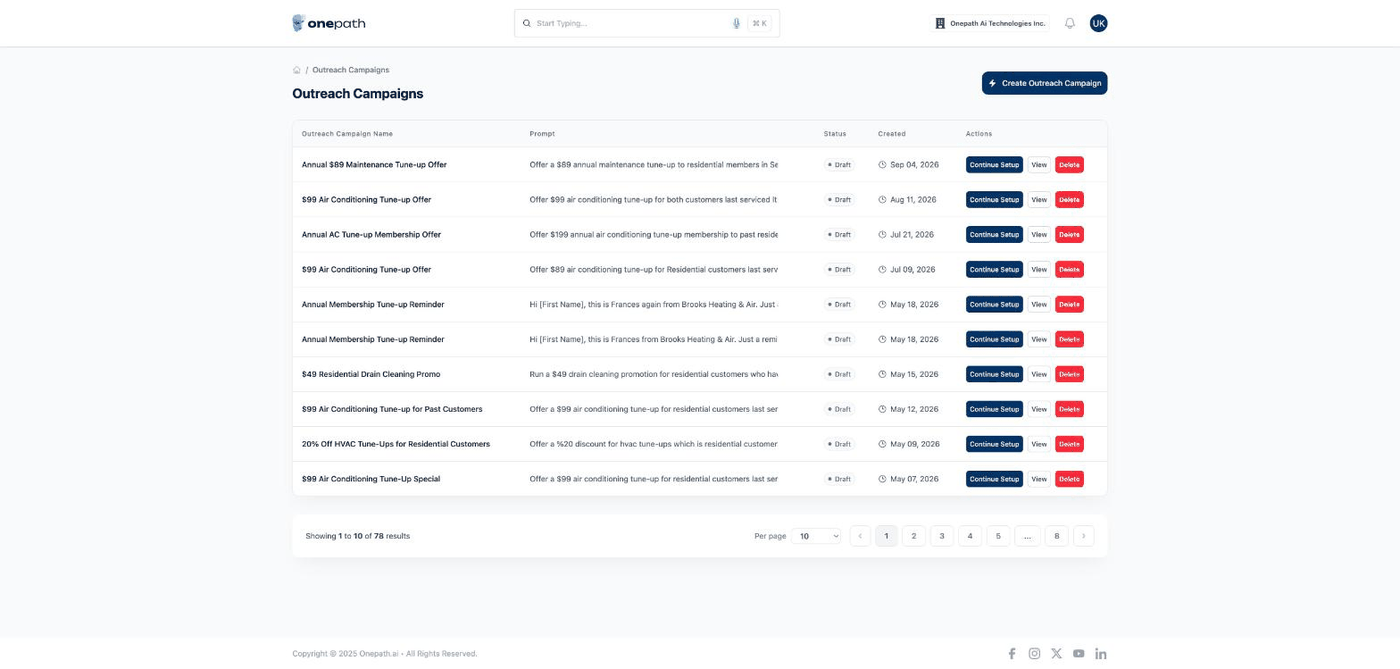
| Status | Meaning |
|---|---|
| Draft | Setup not finished; nothing sent |
| Scheduled | Scheduled to start on its start date |
| Sending | Sending is in progress |
| Active | Sent and running until the expiration date |
| Completed | The expiration date passed |
| Cancelled | Stopped; unsent messages were discarded |
Cancelling asks "Are you sure? All unsent messages will be discarded and this action cannot be undone." Completed and cancelled campaigns cannot be removed.
Step 1 - Describe the campaign
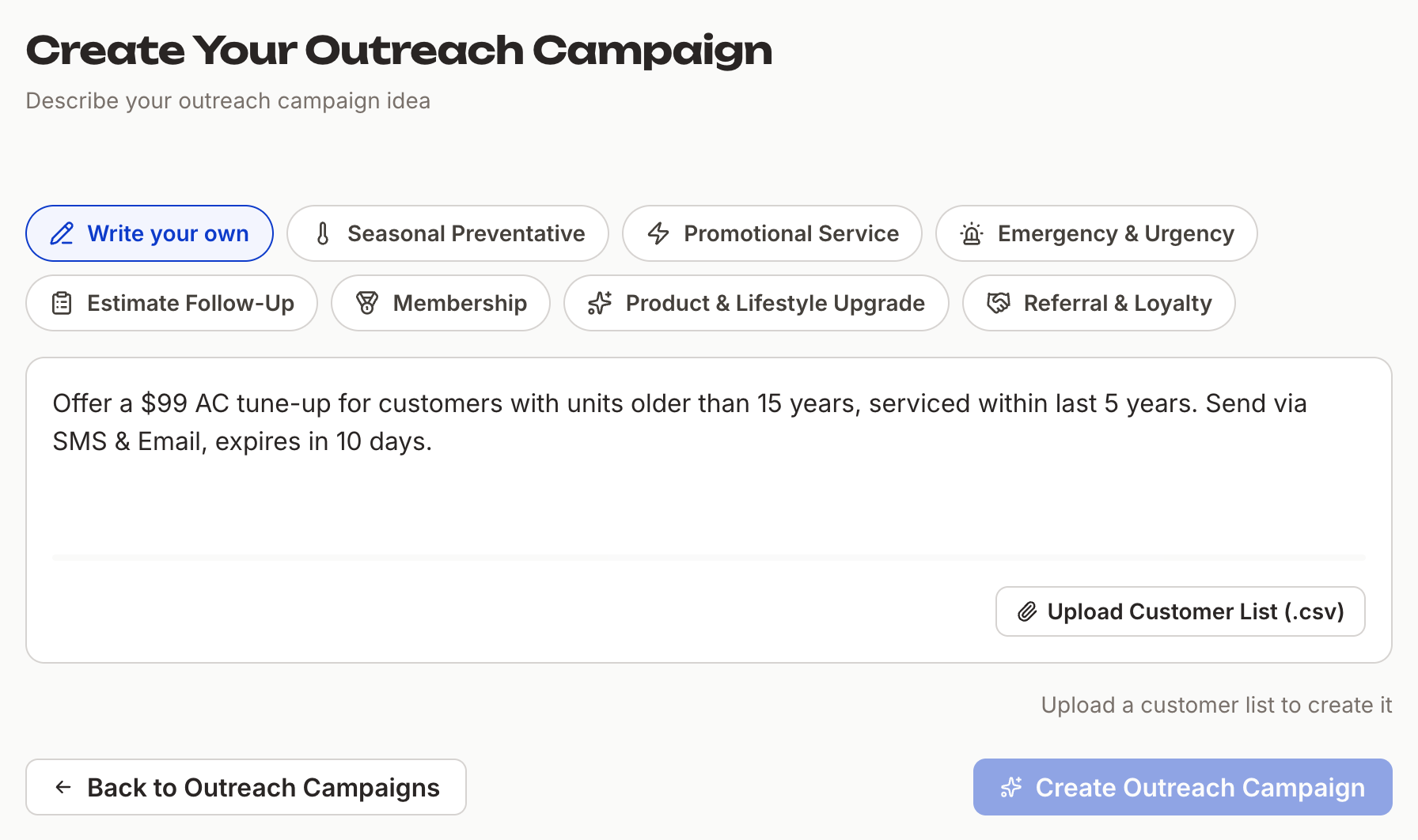
Write the offer in plain words. The placeholder shows the shape: "Offer a $99 AC tune-up for customers with units older than 15 years, serviced within last 5 years. Send via SMS & Email, expires in 10 days." Press Tab to accept the AI's autocomplete suggestion as you type.
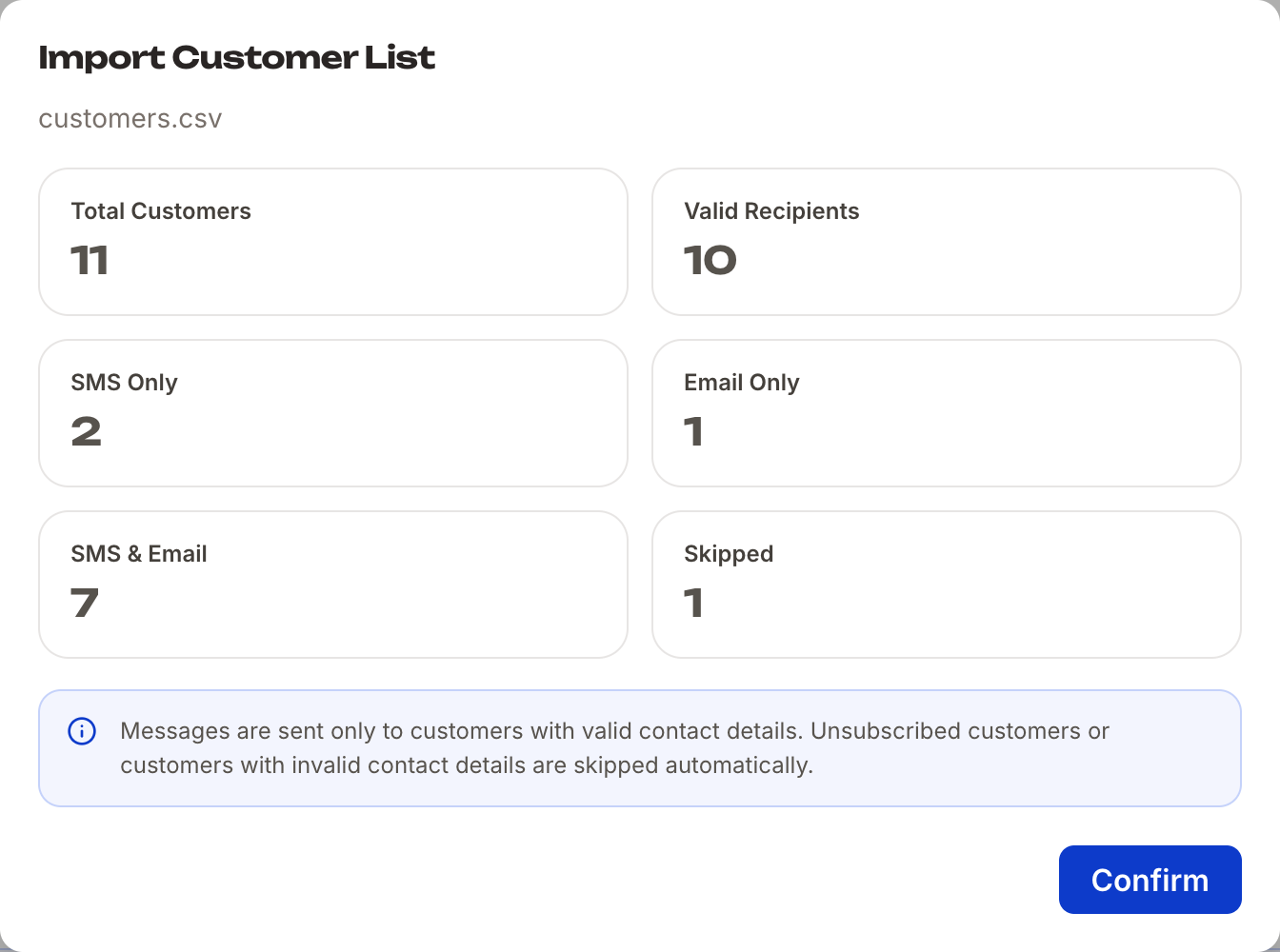
Then Upload Customer List (.csv) (required, under 50 MB). The Import Customer List window analyses the file and shows Total Customers, Valid Recipients, SMS Only, Email Only, SMS & Email and Skipped, with the note "Messages are sent only to customers with valid contact details. Unsubscribed customers or customers with invalid contact details are skipped automatically." Click Confirm, then Create Outreach Campaign.
A loading screen walks through Extracting Outreach Campaign Parameters, Importing Customer List, Searching Customers and Generating Personalized Messages. If you see a prompt-evaluation panel next to the text box, it is an AI check of your wording against a sample of the file.
Step 2 - Outreach Campaign Parameters
"Review and adjust AI-extracted parameters." Three numbers sit at the top: Customers Match Criteria, Potential Revenue and Outreach Campaign Cost. Below them the campaign reads as one editable sentence:
I want to offer a [Offer Amount] [Service Type] to existing customers that have spent [Minimum Spend] within the last [Timeframe] years. The outreach campaign will be pushed through [Channels] and expire in [Expiry Days] days.
Click any bracketed value to change it; [missing] marks a blank. Changing an audience field recounts matching customers live. Preview Messages moves on.
Step 3 - Message Preview
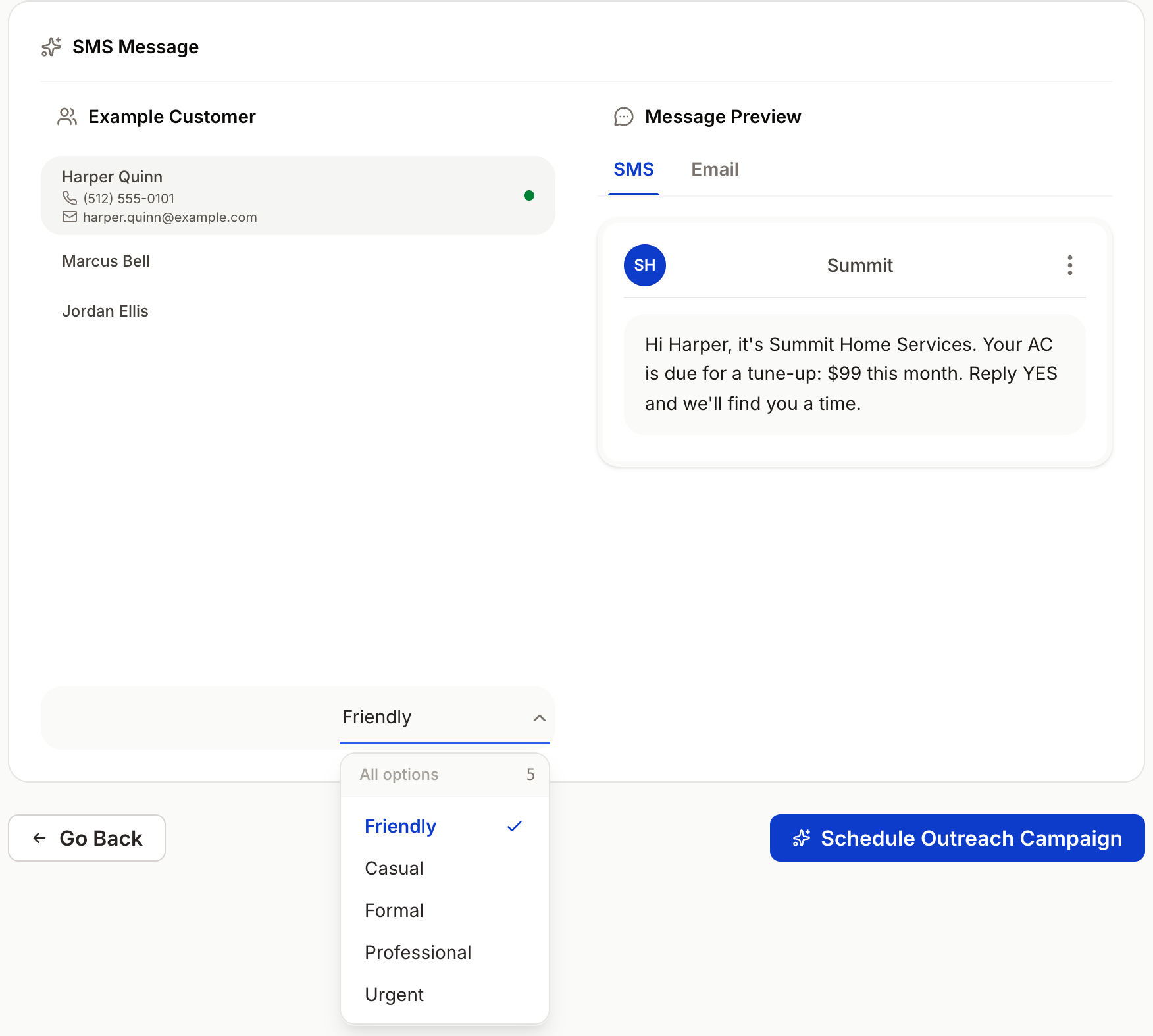
"Review and customize your outreach campaign messages." The Example Customer section shows who the preview is written for. Click a customer to see their message, and switch between the SMS and Email tabs. Pick a tone and the message is written again in it: Friendly, Casual, Formal, Professional or Urgent. The email preview ends with a booking button (Get My $X Offer or Book an appointment here). Click Schedule Outreach Campaign.
Step 4 - Schedule
Choose a start Date (default today), a time range (default 09:00–17:00) and the days of the week (default every day). The hint reads "Starting from <date>, messages will be sent on <days> between <time>." Click Schedule Outreach Campaign.
OnePath now builds a message for every matching customer and sends each one inside your chosen windows. The campaign details show an Expiration Date 30 days after the start date.
Who receives it
- SMS goes to phone and mobile contacts from your AI phone number; Email goes from your account's lead inbox address in your business's name.
- Customers whose Marketing consent is Not approved are skipped. Check it on the customer's overview in Customers.
- A customer who replies or books lands in Interactions like any other lead, attributed to the campaign.
Tracking a campaign
Open a campaign with View. Two tabs:
- Overview: Converted Revenue, Outreach Campaign Cost, Customer Acquisition Cost and ROI; a Conversion Funnel with Total Messages Sent, Delivery Rate, Engagement Rate and Booking Rate (and Delivered / Pending / Failed / Opened / Clicked / Booked counts); Channel Effectiveness (SMS Read Rate, SMS CTR, Email Read Rate, Email CTR); and Outreach Campaign Details with the prompt, create date and Expiration Date.
- Recipient Activity: search by customer, filter by channel and status, and see each recipient's progress: In Queue → Sent → Delivered → Read → Clicked → Booked, or Failed with the reason. While messages are still being written it says Generating messages....
Quick Tips
- ✅ Keep the CSV simple - names, phone numbers and emails; the import tells you how many are usable before anything is created.
- ✅ Send during business hours - the default 09:00–17:00 window keeps texts out of the evening.
- ❌ Don't cancel to make a small edit - Scheduled campaigns can still be edited; cancelling discards everything.