Settings · Lead Capture
Text messaging
Text messaging lets customers text your OnePath number and get an answer from your AI assistant within seconds, day or night.
Quick Answer - 30 Seconds
To turn it on: pick a number under Voice & RCS Text Messaging → Account settings → Lead Capture → Channels → Text messages card → flip the switch on.
The chip shows Awaiting carrier until US carriers approve your number. Leave it on; it goes Live by itself.
What this controls
| On | Off |
|---|---|
| Texts to your OnePath number are answered automatically | Texts to the number are not answered by the AI |
| Customers see one local number on every text the AI sends | The number stays yours; nothing else changes |
| The AI hands the thread to your team when it matters |
The card's own summary: "Two-way SMS answered automatically", "A local number customers recognise", "Handoff to your team when it matters".
Where to find it
Location: Account settings → Lead Capture → Channels → Text messages card
→ app.onepath.ai/settings/account/channels
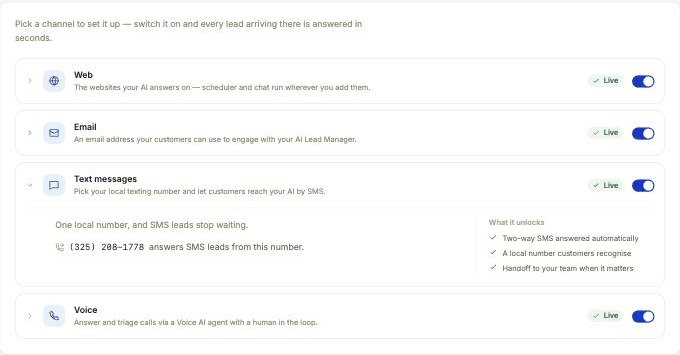
Your AI phone number
OnePath texts and answers calls on one number per account. You choose it by area code on Voice & RCS Text Messaging. Until a number is on file, the Text messages switch is greyed out and the card shows an amber note with a Pick a number button.
With a number on file, the card shows it formatted like (NNN) NNN-NNNN and one of two lines: "answers SMS leads from this number." or "answers SMS leads from this number once carrier approval lands."
What "Awaiting carrier" means
US carriers require businesses to register before they can text customers. This is called A2P 10DLC registration. OnePath files it for you automatically as soon as you pick a number. There is nothing to fill in.
| Chip on the card | What it means |
|---|---|
| Awaiting carrier | The switch is on, but registration is still in review. Typically about 5 business days. |
| Live | Carriers approved the registration. The AI is answering texts. |
| Off | The switch is off. |
You can watch the registration itself on the Voice & RCS Text Messaging page under Text-message registration. When approval lands, the channel flips to Live on its own.
What the assistant does over text
- Greets the customer with your Text greeting from Agent Personalization. The default name is Amy.
- Asks what they need, checks the address against your service areas, and asks your qualification questions for that service.
- Offers available times and books the appointment, or escalates when a service is set to hand off to a person.
- Sends follow-up texts when a customer stops replying, within the follow-up guardrails you set under Agent Personalization.
- Escalates to your team by email, per your Escalations settings, when it cannot help.
Every thread, with the AI's replies and any notes, is under Interactions.
Consent
OnePath hosts a privacy page and a terms page for your account at book.onepath.ai/<your-handle>/privacy and /terms. You can't edit their wording. Each customer has one marketing-consent flag, shown as Marketing approved or Marketing not approved in Interactions. The customer changes it through STOP or opt-in replies; you can't change it in OnePath. Outreach campaigns skip customers who have not approved.
Quick Tips
- ✅ Pick a local area code - customers see this number on every text, and a local one reads right.
- ✅ Turn the switch on now - it does not have to wait for approval; it goes live when approval does.
- ❌ Don't swap numbers casually - customers see this number on every text the AI sends.
Still stuck?
Reach out in your OnePath Slack channel or email your account manager. Include your OnePath number and the chip shown on the Text messages card so we can help fast.