Settings · Lead Capture
Web Chat
Web Chat is a small "text me back" form on your website. A visitor leaves their name and number, and your AI assistant carries on the conversation by text.
Quick Answer - 30 Seconds
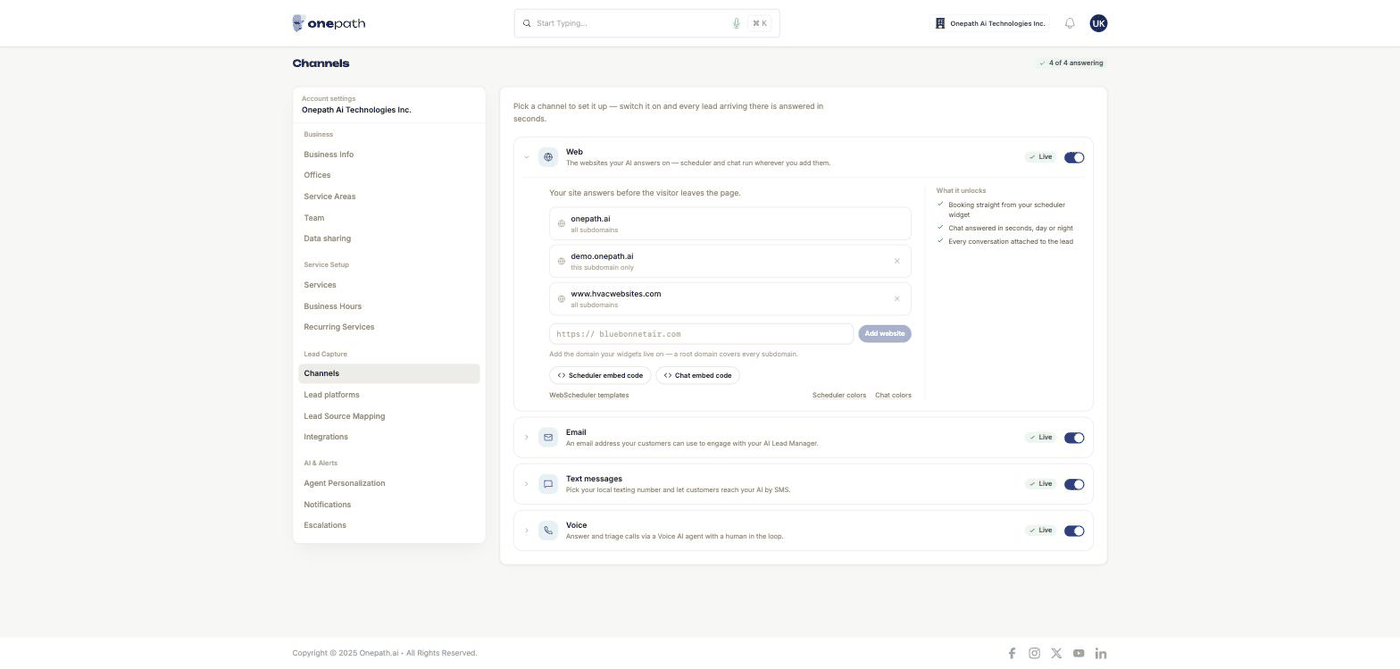
To turn it on: Account settings → Lead Capture → Channels → Web card → flip the switch on → click Chat colors → pick a Brand Color and Text Color → Save & Continue.
Your web developer then adds a button to the site. Until a website is on the allowed list, nothing shows.
What this controls
Web Chat is not live chat. Nobody types back and forth inside the widget. The panel opens with the header "We'll text you!" and one short form: full name, phone number, email address and marketing consent. Once the visitor submits, the conversation moves to text messages.
That keeps things simple for the visitor: they can close the page and the reply still reaches them.
Where to find it
Location: Account settings → Lead Capture → Channels → Web card
→ app.onepath.ai/settings/account/channels
Turning it on
The Web switch on the Channels page turns on the Web Scheduler and Web Chat together. There is no separate chat switch. After you flip it, the chip reads Live once at least one website is on the Allowed websites list, or Needs a website until then.
Saving colors (below) also switches the chat on, so you cannot lose work by doing the steps in the other order.
Colors
Click Chat colors in the Web card. The Configure Web Chat modal shows a live preview of the chat header, then:
- Brand Color - eight preset swatches or Custom with your own hex value. Used for the chat header.
- Text Color - eight presets or Custom. The color of text shown on your brand color.
Leave either blank and the widget uses the brand colors from Business Info. Click Save & Continue; the toast "Web Chat configured successfully" confirms it. There is no logo setting here: the widget uses the logo uploaded on Business Info.
Adding it to your site
Click Chat embed code in the Web card. The modal shows the two snippets your developer needs: the loader script for the page head and a trigger button:
<button data-onepath-web-chat-trigger="true">Chat with Us</button>
Any element with that attribute opens the chat panel. Your site supplies the button; OnePath does not draw a floating bubble. Send your developer to the Chat widget guide, and make sure the site's domain is on Allowed websites on the Channels page.
What happens after a visitor submits
- OnePath creates or updates the customer record and opens a conversation on the Web Chat channel. The page the visitor first landed on is recorded for campaign attribution.
- Your AI assistant follows up by text to the number they entered, qualifies the request, and books when it can. Replies go out by text, so Web Chat works best once Text messaging is live.
- If the visitor's address turns out to be outside your service areas, the conversation is escalated to you the same way as on every other channel. See Escalations.
You can read the whole thread under Interactions. See Interactions.
Quick Tips
- ✅ Put the chat button where a phone number would go - it is a "text me back" promise, not a support desk.
- ✅ Check the domain first - a missing entry on Allowed websites is the usual reason "the button does nothing".
- ❌ Don't expect a typing box - the form is the whole widget; the conversation continues over SMS.
Still stuck?
Reach out in your OnePath Slack channel or email your account manager. Include the website address where the chat button lives so we can help fast.