Settings · Business
Team
The Team page lists everyone who can sign in to this account and the role each person holds. Invite, re-role and remove people here.
Quick Answer - 30 Seconds
To invite someone: Account settings → Business → Team → Add member → type their E-mail Address → pick a Role → Save.
They get an email right away. Pick Account Member if you're unsure; you can raise it to Account Admin later.
What this controls
Who can sign in to this account, and how much each person can change:
| Role | What they can do |
|---|---|
| Company Owner | Everything, plus Company settings. One per account, and it can't be changed here. |
| Account Admin | Every page under Account settings, including this one. |
| Account Member | Dashboard, Customers and Interactions. No settings. |
Roles are per account. Someone can be an admin on one account and a member on another. The full breakdown is in Roles, sign-in & switching accounts.
Where to find it
Location: Account settings → Business → Team
→ app.onepath.ai/settings/account/members
You can also click your initials (top right) → Team. Company Owner and Account Admin can open it. A member who follows the link sees "Access denied".
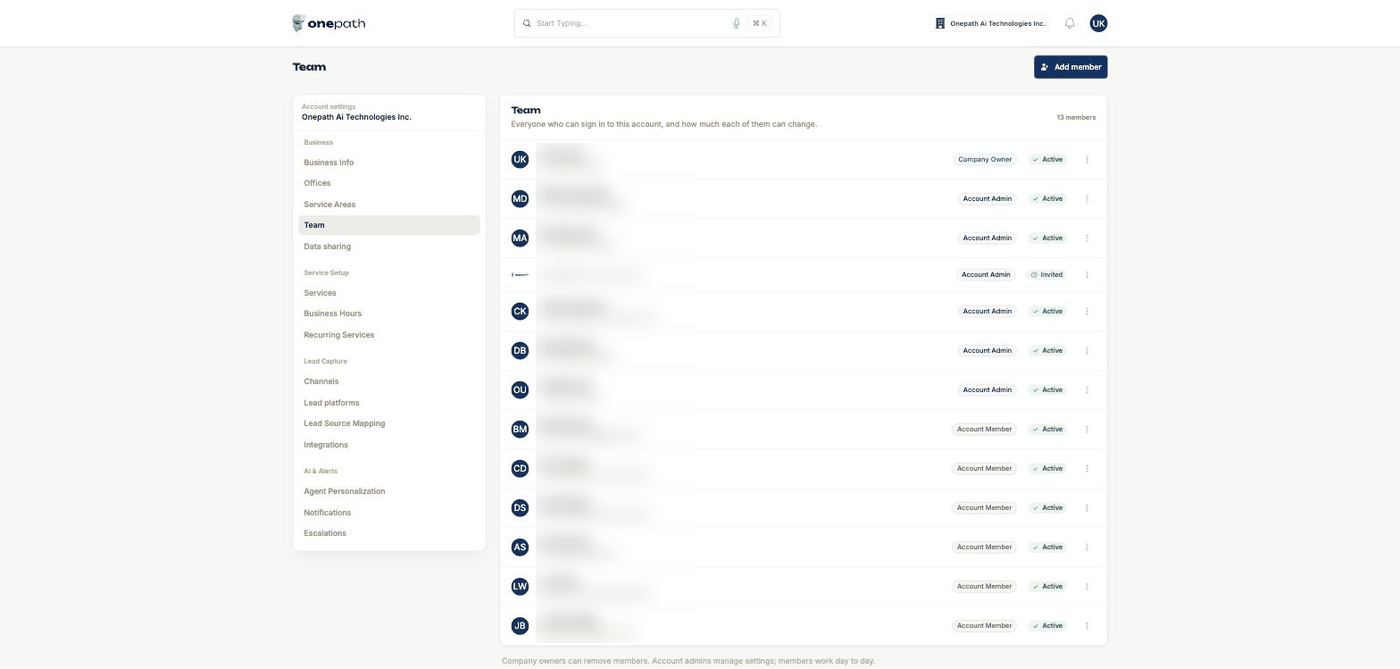
The list
Each row shows the person's name and email, a role badge and a status chip:
- Active — they have finished setting up their login.
- Invited — they have been added but haven't finished signing up yet.
Rows are ordered Company Owner, then admins, then members. The member count sits above the list.
Invite someone
- Click Add member.
- Type their E-mail Address. This is the address they will sign in with.
- Pick a Role: Account Admin or Account Member.
- Click Save. You see "<email> has been added to the team".
OnePath emails them straight away:
| They are… | Email subject | Button |
|---|---|---|
| New to OnePath | "You've been invited to join <Account>'s Account on OnePath!" | Create Your Account — sets their profile and password. The link works for 5 days. |
| Already on OnePath (another account) | "You've been added to <Account>'s Account on OnePath!" | Access Account — they sign in with their existing password. |
What they see on first sign-in is covered in Roles, sign-in & switching accounts.
If the address is already on this account you see "is already a member of this account".
There is no resend button
If the invitation expired or went to spam, remove the person and add them again. Adding someone always sends a fresh email.
Change someone's role
Click ⋮ on their row → Edit role → pick the new Role → Save. You see "<email> has been updated".
The email is shown but can't be edited. To move someone to a new address, add the new address and remove the old one.
Remove someone
Click ⋮ on their row → Remove from account, then confirm "Are you sure you want to remove this member?". You see "<email> has been removed from the team".
They can no longer open this account. Any other OnePath accounts they belong to are not affected.
The Company Owner
- Company Owner is not offered in the Role list. Trying to grant it shows "That role can't be granted here — only account admin and account member are assignable."
- Each account has exactly one Company Owner.
- Only the Company Owner can edit or remove the Company Owner's own row.
- Ownership can't be moved to someone else from this page.
Quick Tips
- ✅ Invite with a work email - it becomes their sign-in address.
- ✅ Remove people the day they leave - it takes one click and ends their access to this account.
- ✅ Give each person their own login - their name travels with the notes and escalations they touch.
Still stuck?
Reach out in your OnePath Slack channel or email your account manager. Include the email address of the person so we can help fast.