Settings · Lead Capture
Voice & RCS Text Messaging
This page is where you pick your OnePath phone number: the one your AI assistant texts from and, with Voice on, answers calls on.
Quick Answer - 30 Seconds
To pick a number: open Voice & RCS Text Messaging (or Pick a number on the Channels page's Text messages card) → type an area code under Search by Area Code → click Select on a number → Save Changes.
Carrier registration starts automatically. Texting turns on by itself once it is approved.
What this controls
One number per account does both jobs:
- Texting - customers see it on every text the AI sends, so a local area code reads right.
- Calls - with AI voice on, the AI answers calls to it. With voice off, calls to it forward to your own line.
Your existing business numbers stay exactly as they are.
Where to find it
Location: Account settings → Lead Capture → Voice & RCS Text Messaging (no sidebar entry of its own; Integrations stays highlighted)
→ app.onepath.ai/settings/account/integrations/voice_and_rcs_text_messaging/edit
The Pick a number button on the Channels page's Text messages card opens the same page; it shows only until a number is on file. After that, use the direct link above. The account setup wizard's Phone & Texting step does the same thing with a slightly different layout.
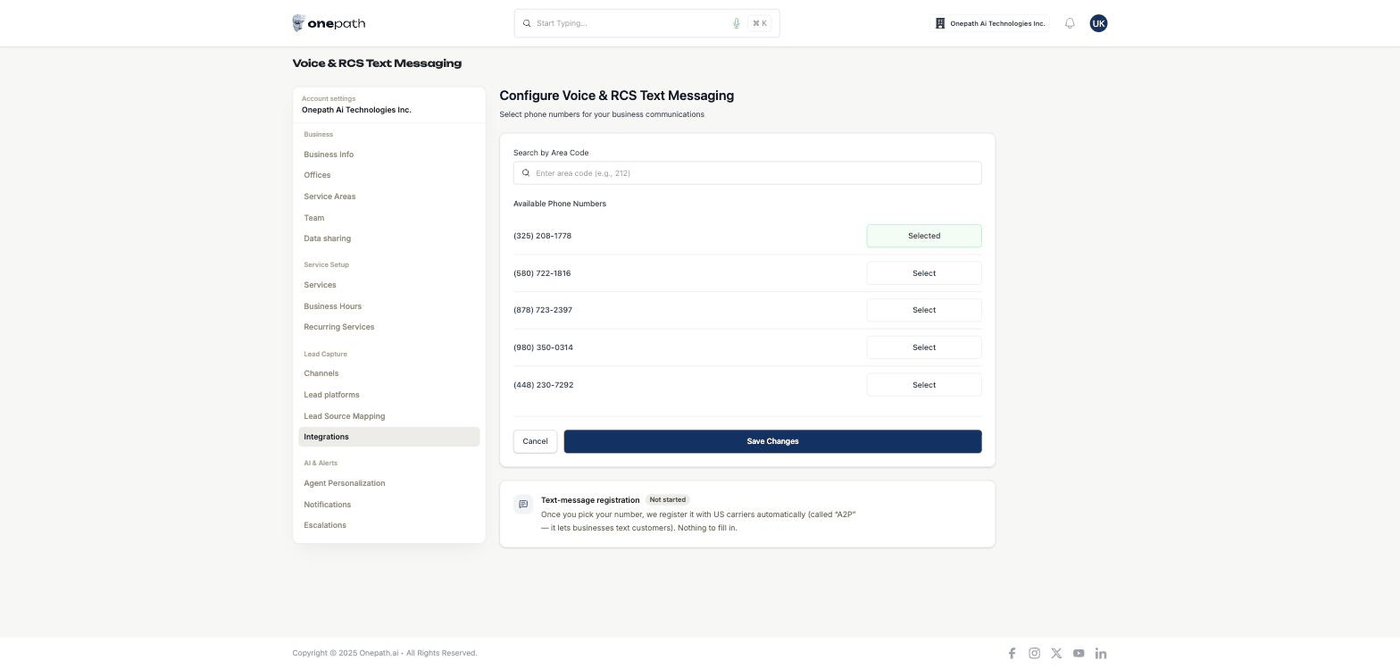
Choosing a number
- Under Search by Area Code, enter a three-digit US area code (for example
212) and search. - Available Phone Numbers lists up to four local numbers. Numbers you already hold appear first with a green Selected button; new ones show Select.
- Click Select on the one you want. Click again to deselect.
- Click Save Changes.
If the list will not load, you see "Available phone numbers can't be loaded right now — your saved numbers are unaffected. Please try again later." Your saved number is safe; try again in a few minutes.
If you select more than one number, the first one is the number OnePath texts from and answers on.
What saving does
- A newly selected number is purchased for your account. A deselected one is released.
- Selecting your first number starts carrier registration (see below).
- Call routing is set up: forwarding to your line, or the AI if Voice is already on.
Pick a number you will keep
Customers see this number on every text the AI sends, and it is the line the AI answers on. Choose it once and keep it.
Text-message registration
US carriers require businesses to register before texting customers (A2P 10DLC). OnePath does it for you. The Text-message registration panel shows where it stands:
| Status | What the panel says | What to do |
|---|---|---|
| Not started | "Once you pick your number, we register it with US carriers automatically … Nothing to fill in." | Pick a number |
| Waiting | "We're preparing your carrier registration. Nothing for you to do — texting turns on automatically once it's approved." | Nothing |
| Waiting — carriers | "Carrier approval is in review — typically about 5 business days." with a day N of ~5 progress bar. After 5 days it adds "running long, our team is on it". | Nothing; you will be notified |
| Active | "Carriers approved your registration — texting is active on your number." | Turn on Text messaging if you have not |
| Needs attention | "Your registration needs attention — our team has been notified. Nothing for you to fix." | Nothing; OnePath is handling it |
Registration never blocks the rest of your setup. The Channels page shows Awaiting carrier on the Text messages and Voice cards until it is Active, then flips them to Live on its own.
Where calls go
While Voice is off, calls to this number forward to your forwarding number. It is set in the setup wizard's Channels step; if left blank, the business phone from Business Info is used. To change it after go-live, ask your account manager.
Quick Tips
- ✅ Search your local area code first - customers trust a number that looks local.
- ✅ Save once, keep it - customers come to recognise the number.
- ❌ Don't wait for approval to turn channels on - switch Text messages and Voice on now; they go live when carriers approve.
Still stuck?
Reach out in your OnePath Slack channel or email your account manager. Include the number you selected and the registration status shown so we can help fast.