Getting Started
Account setup wizard
The setup wizard walks the Company Owner through everything OnePath needs before your AI assistant starts answering leads. Do the phases in any order; progress saves as you go.
Quick Answer - 30 Seconds
To go live: sign in as the Company Owner → app.onepath.ai/onboarding/account → work through the 14 phases (about 20 minutes) → Review & Go Live → Go live.
Third-party approvals (texting registration, Google review) never block the launch. They finish on their own.
Who runs it and what it gates
- Only the Company Owner sees the wizard. Until the account is live, every page they open redirects to it.
- Teammates you invite finish their own profile and password, then land on a holding page: [Your business] is being set up, with a % ready bar. They get an email at launch.
- Once live, the wizard closes for good and everything it set up is edited under Account settings.
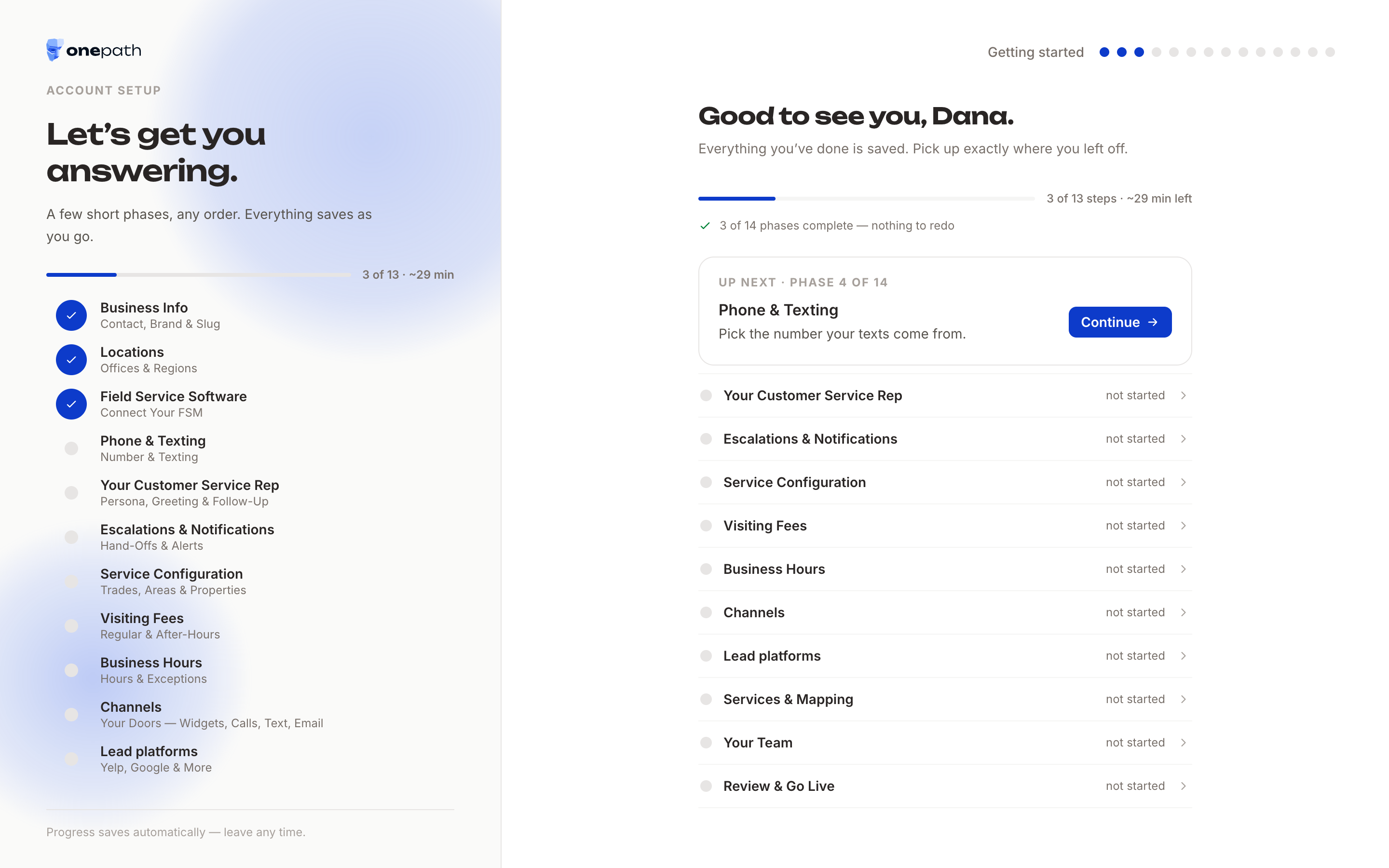
Progress saves automatically on every phase. The rail on the left shows N of 13 required steps done and marks each phase done, in progress or waiting.
Before you start
Accounts created by OnePath arrive partly filled in: business name, website, time zone and main office from your company record, your field service software provider (and ServiceTitan tenant ID), sometimes phone, email, brand and trades. Have handy:
- API credentials for your field service software, if you use one.
- Access to your Yelp and Google listings.
The phases
| # | Phase | What you do | Required? |
|---|---|---|---|
| 1 | Business Info | Confirm the phone and email the assistant hands out, upload a logo, pick brand colours, and set the Account handle that names your booking links and lead inbox. | Yes |
| 2 | Locations | Add your main office (prefilled from your legal address) and any other locations. Optionally tick Enable Book Now on Google. | Yes; you cannot continue with no office |
| 3 | Field Service Software | Enter your credentials (ServiceTitan client ID and secret, or an API key) and press Connect securely. Customers, job types and service areas sync in the background. | Yes |
| 4 | Phone & Texting | Search by area code and reserve the number your texts come from and calls forward through. | Yes |
| 5 | Your Customer Service Rep | Name your assistant (default Amy), set the spoken business name, greetings and follow-up limits. Same editor as Agent Personalization. | Yes |
| 6 | Escalations & Notifications | Who receives hand-offs and appointment alerts. See Escalations & notifications during setup. | Yes, at least one escalation contact |
| 7 | Service Configuration | Pick your trades, group the ZIP codes you cover (type ZIPs or a city name), and choose residential, commercial or both. | Yes, all three |
| 8 | Visiting Fees | Say what a visit costs in regular hours and after-hours, per property type, in your own words. Tick We run a membership program for separate member rates. | Yes, every cell |
| 9 | Business Hours | Your week in sentences, holidays, and the earliest a first slot may be. Suggested Monday to Friday 8:00 AM to 5:00 PM. Same editor as Business Hours. | Yes |
| 10 | Channels | Switch on Web widgets, Text & RCS, Voice and Email. Text and Voice need the phone number from phase 4. | Yes, at least one |
| 11 | Lead platforms | Connect Google Local Services, Facebook and Yelp and bind the pages the assistant should answer. | Optional |
| 12 | Services & Mapping | Switch on the services the assistant may book and map each to a business unit, job type or pricing form in your software. Same data as Services. | Yes, at least one |
| 13 | Your Team | Invite teammates by email. See below. | Optional |
| 14 | Review & Go Live | A checklist of the 13 required steps, then the Go live button. | — |
Phase 12 depends on phase 3: services cannot be mapped until the field service sync has landed. Phase 8 waits for the property types from phase 7.
Things that run on their own
Some phases start a wait you cannot speed up. The rail shows them as waiting, and Review & Go Live lists them under In progress — we'll notify you.
| Wait | Started by | What happens |
|---|---|---|
| Text registration | Reserving a number | US carriers review your business for texting, typically about 5 business days. Texting switches on by itself when approved. |
| FSM sync | Connecting your software | Job types, customers and service areas pull in, usually within minutes. Mapping unlocks when it lands. |
| Team invitations | Sending invites | Each teammate sets up their own profile and password. |
| Reserve with Google | Enable Book Now on Google on an office | Google reviews the listing in 1 to 2 weeks, then shows a booking button on Search and Maps. |
None of these block Go live.
Review & Go Live
The Required for launch card reads your real data, not which pages you visited. Each open item has a Finish → link into its phase. When everything is in place the card reads Everything's in place. and Go live unlocks.
Going live:
- Turns the assistant on for every channel you switched on. Text and voice activate later on their own if carrier approval is still pending.
- Locks your Account handle and every office's Location ID. They name your booking links, so change them before this step.
- Emails every teammate who accepted an invitation: [Your business] is live on OnePath, with a Go to Dashboard button. The owner is not emailed.
- Releases your teammates from the holding page into the workspace.
You land on [Your business] is live. with a Go to dashboard button. From then on, use Account settings for changes.
Inviting your team
On Your Team, type email addresses (comma or Enter between them) and press Send invitation. Everyone is invited as an Account Member; change roles later under Team in Account settings.
Each person gets You've been invited to join [Your business]'s Account on OnePath! with a link valid for 5 days. They fill in their name, job title, phone and a password, then wait on the holding page until you go live. Rows show Invitation sent, Expired (use Resend invitation) or Accepted.
What invitees see on first login, and what each role can do, is on Roles, sign-in & switching accounts.
Quick Tips
- ✅ Connect your field service software early - the sync has to land before you can map services.
- ✅ Double-check the Account handle - it is locked at go-live and printed on every booking link.
- ✅ Reserve a number in your local area code - customers see it on every text.
- ❌ Don't wait for carrier approval to launch - texting activates by itself; everything else works now.