Notifications
Quick Answer - 30 Seconds
To get notified about appointments: Account → Notifications → Toggle the events you want → Add a destination → Save
Every appointment event can reach you two ways: as an email to your team, or as a webhook (JSON POST) to your own system. Each event type has its own recipients.
Where to Find This
Location: Account → Notifications
What You Can Be Notified About
There are 3 appointment events. Each one can be turned on/off separately, per channel:
| Event | When It Happens |
|---|---|
| Appointment Creation | A new appointment is booked |
| Appointment Cancellation | An appointment is cancelled |
| Appointment Reschedule | An appointment is rescheduled |
Both channels use the same pattern: toggle the event on → add destinations → Save.
Email Notifications
Sends an email to your team every time the event happens.
- Go to Account → Notifications, under Email Notifications find the event
- Click the toggle to turn it on (blue = on)
- Type an email address → press Enter — repeat to add more (the field shows a "+3" count)
- Click Save
Each event has its own email list, so different teams can watch different events — Creation → Sales, Cancellation → Customer Service, Reschedule → Operations. To remove an address, click the X on its tag and save.
Webhook Notifications
Delivers the same events to your own system — CRM, dashboard, automation tool — as a JSON POST with the customer's contact details, the service, the location, and the marketing attribution of the visit.
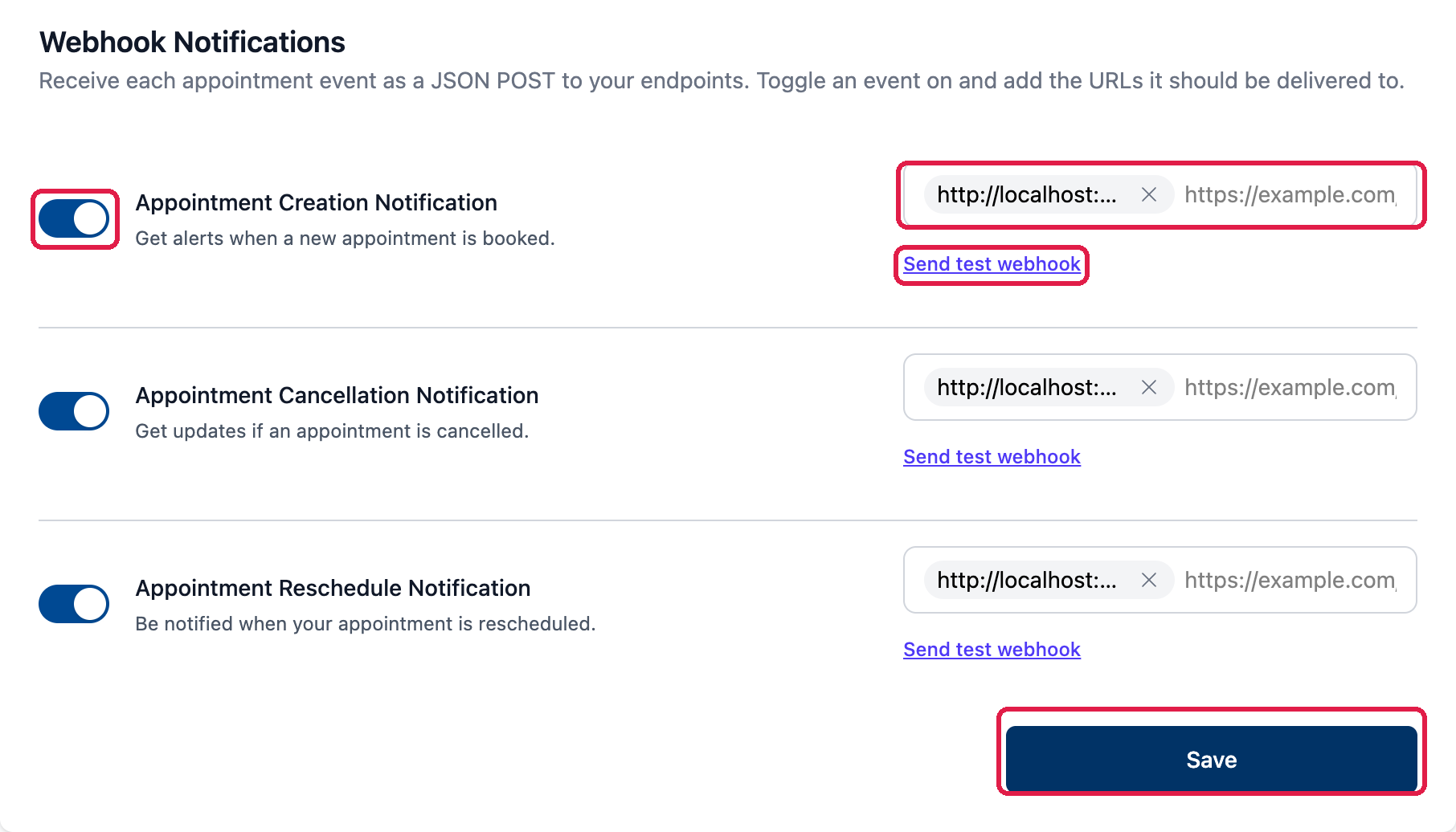
- Under Webhook Notifications, click the toggle next to the event (blue = on)
- Add your endpoint URL — press Enter to add more than one
- Click Send test webhook — a sample payload is POSTed to your URL immediately
- Click Save
Every request is a POST with Content-Type: application/json and an X-OnePath-Event header carrying the event name: appointment.created, appointment.cancelled, or appointment.rescheduled.
Full payload example
{
  "event": "appointment.created",
  "occurred_at": "2026-07-22T09:50:03Z",
  "notification_id": 2,
  "test": false,
  "data": {
    "id": 25,
    "status": "scheduled",
    "time_window_begin": "2026-07-22T14:00:00Z",
    "time_window_end": "2026-07-22T15:00:00Z",
    "summary": "Booking a Small Drain / Repair service. The customer reports the drain is slow draining.\n\nThe customer selected the $93 Drain Cleaning package.",
    "cancelled_reason": null,
    "service": {
      "id": 26,
      "name": "Small Drain / Repair",
      "service_type": "Repair",
      "serviceable_type": "Small Drain"
    },
    "customer": {
      "id": 1,
      "full_name": "Jane Homeowner",
      "contacts": [
        { "type": "email", "value": "jane@example.com" },
        { "type": "mobile_phone", "value": "5125550100" }
      ]
    },
    "location": {
      "street": "2100 Barton Springs Rd",
      "unit": null,
      "city": "Austin",
      "state": "TX",
      "zip_code": "78704",
      "country": "US",
      "location_type": "residential"
    },
    "attribution": {
      "vendor": "google_ads",
      "external_id": "spring_campaign",
      "utm_source": "google",
      "utm_medium": "cpc",
      "utm_campaign": "spring",
      "utm_term": null,
      "utm_content": null,
      "campaign_url": "https://example.com/?utm_source=google",
      "lead_source": null
    }
  }
}
What to expect:
summaryincludes the package or offer the visitor selected when your site passes booking context.attributionisnullwhen the visit carried no campaign/UTM data — treat it as optional in your parser.- Webhooks fire per appointment, not per lead. A visitor who doesn't finish booking, or a chat conversation that doesn't book, does not send one.
- Delivery retries automatically — up to 5 attempts with increasing delays on any non-2xx response. Respond with a
2xxwithin 10 seconds; redirects are not followed.
Quick Tips
- ✅ Don't leave cancellation events off - They're the ones your team needs to react to
- ✅ Split events across teams - Each event has its own destinations, use that
- ✅ Always send a test - Book a test appointment for email, use Send test webhook for webhooks
- ❌ Don't point everything at one inbox - Overload buries the important ones
Note About System Notifications
We may still send you important notifications about your account outside of your notification settings.
Critical system notifications (security, payments, etc.) are sent regardless of these settings.