Getting Started
Roles, sign-in & switching accounts
Every person on your team signs in with their own email and holds a role on each account they belong to. The role decides whether they can change settings or only work leads.
Quick Answer - 30 Seconds
Company Owner and Account Admin manage settings. Account Member works the day-to-day screens. To change someone's role: Account settings → Business → Team → ⋮ → Edit role.
Sign in at app.onepath.ai. Forgot your password? Use Forgot password? on the sign-in page.
The three roles
| Role | Can | Cannot |
|---|---|---|
| Company Owner | Everything an Account Admin can, plus Company settings (create, edit and delete accounts) and the account setup wizard. Exactly one per account. | Be replaced from the Team page, or edited or removed by anyone but themselves. |
| Account Admin | Every page under Account settings: Business Info, Offices, Team, Services, Business Hours, Channels, Integrations, Notifications, Escalations, Data sharing and more. | Open Company settings. |
| Account Member | Dashboard, Customers, Interactions, Calendar and Outreach, plus their own profile and password. | See the Account settings sidebar, the Team page or Company settings. |
Roles are set per account. If you belong to several accounts you may be an admin on one and a member on another. Owners and admins grant roles on the Team page; only Account Admin and Account Member can be granted there.
The user menu
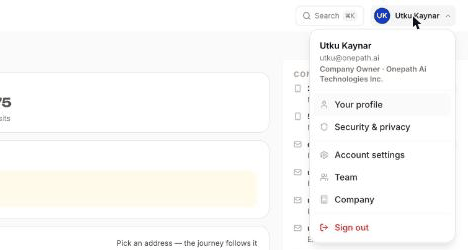
Click your initials in the top right. The header shows your name, email and "<Role> · <Account name>". The items are:
- Your profile and Security & privacy — see Your profile, security & notification preferences.
- Account settings — every settings page, see Account settings.
- Team — invite people and change roles.
- Company — shown to the Company Owner only, see Company: accounts & billing.
- Sign out.
Signing in
Go to app.onepath.ai. Enter the Email your team invited you with and your Password, then click Sign in. You land on the page you asked for, or on the Dashboard.
- "Invalid email or password" — check both; the email must be the one you were invited with.
- "Too many login attempts. Please try again later." — you get 10 tries per 3 minutes. Wait a few minutes and try again.
- "You must be logged in to access this page." — your session ended. Sign in and you return to the same page.
You stay signed in on that browser until you choose Sign out or close the session from Security & privacy.
Forgot your password
- On the sign-in page click Forgot password?.
- Enter your email and click Reset password. You see "Check your inbox" whether or not the address is on file.
- Open the email "Password Reset Instructions" and click Reset Your Password. The link works for 15 minutes.
- Type a new password twice and click Save password. You return to sign-in with "Your password has been changed".
No email after a minute? Use Click to resend on the same screen (once every 30 seconds). If the link expired you see "Invalid password reset token. Please create a new one."; start again from step 1.
Passwords are 8–32 characters with at least one special character (for example !@#$%^&*). Resetting your password does not sign out your other devices.
Switching between accounts
If you belong to two or more accounts, the account name at the top left becomes a switcher (Switch account). Pick an account and the page reloads with "You are now logged in as <Account name>". Everything you see afterwards, from Dashboard to settings, belongs to that account.
- Each row shows your role on that account; the active one is marked active.
- With more than five accounts a Filter accounts box appears.
- On settings and company pages, open the avatar menu and use the Accounts list instead.
With one account there is nothing to switch; the name is simply shown.
Your first sign-in as an invited teammate
When an admin adds you on the Team page you get an email, "You've been invited to join <Account>'s Account on OnePath!". Click Create Your Account within 5 days, fill in your profile, choose a password, and you're in.
If the account itself is still being set up, you see a holding page until the owner finishes the setup wizard; nothing is wrong. If you already had a OnePath login, the email says "You've been added…" and Access Account takes you straight in with your existing password.
"Access denied"
"Access denied. You don't have permission to perform this action." means the page needs a higher role than you hold on this account. Ask your Company Owner or an Account Admin to change your role on the Team page, or switch to the account where you hold the right role.
Quick Tips
- ✅ Make admins of the people who run the office - they can change hours, services and channels without asking.
- ✅ Keep technicians and CSRs as members - they see every lead and conversation but cannot change settings.
- ❌ Don't share one login - every sign-in is tracked by device, and your name travels with the notes and escalations you touch.