Your Workspace
Calendar & calendar feed
The Appointments Calendar shows every scheduled visit the AI booked, grouped by trade. The Calendar Feed puts the same appointments into the calendar app you already use.
Quick Answer - 30 Seconds
To see this week's visits: open app.onepath.ai/calendars/appointments → view dropdown → Weekly → click any appointment for its detail.
To get them in your own calendar: open app.onepath.ai/settings/account/calendars/feed → Enable Calendar Feed → copy Your Calendar Feed URL → subscribe by URL in your calendar app.
Neither page changes appointments. Bookings are edited in your field service software.
Appointments calendar
Location: direct link only. It has no menu entry and does not appear in ⌘K, so bookmark it.
→ app.onepath.ai/calendars/appointments
What it shows
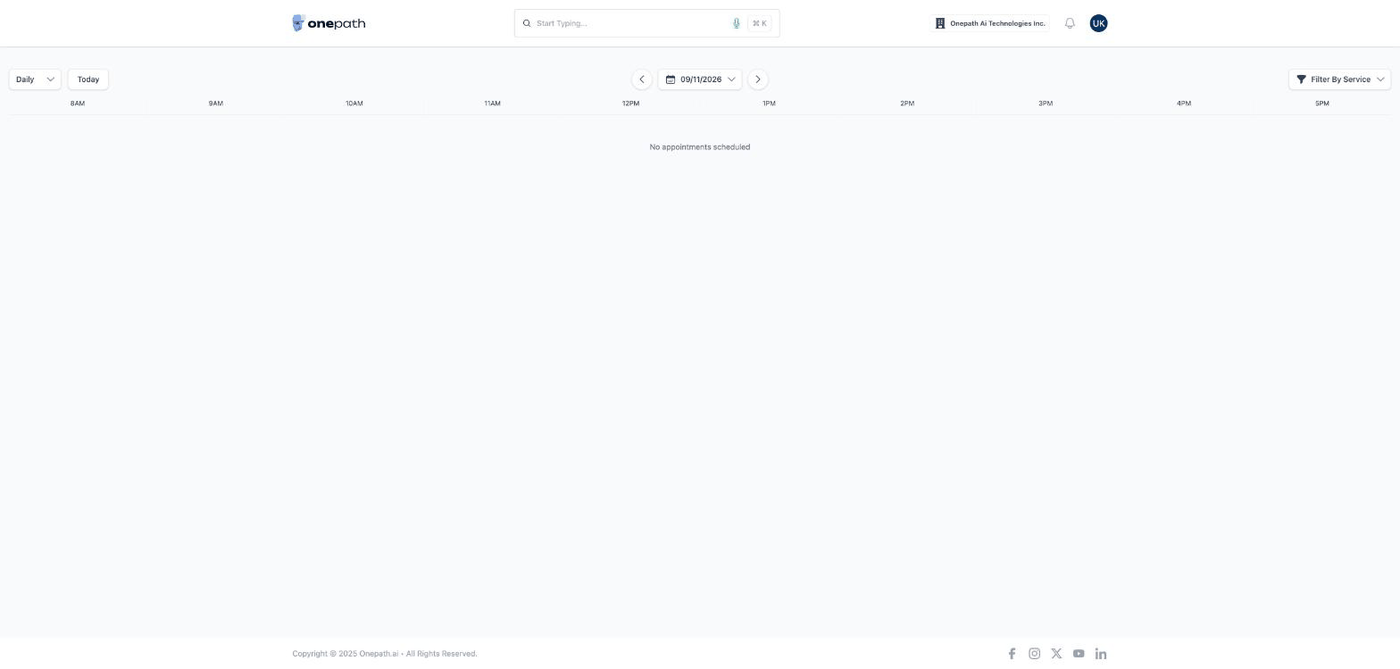
Only appointments with status Scheduled, in your account's time zone, grouped into a collapsible section per trade. Rescheduled, done and cancelled visits are not drawn here; find them on the customer's Appointments tab or in the feed below.
Toolbar
| Control | What it does |
|---|---|
| View dropdown | Daily (default), Weekly, Monthly |
| Today | Jumps back to today |
| ‹ › | Previous or next day, week or month |
| Filter By Service | All Services or one of your active services |
The three views
- Daily draws an 8 AM to 5 PM timeline. Each appointment is a badge with the customer's name and zip city state; overlapping visits stack. An empty day says No appointments scheduled.
- Weekly shows Sunday to Saturday with the same badges plus each visit's time window.
- Monthly shows a count per day; click a count to open that day.
Appointment detail
Click a badge for Appointment Detail: the customer's name, zip city state, the time window, the Job Summary (the appointment's summary, or the opportunity's if the appointment has none) and the service. There is no edit button and no link to the job; use Customers for the full record.
Calendar feed
Subscribe once and your appointments appear in Google Calendar, Apple Calendar, Outlook or any app that accepts a calendar URL. It is read-only: changes flow from OnePath to your calendar, never back.
Location: Account settings → Calendar (not in the sidebar; use the link)
→ app.onepath.ai/settings/account/calendars/feed
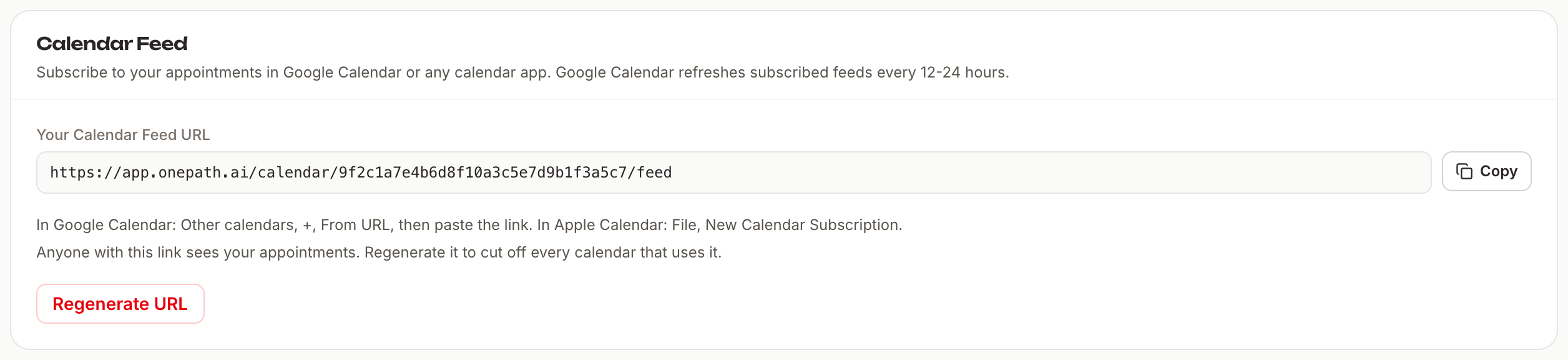
Turn it on and copy the URL
- Click Enable Calendar Feed. You see Calendar feed enabled successfully.
- Under Your Calendar Feed URL, click the copy icon (Copy URL → Copied to Clipboard).
The URL contains a long secret token. Anyone with the URL can read your appointments, so share it only with people who should see them.
Subscribe in your calendar app
The app itself says "Subscribe to your appointments in Google Calendar or any calendar app." The steps below are the standard subscribe-by-URL flow in each app.
| App | Where to paste the URL |
|---|---|
| Google Calendar (web) | Next to Other calendars click + → From URL → paste → Add calendar |
| Apple Calendar (Mac) | File → New Calendar Subscription… → paste → Subscribe |
| Outlook (web) | Add calendar → Subscribe from web → paste → Import |
The calendar arrives named Onepath Appointments. Google Calendar refreshes subscribed feeds every 12–24 hours, so a visit booked this morning may take until tomorrow to appear there.
What each event contains
- Appointments whose start is within the last six months or later, in every status.
- Title: the appointment summary, then the customer's full name.
- Description lines: Status, Service, Customer, Address, Cancelled with the reason when relevant, and View customer with a link to the customer in OnePath.
- Scheduled and rescheduled visits are confirmed events; cancelled ones are marked cancelled; done ones are marked completed.
Regenerate the URL
If the URL leaked or a former teammate still has it, click the red Regenerate URL. The app warns: "This will invalidate the current URL. Any calendars using the old URL will stop updating. Continue?" After confirming you see Calendar feed URL regenerated. Update the URL in your calendar app. Re-subscribe with the new URL everywhere you used the old one.
Quick Tips
- ✅ Use the feed on phones - the calendar page is easiest on a desktop; the feed shows up in your phone's calendar app.
- ✅ Standalone accounts, subscribe - if you have no field service software, the feed is the easiest way to see the schedule outside OnePath.
- ❌ Don't post the feed URL in a shared channel - regenerate it if you did.