Settings · Lead Capture
Lead platforms
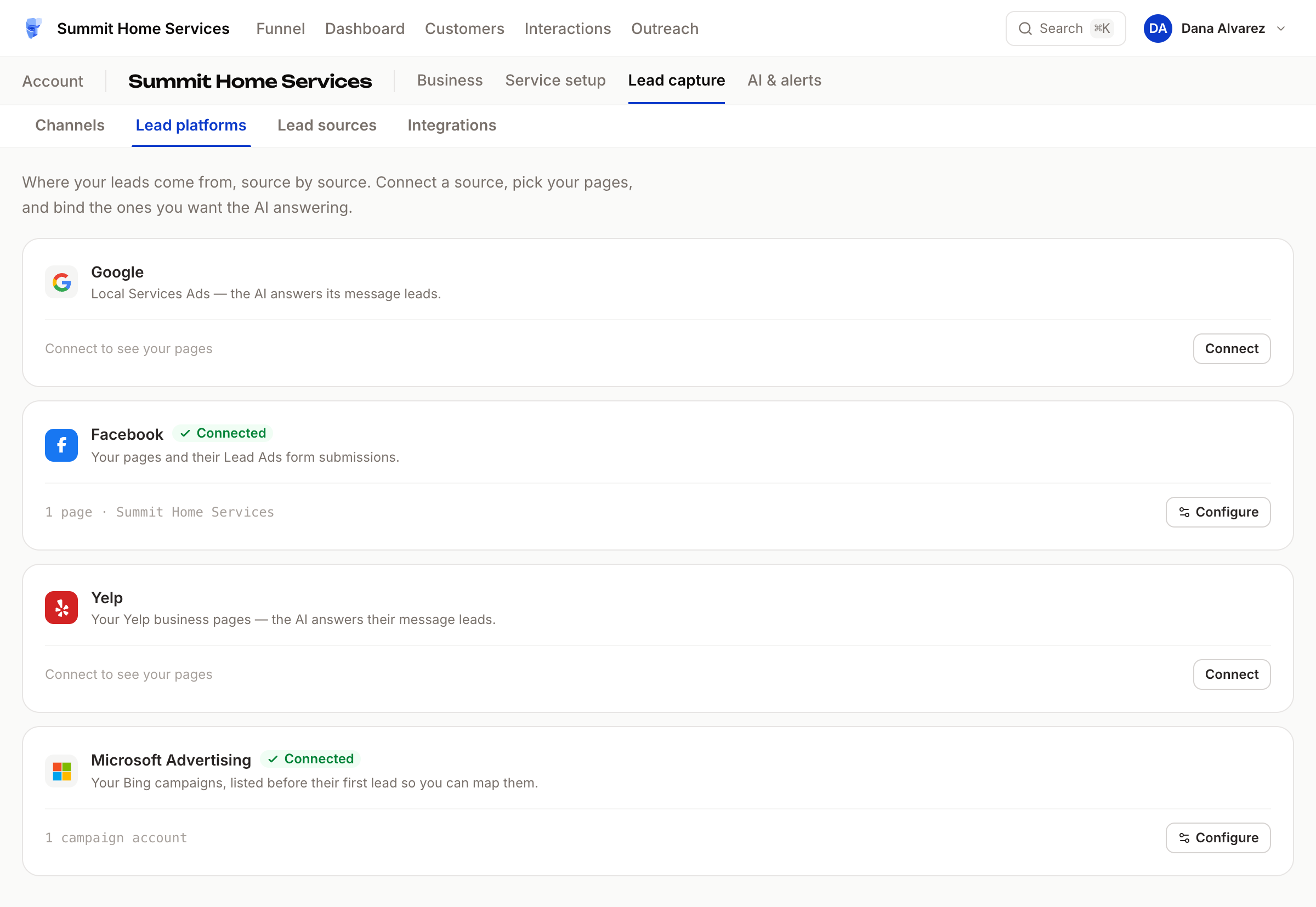
Lead platforms is where your leads come from, source by source. Connect a platform, pick your pages, and bind the ones you want your AI assistant answering.
Quick Answer - 30 Seconds
To connect a platform: Account settings → Lead Capture → Lead platforms → Connect on the card → sign in with the platform → back in OnePath, flip the toggle on each page you want answered → Done.
Angi has no card here. Angi leads arrive by email; see Email lead inbox.
What this controls
| Card | What it connects | What flows in |
|---|---|---|
| Local Services Ads accounts | Message leads, checked every few minutes; the AI replies inside the Google thread | |
| Facebook Pages | Lead Ads form submissions, the moment they are submitted | |
| Yelp | Yelp business pages | Message leads; the AI replies inside the Yelp thread |
| Microsoft Advertising | Microsoft Advertising (Bing) ad accounts | No leads. Your Bing campaigns, listed before their first lead so you can map them |
A listing is one page or account you bind: an LSA account, a Facebook Page or a Yelp business. Binding is what tells OnePath "answer this one".
Where to find it
Location: Account settings → Lead Capture → Lead platforms
→ app.onepath.ai/settings/account/lead_platforms
Any team member can open the page. Connecting, binding, picking ad accounts and removing accounts need a Company Owner or Account Admin.
Card status
| Chip | Meaning |
|---|---|
| (none) | Not connected yet. The footer reads Connect to see your pages. |
| Not set up | Connected, but no page bound yet |
| Connected | At least one page bound. The footer lists them, for example 2 pages · Downtown, Oxnard |
| Not set up / Connected on Microsoft Advertising | Connected, then at least one ad account picked. The footer counts them, for example 2 campaign accounts |
| Needs attention | A bound page's connection failed the last time OnePath checked it |
Connect and bind
- Click Connect. You are sent to the platform's own sign-in and consent screen. Use a login that owns the pages you want.
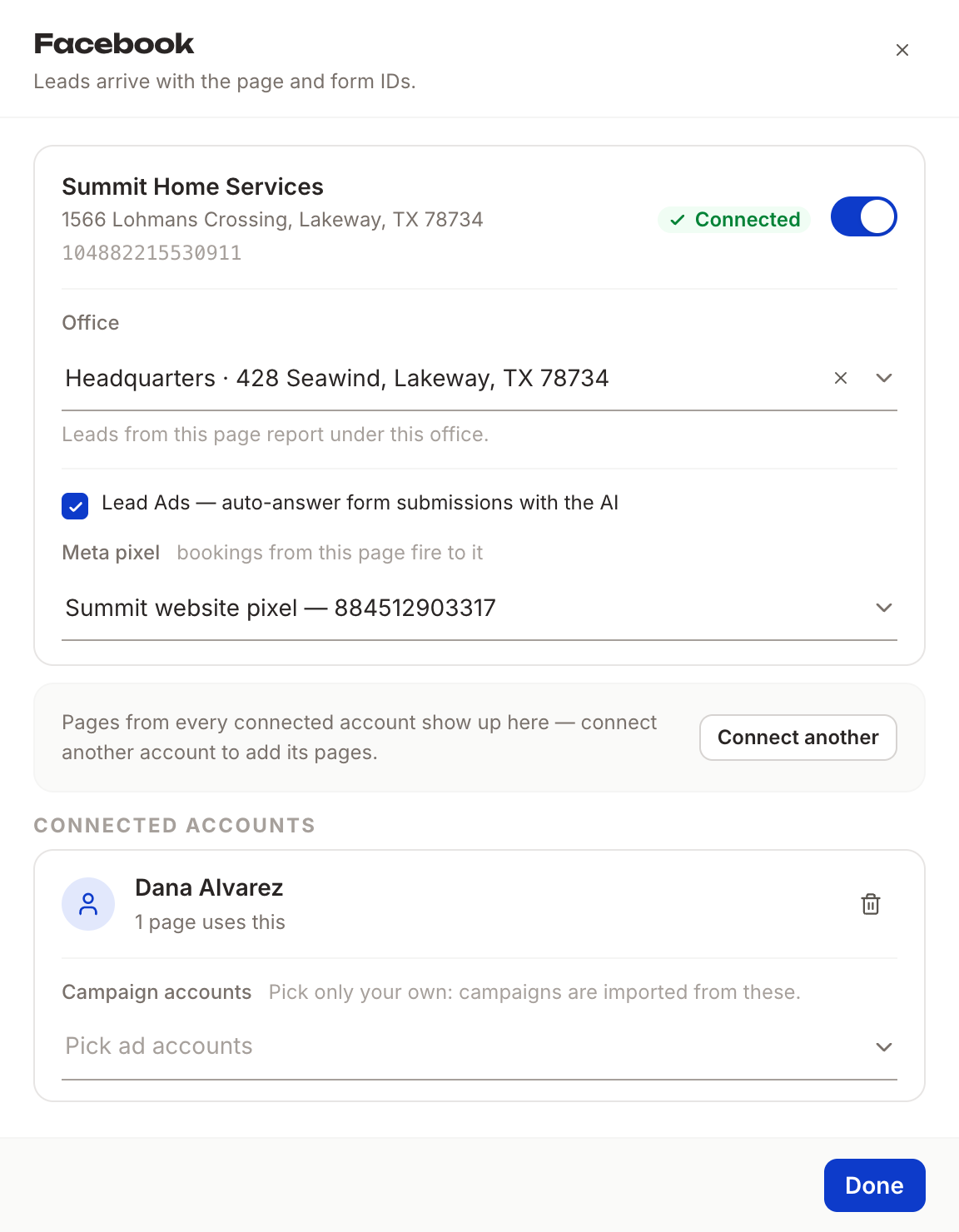
- You return to OnePath with the drawer open. It lists every page that login can see, with its name, address (where the platform provides one) and its ID.
- Flip the toggle on each page to bind it. The chip on the row turns Connected and the AI starts answering that page's leads.
- Click Done.
See No pages found yet? OnePath couldn't list any pages for that login; check that it owns the pages you expect. Use Connect another to add a different login; pages from every connected login show in the same drawer.
Campaign accounts
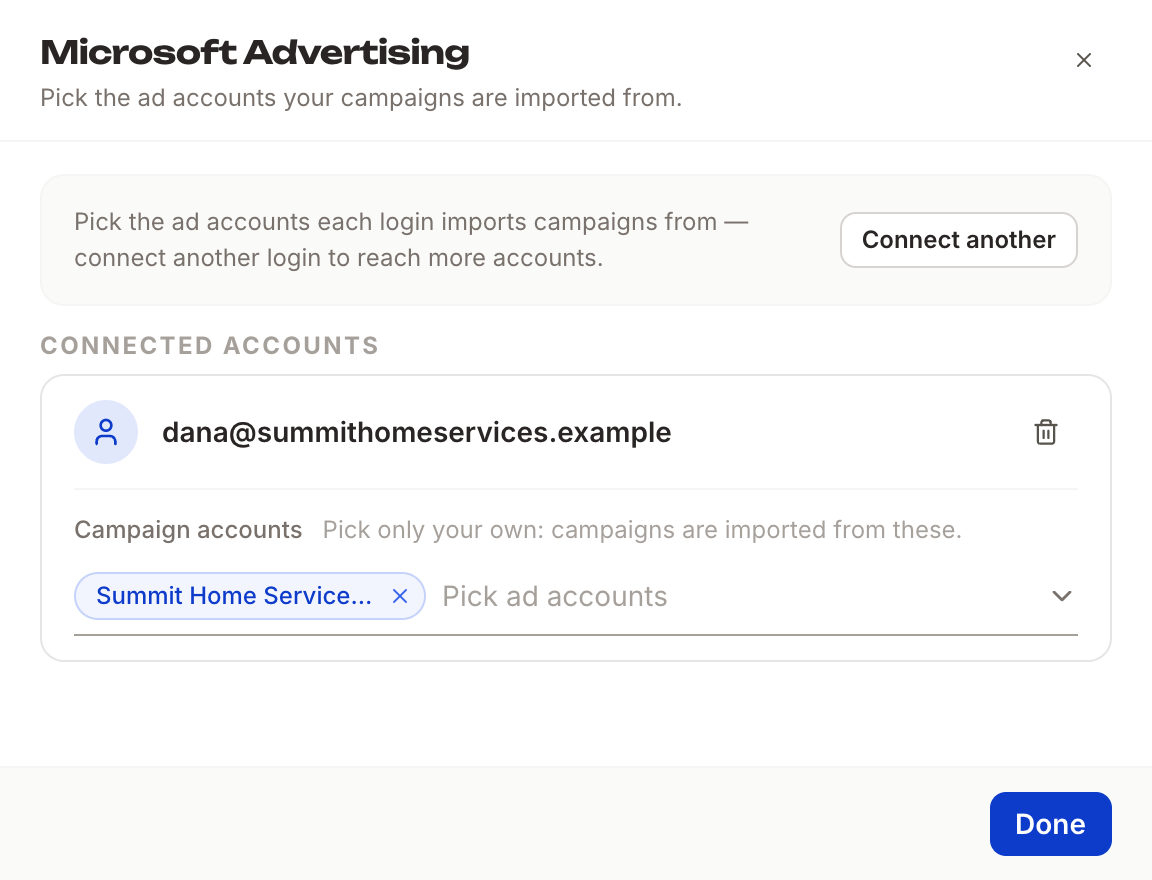
Under each connected Google, Facebook or Microsoft Advertising login, the drawer shows Campaign accounts: the ad accounts your campaigns are imported from. It starts empty.
- Open the platform's drawer with Configure.
- Under the login, click Pick ad accounts and tick your own accounts. Each shows its name and ID.
- The picks save as you make them. You see Campaign accounts saved.
Pick only your own. An agency login often reaches other businesses' ad accounts too.
For Google and Microsoft Advertising, OnePath lists the campaigns in those accounts on Lead sources right away and every night after, before any lead arrives. You can map each one ahead of its first lead. Facebook campaigns still appear once their first lead arrives.
An account that drops out of a login's list stays picked while your campaigns come from it. It reads <id> — not in your list.
Microsoft Advertising
Microsoft Advertising sends no leads of its own: a Bing ad click lands on your website and becomes a lead there. The card is here so OnePath can list your Bing campaigns before their first lead.
- Click Connect and sign in with the Microsoft account that can see your ad accounts. A viewer's access is enough. If an agency runs your ads, sign in with the account they gave you access with.
- Back in OnePath, pick your accounts under Campaign accounts.
- Your Bing campaigns appear under Bing Ads on Lead sources, each reading Listed by the platform — no leads yet.
If Microsoft says you need an administrator's approval, your company's Microsoft 365 settings block apps from outside it. Ask your IT admin to approve OnePath, or reach out to us.
Facebook options
Each bound Facebook Page has two extra controls, saved as you change them:
- Lead Ads — auto-answer form submissions with the AI. On by default. Turning it off stops OnePath receiving that page's form submissions.
- Meta pixel. Choose No pixel or one of the pixels from your connected Facebook account. Bookings from this page fire booking events to it.
Yelp
Each bound Yelp business shows a note with its business ID; that is how OnePath tells your pages apart. A Yelp lead may carry a temporary (masked) phone number for the customer; it expires on its own.
Google Local Services Ads
OnePath checks each bound account for new message leads every few minutes and pulls in the history the first time. It also reads your Google Ads spend so the Dashboard can show cost per job request per campaign.
Replies
- Your AI assistant replies on the platform's own thread for Google and Yelp, so the customer sees it where they wrote.
- If someone on your team replies inside Google's or Yelp's own app, that reply is imported into the conversation in Interactions as a business message. It is shown for context and never re-sent, and the AI does not answer the history.
- Facebook form submissions appear as an event in the conversation and the AI follows up with the customer directly.
Health checks
Every night, and every time you open a drawer, OnePath re-checks each connected login. A failure marks the card Needs attention and the affected rows Connection down. The usual fix is Connect another with a working login, then remove the broken one.
Unbind or disconnect
- Unbind a page - flip its toggle off. OnePath tells the platform to stop sending, and the conversation history stays.
- Remove account - the trash icon under Connected accounts. If pages depend on it you are warned: "Removing this account unbinds the N page(s) it feeds. Continue?"
Attribution
Jobs booked from these platforms can carry the right lead source in your field service software. Set that on Lead sources, for the whole platform or campaign by campaign.
Quick Tips
- ✅ Bind only what the AI should answer - unbound pages are ignored, not broken.
- ✅ Keep the Lead Ads box ticked - unticking it silently stops Facebook leads.
- ✅ Pick only your own ad accounts - their campaigns are imported into your account.
- ❌ Don't reply to leads in two places - a reply you type in Google's or Yelp's app is imported for context only; keep the conversation in one place.
Still stuck?
Reach out in your OnePath Slack channel or email your account manager. Include the platform and the page or ad account name so we can help fast.