Settings · Business
Your profile, security & notification preferences
Your profile and Security & privacy are your own settings: your name, title, phone, password and the devices you're signed in on. Every user can open them.
Quick Answer - 30 Seconds
To change your password: click your initials (top right) → Security & privacy → Current password → New password twice → Update password.
Changing your password doesn't sign out your other devices. Use Sign out other devices on the same page for that.
What this controls
| Page | What you change |
|---|---|
| Your profile | Your first name, last name, job title and phone number |
| Security & privacy | Your password, and every browser or phone you're signed in on |
| Notifications (direct link only) | Appointment emails for the whole account, not just you. See below. |
These pages only ever change your own login, except the notification preferences form.
Your profile
Location: your initials (top right) → Your profile
→ app.onepath.ai/settings/user/profile
The bar at the top shows your name and two tabs, Profile and Security & privacy.
The Your details card holds four fields, all required. Your name and title travel with every lead you touch: escalations, notes, and the summary a technician reads.
| Field | Notes |
|---|---|
| First name, Last name | Capitalised for you. |
| Job title | Type your own or pick a suggestion, for example Owner, Office Manager, Dispatcher, Service Manager or Field Technician. Three-letter titles like CEO are capitalised. |
| Phone number | A real 10-digit US number. No two users can share the same number. |
Click Save changes. You see "Profile updated successfully". Discard throws away unsaved edits. The footer reads "Unsaved changes" until you save.
The side panel shows your sign-in email, each account you belong to with your role there, and this session's device and IP address. Your email and role can't be edited here. To sign in with a different email, ask your Company Owner or an Account Admin to invite the new address on Team.
Security & privacy
Location: your initials (top right) → Security & privacy
→ app.onepath.ai/settings/user/password
Change your password
- Enter your Current password.
- Enter a New password: 8–32 characters with at least one special character, for example
!@#$%^&*. - Type it again in Confirm new password.
- Click Update password. You see "Password updated successfully".
A wrong current password shows "Current password is incorrect". Mismatched entries show "Passwords do not match". Forgot your current password? Sign out and use Forgot password?, see Roles, sign-in & switching accounts.
Where you're signed in
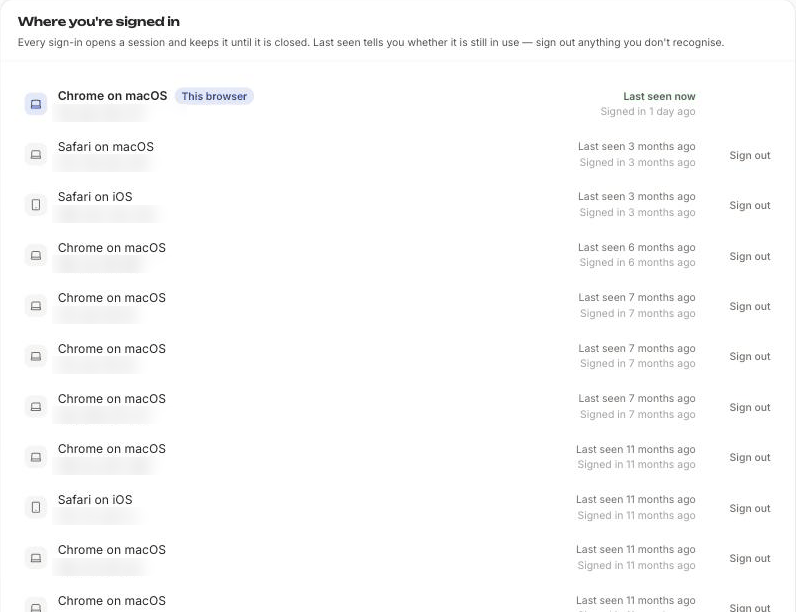
This card lists every session: the device (for example "Chrome on macOS"), its IP address and when it signed in. Your current one carries a This browser chip.
- Sign out on a row ends that session at once. Whoever holds it has to sign in again.
- Sign out N other devices ends every session except this one.
- To end the session you're using, choose Sign out from the user menu.
Notification preferences
Location: direct link only (no menu entry)
→ app.onepath.ai/settings/notification_preferences
Company Owner and Account Admin can open it. Others see "You are not authorized to access notification preferences."
Despite its place next to your personal settings, this form changes the account's appointment emails, the same ones set on Notifications. Whoever is listed gets the email, no matter who saved the form.
The Appointment Notifications section has three rows: Appointment Created, Appointment Rescheduled and Appointment Cancelled. Each has a switch and one email address. Click Save to see "Notification preferences updated successfully."
This form holds one address per event. For several addresses per event, or webhooks, use Notifications instead.
OnePath may still email you important notices about your account, whatever you set here.
Still stuck?
Reach out in your OnePath Slack channel or email your account manager. Include the email you sign in with so we can help fast.