Settings · Lead Capture
Integrations (field service software)
Integrations is your field service software connection. Connect it and every booking your AI assistant takes is created there, with the right customer, job type and campaign.
Quick Answer - 30 Seconds
To connect: Account settings → Lead Capture → Integrations → Connect → choose your software under Integration type → enter its credentials → Save Changes.
The card turns green with "<Provider> connected" once the first sync finishes. Texting numbers live in Channels and ad platforms in Lead platforms.
What this controls
Your field service software (FSM) is where jobs, customers and technicians live: ServiceTitan, Housecall Pro, AccuLynx or Fyxify. Once connected, OnePath:
- Reads your business units, job types, price book (Housecall Pro), service areas, campaigns and tags, so the Services page can map each service to a job type.
- Checks availability there before offering a customer a time.
- Creates, reschedules and cancels jobs there, under a campaign named "OnePath" unless you map sources on Lead sources.
Where to find it
Location: Account settings → Lead Capture → Integrations
→ app.onepath.ai/settings/account/integrations
This is also where Account settings opens by default. Any team member can view it; connecting, syncing and disconnecting need a Company Owner or Account Admin.

The connection card
| State | What you see |
|---|---|
| Connected | The provider's name with a Connected chip, then last sync … ago (ServiceTitan also shows Tenant …). Buttons: Sync data, Update credentials, Disconnect. |
| Not connected | Grey card "No field service software connected" and a Connect button. |
| No field service software | "This account runs standalone — appointments are managed in OnePath, with no field service software connection." No buttons. See How availability works. |
Below the card: "Membership booking is managed on the Recurring Services page." See Recurring Services.
Connect: the Configure FSM Integration modal
Click Connect (or Update credentials). Pick one of ServiceTitan, Housecall Pro, AccuLynx or Fyxify under Integration type; the form for that provider appears. Only one can be active per account.
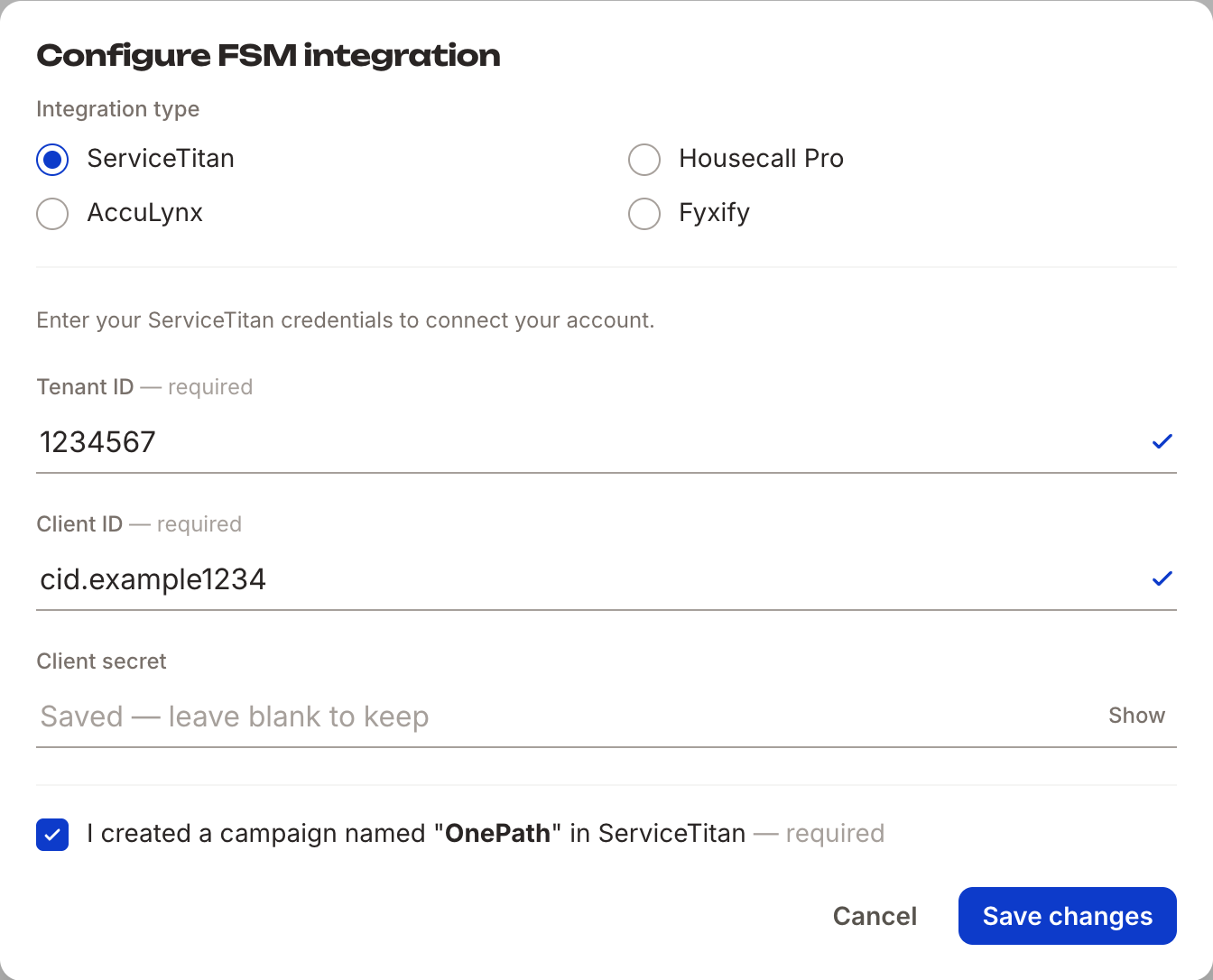
ServiceTitan
| Field | Notes |
|---|---|
| Tenant | Your ServiceTitan tenant id. May be pre-filled; kept even if you disconnect. |
| Client and Client secret | Your ServiceTitan client id and client secret. |
| I created a campaign named "OnePath" in Service Titan | Required. OnePath looks the campaign up on save and stops with "OnePath campaign not found on Service Titan" if it is missing. |
Housecall Pro
| Field | Notes |
|---|---|
| Api key | From Housecall Pro. On save OnePath finds or creates a campaign named "OnePath". |
| Assign new jobs to OnePath dummy tech (First Name: OnePath, Last Name: AI) on Housecall Pro | Off by default. Turn it on to have every job OnePath creates assigned to an employee named OnePath AI. Create that employee first; otherwise saving fails with a message telling you to. |
AccuLynx
| Field | Notes |
|---|---|
| Api key | Generate it in AccuLynx under Account Settings → Integrations. AccuLynx also needs a lead source named "OnePath" (Company Settings → Leads → Lead Sources) or the save is rejected. |
| Default Calendar | Fallback calendar when a service type has no calendar mapping. |
| Campaign | Stamped onto every job OnePath creates. Both lists fill a few seconds after the first save. |
Fyxify
Client ID, Company ID and Client Secret from your Fyxify partner credentials.
What happens on save
OnePath verifies the credentials ("Credentials are incorrect" if not), shows "Integration updated successfully", and runs the first sync in the background. The card shows "<Provider> connected" once that sync succeeds.
Sync data and the nightly sync
Click Sync data to re-pull everything now; the button reads Syncing… until it finishes. The same sync runs by itself every night around 2:30 AM Eastern, so new job types, campaigns and tags appear in OnePath by morning. Service durations follow the job type's duration unless you edited them yourself.

After each sync OnePath audits your mappings and emails your Service escalation list (Escalations) if something needs you:
- "Action Needed - Broken FSM Mappings (N)" - a service, urgent or after-hours mapping points at a job type, business unit or campaign that no longer exists. Each row has a Fix now link.
- A report of mappings that return no availability, so you can check the schedule on your side.
Related settings
- After-hours and urgent mappings - which job type after-hours or urgent bookings are written under: After-Hours Job Type and the Urgent & after-hours mappings section on Services.
- Lead source attribution - Lead sources.
- Phone number for texting and voice - Voice & RCS Text Messaging.
Disconnecting
Click Disconnect and confirm: "Disconnect <Provider>? Bookings stop flowing to it until credentials are saved again." OnePath clears the credentials and synced data but keeps fixed identifiers such as the ServiceTitan tenant, so reconnecting only asks for what changed.
Accounts without field service software
Some accounts run without any FSM. Appointments live in OnePath, the Integrations page shows only the standalone note, and OnePath manages your schedule capacity itself; ask OnePath to change it. Subscribe to your appointments from Calendar & calendar feed. Details: How availability works.
Quick Tips
- ✅ Create the "OnePath" campaign or lead source first - ServiceTitan and AccuLynx refuse to connect without it.
- ✅ Sync after changes on your side - new job types and campaigns appear once synced.
- ✅ Act on the mapping emails - a broken mapping can send a booking to the wrong place.
- ❌ Don't disconnect to fix a sync error - try Sync data or Update credentials first; disconnecting stops bookings.
Still stuck?
Reach out in your OnePath Slack channel or email your account manager. Include the provider name and the status on the card so we can help fast.