Settings · AI & Alerts
Agent Personalization
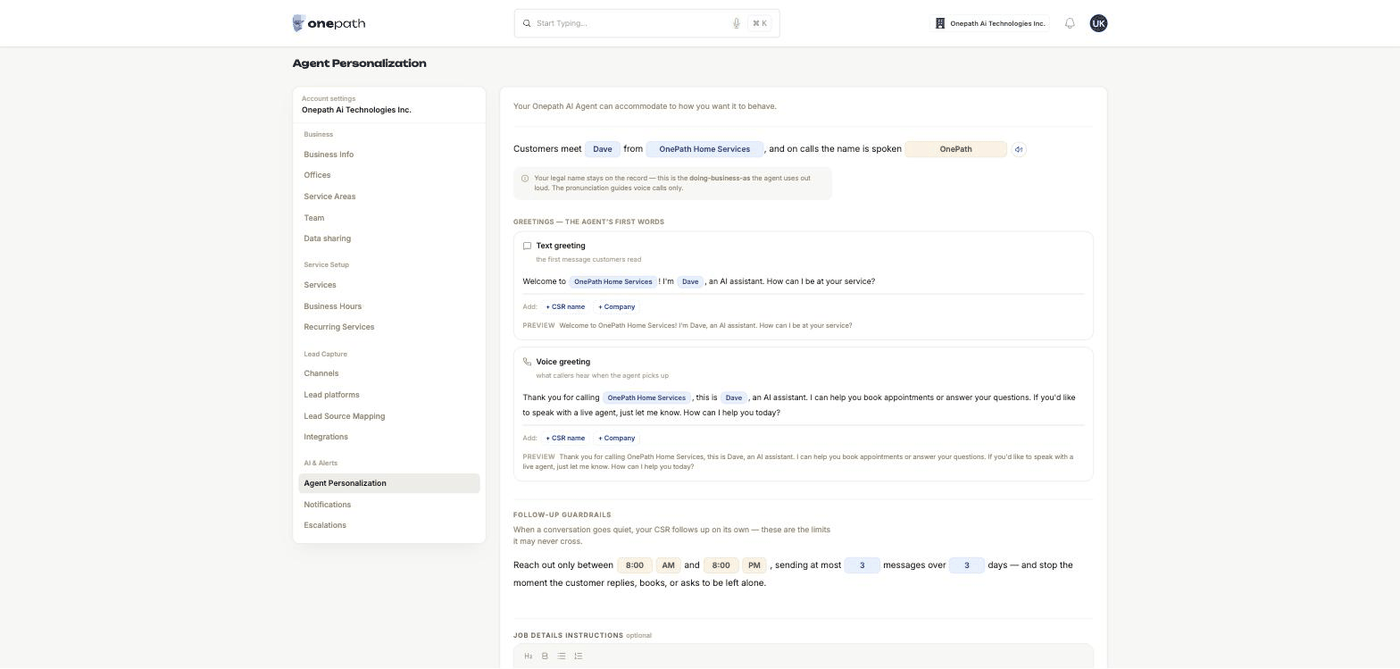
Agent Personalization is where you shape the AI assistant that answers your leads: its name, the business name it says out loud, its first words by text and by phone, and how far it may go with follow-ups.
Quick Answer - 30 Seconds
To personalise your assistant: Account settings → AI & Alerts → Agent Personalization → tap the name, business name or pronunciation pill in the sentence → edit the greetings → done. Everything saves itself.
Leave it all alone and your assistant is called Amy, uses your business name, and follows up between 8:00 AM and 8:00 PM.
What this controls
| Section | What it changes |
|---|---|
| Persona sentence | The assistant's name and the business name customers hear |
| Greetings | The first text message and the first thing callers hear |
| Follow-up guardrails | When, how often and for how long the assistant chases a quiet lead |
| Instructions | What the assistant says or does in situations you choose, covered on CSR Instructions |
| Job details instructions | Job summaries and tags in your field service software, covered on Job Details Agent |
There is no voice picker and no personality or tone selector. You control what the assistant says and how it names itself.
Where to find it
Location: Account settings → AI & Alerts → Agent Personalization
→ app.onepath.ai/settings/account/agent_personalization
Company Owners and Account Admins can save changes and play the pronunciation preview.
Who customers meet
The top of the page reads as one sentence:
Customers meet [name] from [business name], and on calls the name is spoken [pronunciation] 🔊
- Name: what the assistant calls itself. Default Amy.
- Business name: the doing-business-as name the assistant uses, in text greetings for example. Leave it blank and OnePath uses your account's display name. Your legal name stays on the record either way.
- Pronunciation: a phonetic spelling used on calls only, for example coast-line comfort. Press the speaker button (Listen — hear how your business name is spoken) to hear it. A preview takes up to 500 characters, and you can play up to 20 previews a minute.
Greetings — the agent's first words
Two cards. Each shows the greeting with the CSR name and Company tokens as coloured pills; the Add: buttons insert a token at the cursor, and Preview shows the result with your current name and business name.
Text greeting, the first message customers read. Default:
Welcome to [Company]! I'm [CSR name], an AI assistant. How can I assist you today?
Voice greeting, what callers hear when the agent picks up. Default:
Thank you for calling [Company], this is [CSR name], an AI assistant. I can help you book appointments or answer your questions. If you'd like to speak with a live agent, just let me know. How can I help you today?
Clear a greeting completely and it goes back to the default on save.
Voice greeting greyed out?
It reads voice is off — calls forward to your line; turn it on in Channels to use this. Switch on Voice under AI voice and the card unlocks.
Follow-up guardrails
When a conversation goes quiet, your CSR follows up on its own — these are the limits it may never cross. Rendered as one sentence:
Reach out only between 8:00 AM and 8:00 PM, sending at most 4 messages over 5 days — and stop the moment the customer replies, books, or asks to be left alone.
| Pill | Default | Allowed |
|---|---|---|
| Window start / end | 8:00 AM / 8:00 PM | Any time, 12-hour clock |
| Messages | 4 | Whole number above 0 |
| Days | 5 | Whole number above 0 |
These bound every automatic follow-up the assistant sends by text or email after a lead stops responding. The assistant always stops on a reply, a booking, or a request to be left alone, whatever the numbers say. A blank time pill falls back to the default.
Saving
There is no Save button. Any change saves after about a second; you see Saving… then Saved. Couldn't save — check your entries means a value was rejected (for example a time in the wrong format).
The setup wizard's Your Customer Service Rep phase is the same editor. A blank assistant name leaves that wizard step incomplete.
Quick Tips
- ✅ Spell it like it sounds - the pronunciation pill is for phonetics, not the official name.
- ✅ Listen before you save - the speaker button plays exactly what callers will hear.
- ✅ Keep the "AI assistant" wording - the default greetings tell customers up front that they are talking to an AI.
- ❌ Don't set follow-ups to run overnight - the window is there to protect your reputation.