Your Workspace
Customers
Customers is one row per customer (or unnamed lead) with where they stand right now and how much revenue is in play. Open a row for the full story: addresses, opportunities, appointments and every conversation.
Quick Answer - 30 Seconds
To find someone: top bar → Customers → type a name, phone number or address in Search name, phone or address → click the row. Or press ⌘K and type the same thing from anywhere.
Everything here is read-only except Decline appointment (see below). You can't break anything by clicking.
Where to find it
Location: top bar → Customers (⌘K → Customers)
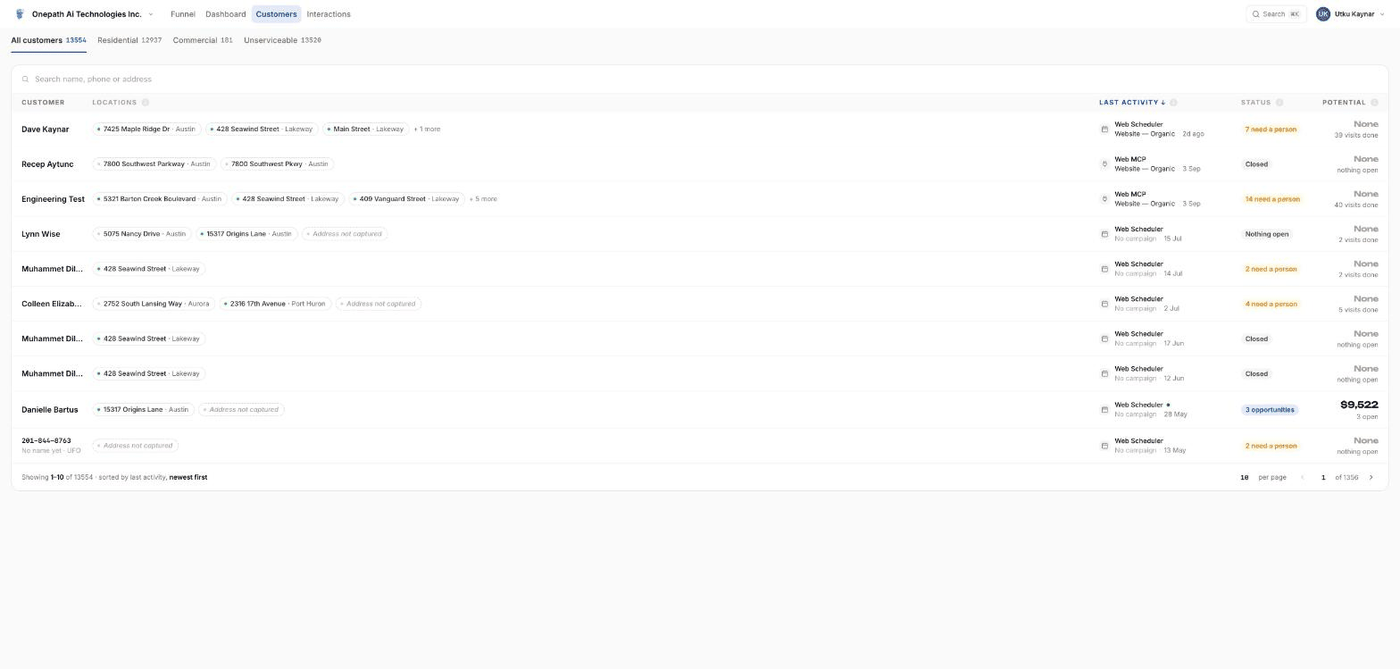
The list
Four tabs with counts: All customers, Residential, Commercial, Unserviceable. A customer counts as Residential if any of their addresses is residential, Commercial likewise, and Unserviceable if any of their leads is Disqualified.
| Column | What it shows |
|---|---|
| Customer | Full name, or the primary phone or email when no name is known, or Unknown caller. A second line shows the matched email or the disqualified reason. |
| Locations | One badge per address, up to three (then + N more). Filled badge = commercial, outlined = residential. The dot is authorization: green authorized, orange needs sign-off, grey out of area or no address yet. |
| Last activity | The latest conversation: its channel, the campaign behind it (or No campaign) and how long ago. A green dot means a conversation is still open. Default sort, newest first. |
| Status | One word for where the record stands, in this order of priority: Needs a person → Opportunity open → Visit booked → Out of area / Unserviceable → Nothing open or Closed. Hover for what the single word skipped. |
| Potential | Revenue still in play: every opportunity not yet won or lost. Underneath, upcoming visits and open opportunities. Hover a row for all-time figures. |
Click Customer, Last activity or Potential to sort; click again to reverse. The footer reads "Showing from–to of total" and lets you set Rows per page (5 to 100) and jump to a page.
Leads without a name yet
A lead that texted or called but never gave a name appears with its phone number (or email, or Unknown caller) in monospace and the subline No name yet · <stage>. It gets its own page just like a customer; once a name is confirmed it becomes a normal customer row.
Customer overview
The page bar shows a back arrow, the name, a warning badge with the reason if the record is disqualified, and tabs Overview, Opportunities, Appointments, Interactions with counts.
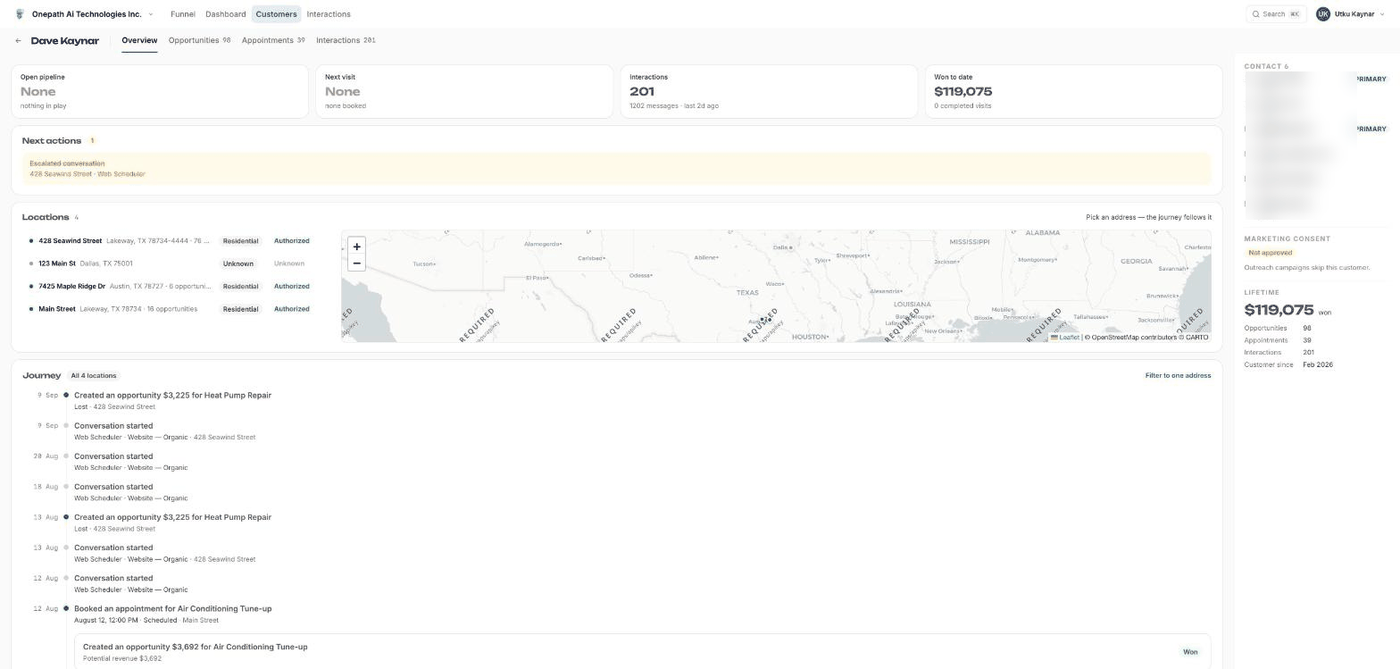
Stat strip across the top: Open pipeline (sum of open opportunities), Next visit (first upcoming appointment, with time and service), Interactions (conversation count, messages, last activity) and Won to date (sum of won opportunities, completed visits).
Next actions lists up to five tiles that need a person or are about to happen: an escalated conversation (amber), an upcoming appointment (green), an opportunity waiting on a reply, a missing service address, or the next follow-up attempt. Click a tile to open what it points to; the missing-address tile scrolls to Locations. When nothing is pending it says so.
Locations lists every address with its authorization dot, property type (Residential / Commercial / Unknown) and Authorized / Not authorized / Unknown, next to a map with a pin per address. Click an address to highlight it and filter the Journey to that address (Filter to one address / Show all locations).
Journey is a timeline, newest first, of the most recent 30 events: Conversation started, Escalated, Created an opportunity, Booked an appointment. A Won opportunity is a clickable card.
The rail on the right shows Contact (each phone, mobile and email; PRIMARY on the first phone and first email; TEMPORARY with an expiry date on a proxy number from a lead platform), Marketing consent (Approved or Not approved, which decides whether outreach campaigns may reach them; you can't change it here; the customer changes it by opting in or replying STOP) and Lifetime totals.
Opportunities tab
Every opportunity across all addresses. Views: All, Needs you (Human Handoff or Escalated), In play (Active or Follow Up), Won. Sort: Needs a person first (default), Biggest first, Newest first. With two or more opportunities you also get a search (Search service or address) and filter chips Stage, Address, Source.
Columns: Service · came in from, Location, Stage (blue in progress, amber waiting on a person, green won, grey closed), Revenue. The footer totals In play and Won.
Click a row for the drawer: Potential revenue, Created, a Stage rail (New → In progress → Won, with "Paused — waiting on a person" or "Closed as <stage>" when relevant), the linked Appointment (with Booked in and your field service software's name when synced), Came from (the conversation) and Details (service, location, property, authorization, source). Nothing in the drawer is editable. Stage meanings are in How OnePath works.
Appointments tab
Views: All, Upcoming (not cancelled, in the future), Past. Sort: Soonest first (default), Newest first, Oldest first. Filters: Status, Service, Address.
Columns: When, Service · came in from, Location, Status (Upcoming in blue for future scheduled visits, otherwise Scheduled, Done, Rescheduled or Cancelled).
The drawer shows When and Service, the linked Opportunity, Booked from (the conversation), Details including Booked in (your field service software, only when the visit was pushed there) and the appointment Summary, and the Customer with every contact.
Decline an appointment
This is the only action on any customer screen. A red Decline appointment button appears in the appointment drawer with the hint "Customer was inactive at booking — you may decline this appointment." You see it only when all of these are true:
- Book customers marked Do Not Service is switched on under Escalations, and your field service software flagged this customer as inactive or do-not-service;
- the visit is still Scheduled, was pushed to your field service software, and starts in the future.
Clicking it cancels the appointment in OnePath and in your field service software, and tells the customer by text and/or email that the appointment was cancelled. You see Appointment has been declined and cancelled. If someone got there first: This appointment has already been cancelled. The same button is where the Decline link in the Appointment Notice email lands.
Everything else about a booking (moving it, cancelling a normal visit) is done in your field service software or by the AI with the customer.
Interactions tab
Every conversation with this customer, with the same reader as the account-wide inbox: views Needs you, Waiting, All; search Search purpose or message; filter chips Channel, Source, Campaign, Outcome (Booked, Potential revenue, No booking). The transcript legend, call recordings and status meanings are explained on Interactions.
Quick Tips
- ✅ Search by the last four digits - any part of a phone number, email or address matches.
- ✅ Check Marketing consent before an outreach campaign - Not approved customers are skipped automatically.
- ✅ Use the Unserviceable tab - the disqualified reason tells you whether it's the area, the service, the customer type or authorization.
- ❌ Don't look for an edit button - names, contacts and addresses are captured by the AI; the app shows them but you don't edit them here.