Settings · Service Setup
After-Hours Auto-Assignment
When a booking would sit unseen until the job starts, OnePath assigns it to an available ServiceTitan technician as it creates the job.
Quick Answer - 30 Seconds
To turn it on: Account settings → Service Setup → Services → scroll to Urgent & after-hours mappings → switch on Auto-assign technicians to after-hours bookings. It saves automatically.
It is off by default. With it off, bookings land in ServiceTitan unassigned, as they always have.
What this controls
Bookings made after your office closes land in ServiceTitan unassigned. If the job starts before anyone is back to dispatch it, your technicians never see it: they only see jobs assigned to them.
With the switch on, OnePath asks one question for every new booking: will your office be in its regular hours at any point between now and the job's start? Regular hours are the regular pricing windows on your Business Hours page.
- Yes: the job is left unassigned, exactly as today. Your dispatcher assigns it when they are back.
- No: OnePath picks a technician ServiceTitan lists as Available for that arrival window, or, when nobody is, the technician on call for it. It puts them on the job as it creates it. The job is on that technician's schedule right away.
Examples
Regular pricing 8:00 AM to 5:00 PM on weekdays, weekend closed:
| Booked | Arrival window | Result |
|---|---|---|
| Monday 5:20 PM | Monday 7:00 to 9:00 PM | Assigned: nobody is in before the job starts |
| Monday 5:20 PM | Tuesday 7:00 to 9:00 PM | Unassigned: your office is in on Tuesday from 8:00 AM |
| Saturday 6:00 PM | Sunday 10:00 AM to 12:00 PM | Assigned: the office is closed all weekend |
| Tuesday 6:00 AM | Tuesday 8:00 to 10:00 AM | Assigned: the job starts the moment the office opens |
Where to find it
Location: Account settings → Service Setup → Services → Urgent & after-hours mappings → Auto-assign technicians to after-hours bookings
→ app.onepath.ai/settings/account/service_details
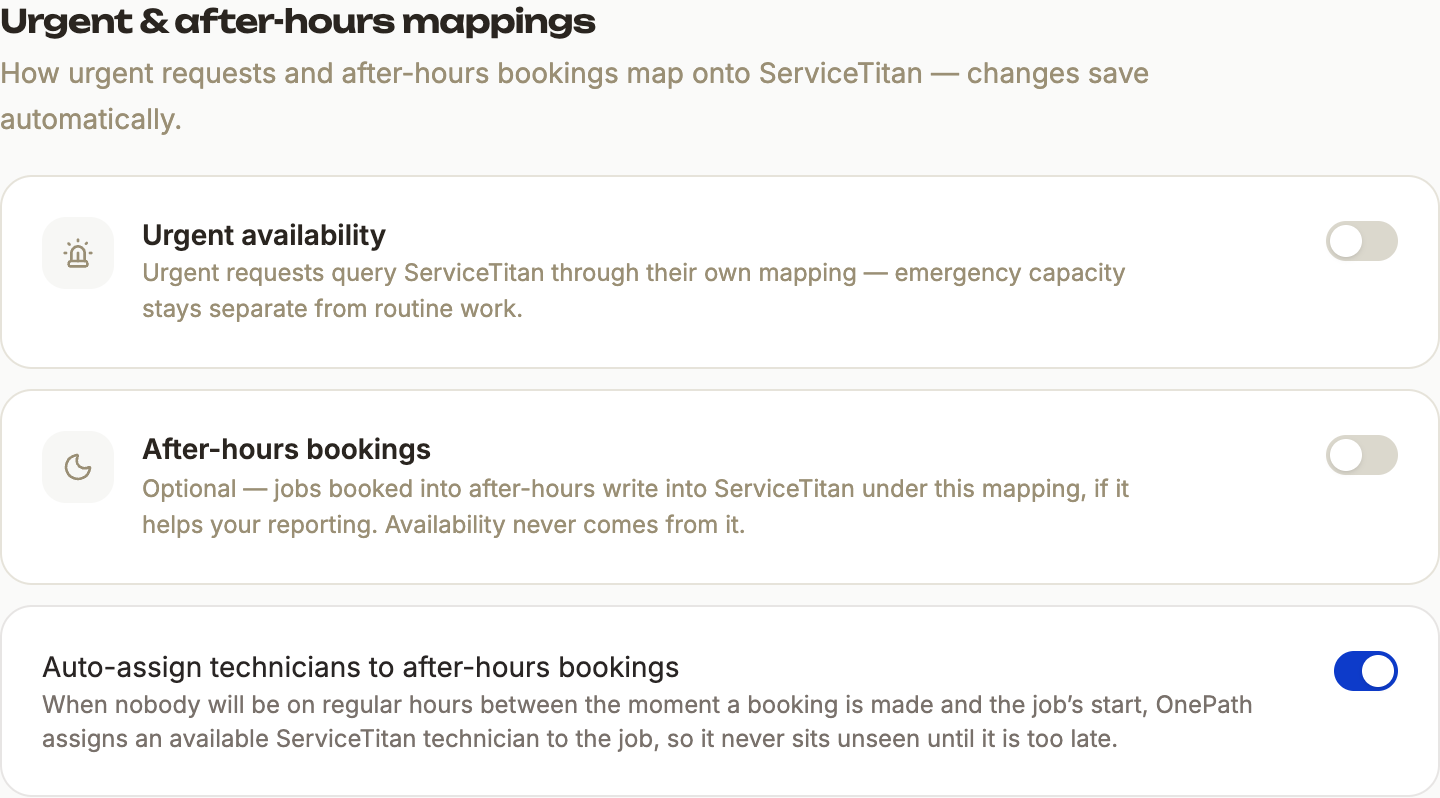
- Only accounts with ServiceTitan connected see the switch.
- Company Owners and Account Admins can change it.
- It saves as you flip it. A Saved toast confirms it.
How the technician is chosen
- OnePath reads ServiceTitan's capacity for the job's arrival window, in the business unit and job type the job is created under. With an after-hours mapping on, that is the mapping's job type, and its business unit when it has one.
- Only technicians ServiceTitan lists as Available count. ServiceTitan has already weighed their shifts and the jobs they have booked.
- If the arrival window spans more than one capacity window, the technician has to be Available in every one of them.
- If several technicians qualify, OnePath picks one of them at random.
When nobody is Available: your on-call technician
ServiceTitan's capacity planning leaves On-Call shifts out, so a technician who covers evenings and weekends on call shows as Unavailable in those windows. When nobody is Available, OnePath looks at your On-Call shifts in ServiceTitan instead:
- The on-call shift has to cover the whole arrival window. A shift that starts or ends partway through does not count.
- The technician has to belong to the business unit the job is created under.
- If more than one technician is on call for that window, OnePath picks the one with the fewest jobs in it.
What you need in ServiceTitan
OnePath assigns from your technician shifts under Schedule → Technician Shifts: a regular shift makes a technician Available, and an On-Call shift names who covers when nobody is. So:
- Give the technician who covers evenings and weekends a shift for those hours. A regular shift or an On-Call shift both work.
- Make sure they belong to the business unit those bookings are created under.
- Keep those windows open on your Capacity Planning page. OnePath only offers times ServiceTitan shows open capacity for.
Capacity decides how many jobs a window takes
OnePath does not check whether your on-call technician is already busy. It relies on your capacity: once a window is full, OnePath stops offering it. Set your evening and weekend capacity to what your on-call technician can take, so they are not double-booked.
When nobody is assigned
The booking always goes through. The job is created unassigned, just as with the switch off, when:
- no technician is Available for the whole arrival window and nobody's On-Call shift covers it,
- ServiceTitan's capacity or technician shifts cannot be read at that moment, or
- ServiceTitan refuses the chosen technician.
Your office then assigns the job as usual.
Good to know
- It acts once, when the job is created. Rescheduling a job does not choose a new technician.
- It never changes which time slots are offered. It only fills in the technician.
Quick Tips
- ✅ Keep your regular pricing hours accurate - they decide when your office counts as "in".
- ✅ Give your after-hours technician a shift in ServiceTitan - a regular or On-Call shift; without one, nobody can be assigned.
- ✅ Size your evening and weekend capacity to your on-call technician - a full window stops being offered.
- ✅ Pair it with After-Hours Job Type - file after-hours jobs under their own business unit and job type.
- ❌ Don't expect it to assign daytime bookings - while your office will be in before the job, the job stays with your dispatcher.
Still stuck?
Reach out in your OnePath Slack channel or email your account manager. Include the ServiceTitan job number so we can help fast.