Learning More - Want to Improve
Emails You Get
Human Force sends six emails. Each one has one main button that takes you to the right place.
Quick Answer - 30 Seconds
OnePath agent: the Service Request - Task #… email → Claim this task → Claim.
On the account's team: Task for Your Team → Open the task. Customer Wrote Again → Open the task. Task assigned → Open this task. Morning and end-of-day summary → Open the list.
Each email ends with a Contact support link. Replies reach OnePath, not the customer.
At a glance
| Subject starts with | Who gets it | Button | |
|---|---|---|---|
| New task | Service Request - Task # | OnePath agents (the Five9 inbox). Also a team member whose own Remind me… (picked Me) is due: Back from a reminder | Claim this task |
| Task for Your Team | Task for Your Team - Task # | The Service / Billing / Recruiting / Other escalation email list for that kind of task | Open the task |
| Customer Wrote Again | Customer Wrote Again - Task # | The same list as the task's Task for Your Team email | Open the task |
| Task assigned | Task #… assigned to you | The teammate who was assigned | Open this task |
| Morning / end-of-day summary | … Wait for Your Team - Morning Summary or … Still Wait for Your Team - End-of-Day Summary | Each escalation email list, about its own tasks | Open the list |
| Availability failure report | Availability Failure - Task # | The Service escalation email list | Open the task |
If you're a OnePath agent
New task
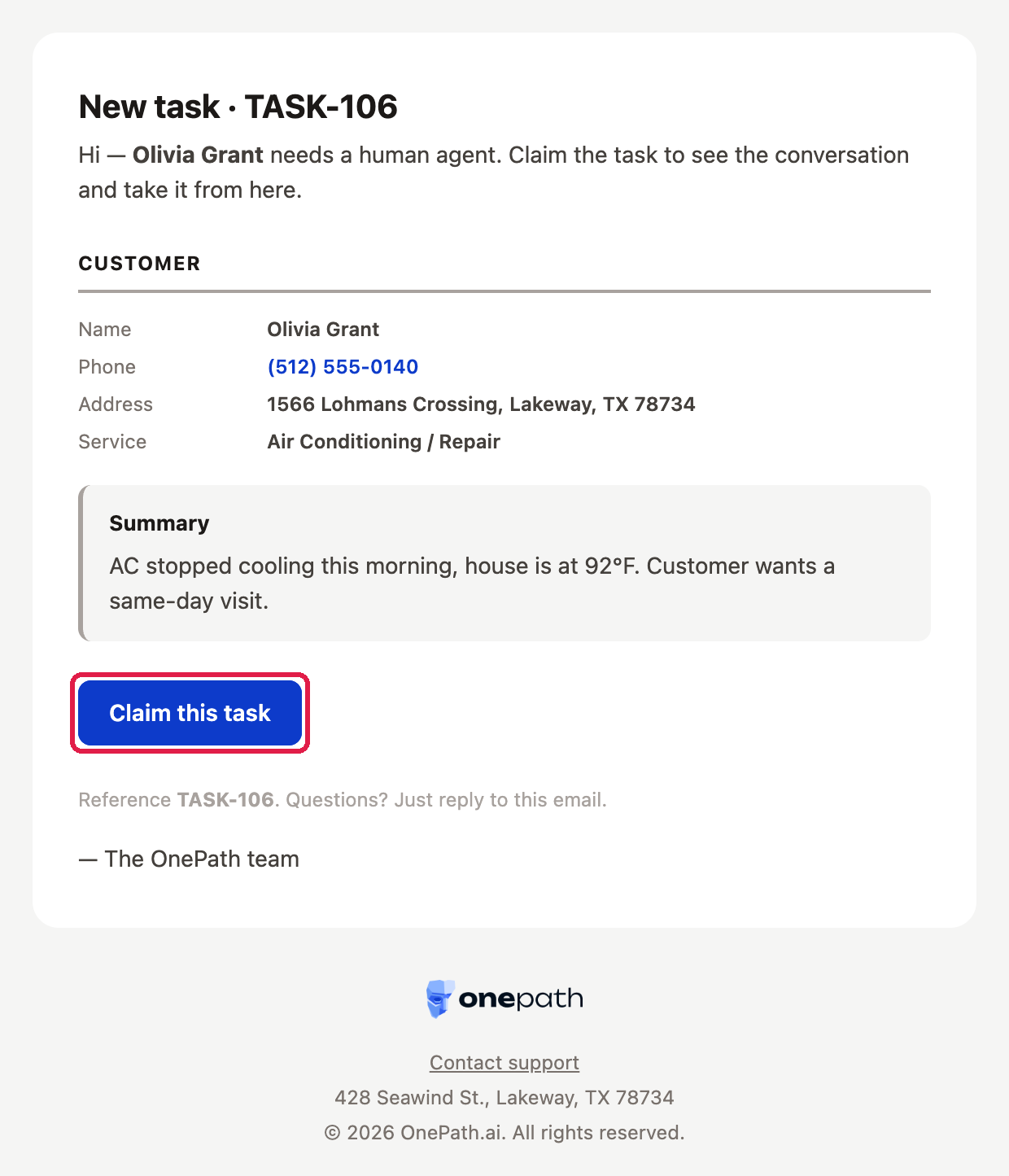
When: a customer needs a person and the account sends tasks to OnePath.
What's in it: the heading New task · TASK-…, the customer's name, phone, address and service, and a Summary of what they need.
The button: Claim this task opens the Claim this task window. Click Claim to take the task. See How to Claim a Task.
You may get the same task's email again. That means nobody holds it yet, for example after a colleague released it, or the customer answered a task left on Waiting answer. If it says Back from a reminder, someone parked the task with Remind me… and the time came or the customer wrote back.
A live handoff call sends no email. Use Claim with token with the 4 characters you heard.
If you're on the account's team
Task for Your Team
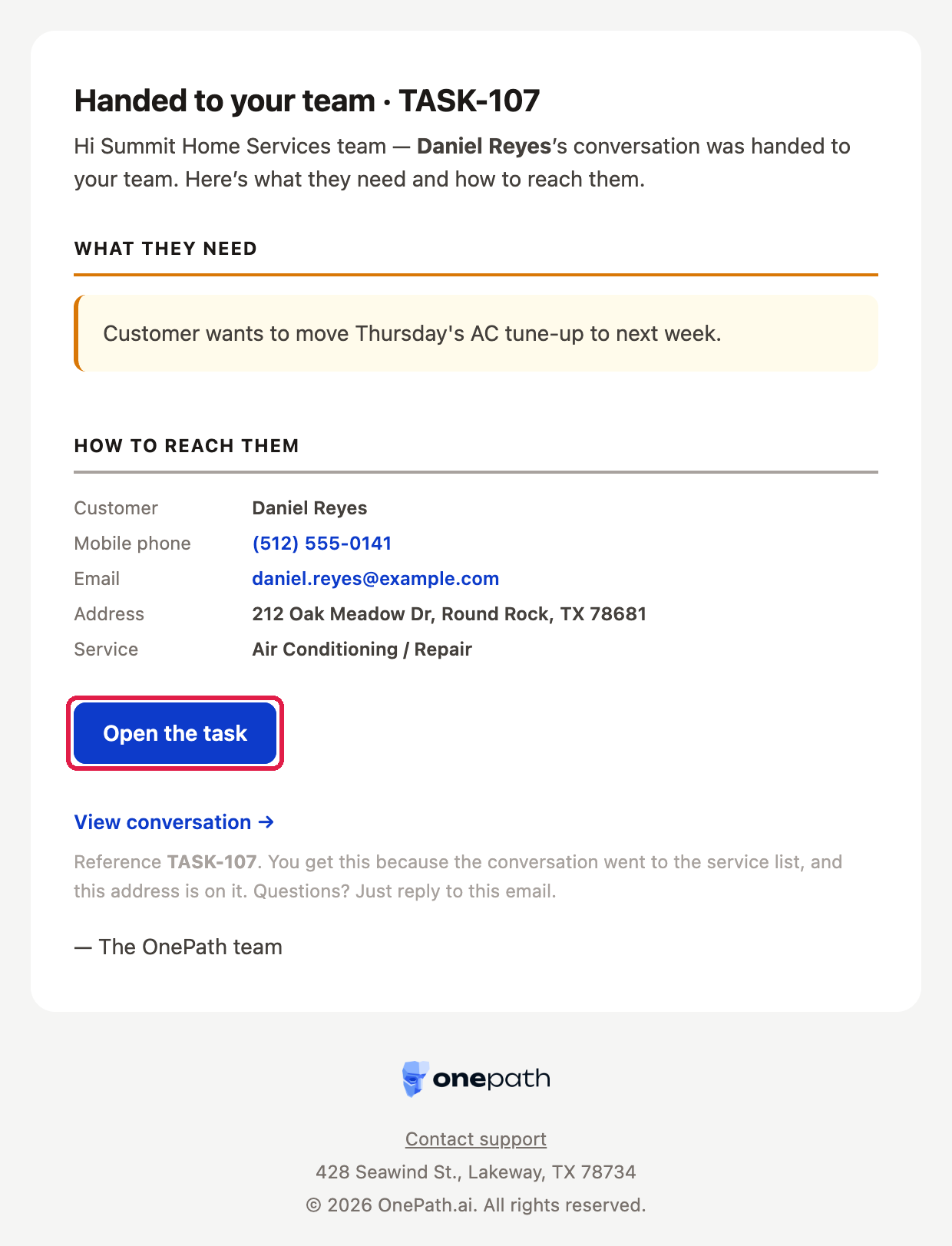
When: a task is handed to your account's team, by the AI, by a OnePath agent or by a teammate.
Who: each address on the Service / Billing / Recruiting / Other escalation email list for that kind of task:
| List | Gets |
|---|---|
| Service escalation | Complaints, urgent requests, reschedules, cancellations, callbacks, price quotes, services you don't offer, customers you can't serve |
| Billing escalation | Billing questions the AI hands over directly. A OnePath agent has no billing type and picks Other, so theirs reach Other escalation |
| Recruiting escalation | Job applications: someone who asked about working for you or filled in a hiring form. The task type is Job Application |
| Other escalation | Property owner checks, the AI could not help, the customer asked for a person, anything else |
Your admin sets these lists in Account settings → AI & Alerts → Escalations. An empty list falls back to the account's legal contact email.
What's in it: What they need, sometimes Why it reached you, the task summary and How to reach them (customer, contact, address, service). The note at the bottom says which list it came from.
The buttons: Open the task opens the Claim this task window. View conversation → opens the conversation in Interactions. For a Yelp lead (a customer who wrote through Yelp) with no direct contact yet, a Reply in Yelp → link opens the lead in Yelp.
Customer Wrote Again
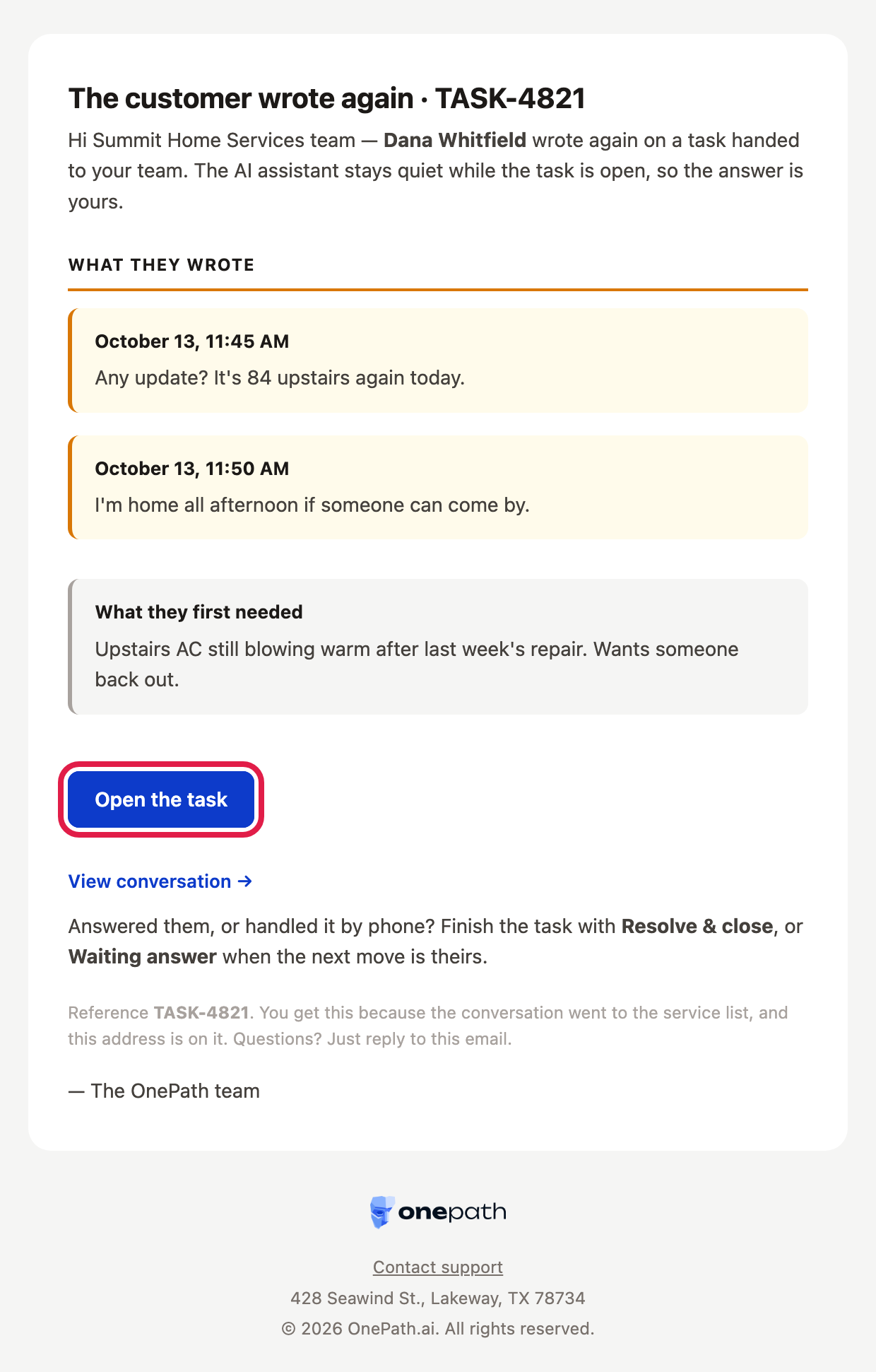
When: the customer writes again on a task handed to your team, and nobody has the task open. The AI stays quiet while the task is open, so their message would otherwise wait unseen on the task.
The email waits until the customer has been quiet for 10 minutes, so several messages in a row arrive as one email. If someone has the task open, they see the message live and no email goes out.
Who: the same list that got the task's Task for Your Team email.
What's in it: What they wrote, then What they first needed. A photo or file with no text says so: open the task to see it.
The buttons: Open the task opens the Claim this task window. View conversation → opens the conversation in Interactions. Answered them, or handled it by phone? Finish the task with Resolve & close, or Waiting answer when the next move is theirs. See Finishing a Task.
Back from your reminder
If you parked a team task with Remind me… and picked Me, you get the New task email when it comes back. Its button Claim this task opens the Claim this task window; click Claim to pick it up again.
Task assigned
When: a teammate uses Assign teammate to give you a task.
What's in it: who assigned it, the customer's name and the task summary.
The button: Open this task opens the task straight away. Your work on it starts when you open it.
Morning and end-of-day summaries
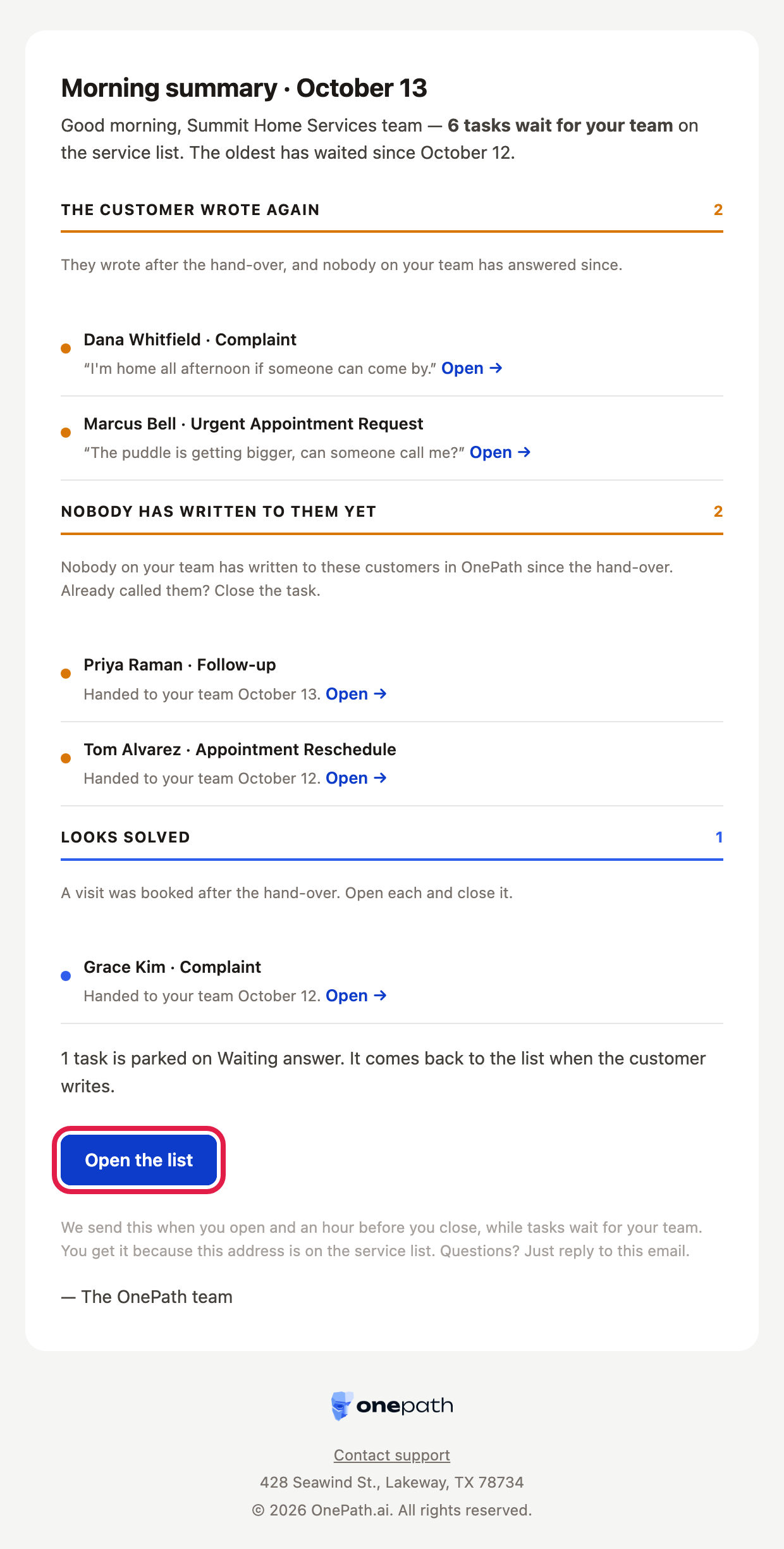
When: on the days you're open, while tasks wait for your team:
- Morning summary when you open.
- End-of-day summary an hour before you close.
Your Business Hours decide the times. With no hours set, OnePath reads Monday to Friday, 8 AM to 5 PM: the morning summary at 8 AM, the end-of-day one at 4 PM. Closed days get none. No tasks waiting, no email.
Who: each escalation email list gets its own summary, about the tasks handed to that list only. An address on two lists gets two summaries.
What's in it: how many tasks wait and since when the oldest has waited, then the tasks that need you, each with Open →:
| Section | Means |
|---|---|
| The customer wrote again | They wrote after the hand-over, and nobody on your team has answered since |
| Nobody has written to them yet | Nobody on your team has written to them in OnePath since the hand-over. Already called them? Close the task |
| Looks solved | A visit was booked after the hand-over. Open each and close it |
A line at the end counts the tasks parked on Waiting answer. They come back to the list when the customer writes.
The button: Open the list opens your team's task list. See Your Team's Task List.
The weekly Monday report is gone: these summaries replace it.
Availability failure report
When: someone working a task filed a report because the appointment search kept failing.
Who: the Service escalation email list.
What's in it: the customer's name, phone, address and the service they asked for.
The button: Open the task opens the task in Human Force. While a colleague still holds it, you see You cannot view this task because it is not assigned to you.
Something in an email looks wrong
Click Contact support at the foot of the email, or write to support@onepath.ai. Include the TASK- number from the email.
Quick Tips
- ✅ Act on the button, not the subject. Each email has one main button.
- ✅ Bookmark
app.onepath.ai/human_force. Team members have no Human Force link in the top bar. - ✅ Close "looks solved" tasks from the morning summary. They count as waiting until you do.
- ❌ Don't reply to reach the customer. Replies reach OnePath, not the customer. Contact the customer from the task screen.