Completing Tasks
Quick Answer
Done helping the customer?
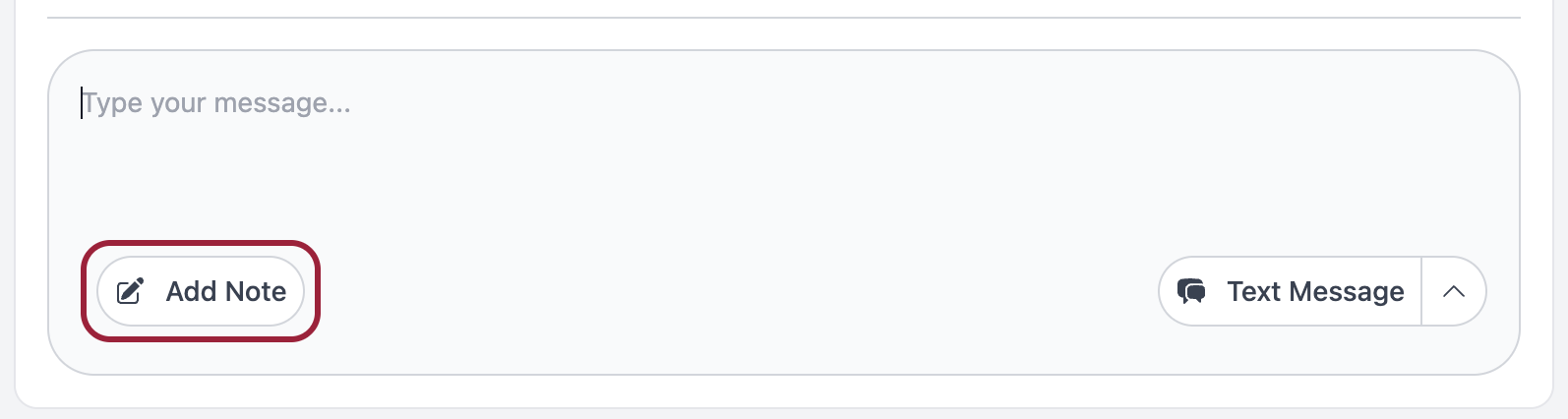
- Add a note about what happened
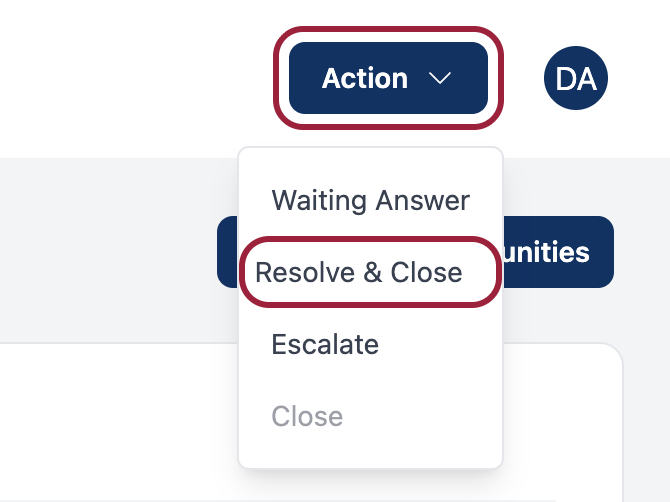
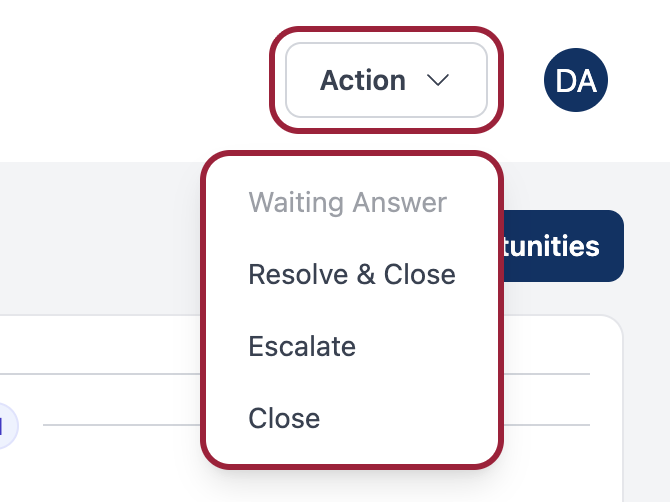
- Click "Resolve & Close"
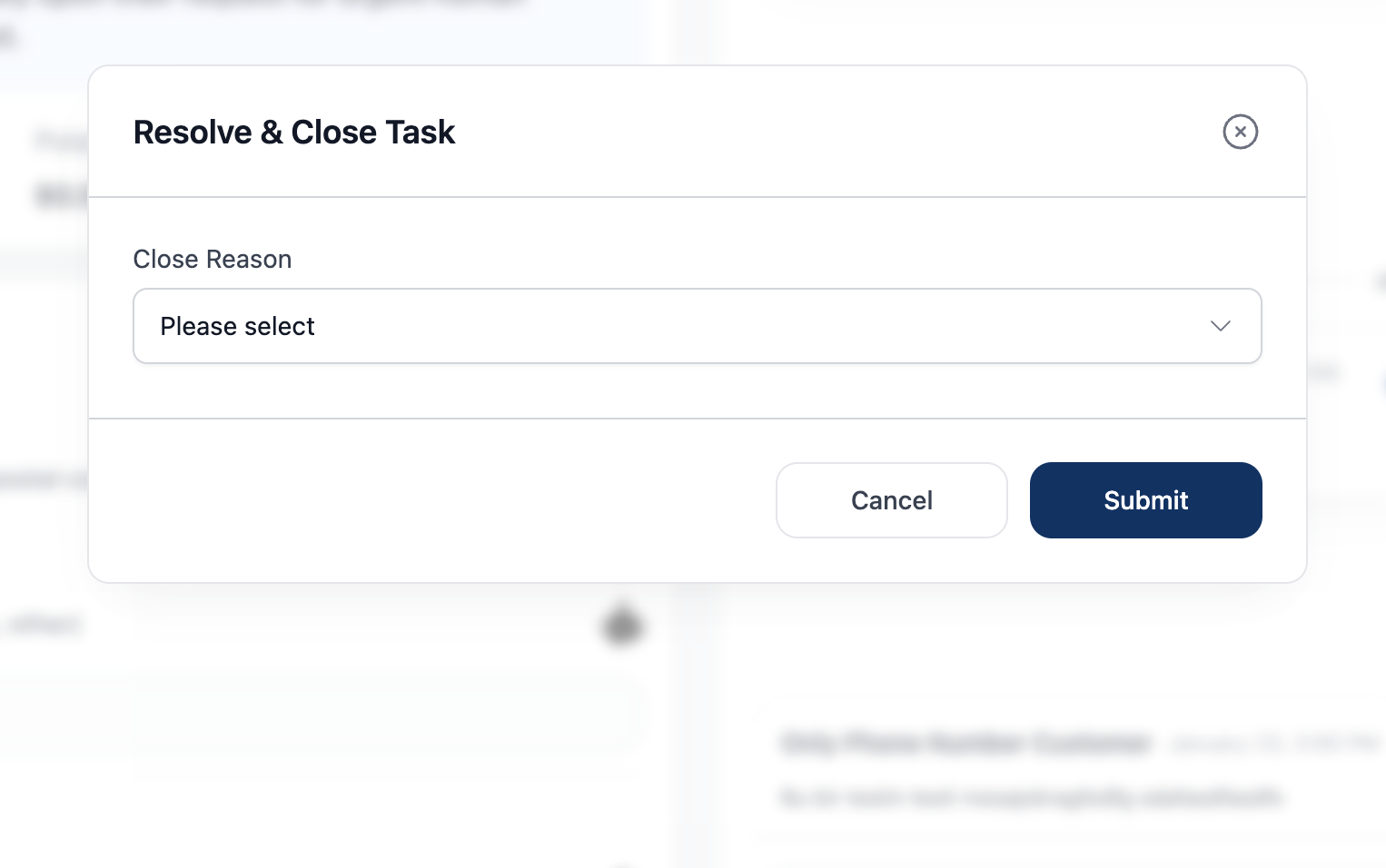
- Pick a reason (Booked Job, Unsuccessful Contact, etc.)
- Done!
The 4 Ways to Finish a Task
| Option | When to Use |
|---|---|
| Resolve & Close | Customer helped, issue done |
| Waiting for Answer | Customer will call/reply back |
| Escalate | Need account team to handle it |
| Close | Return to queue (wrong task, can't handle) |
Option 1: Resolve & Close (Most Common)
Use when you've helped the customer and the task is done.
Steps:
- Add a note about what happened
- Click "Resolve & Close"
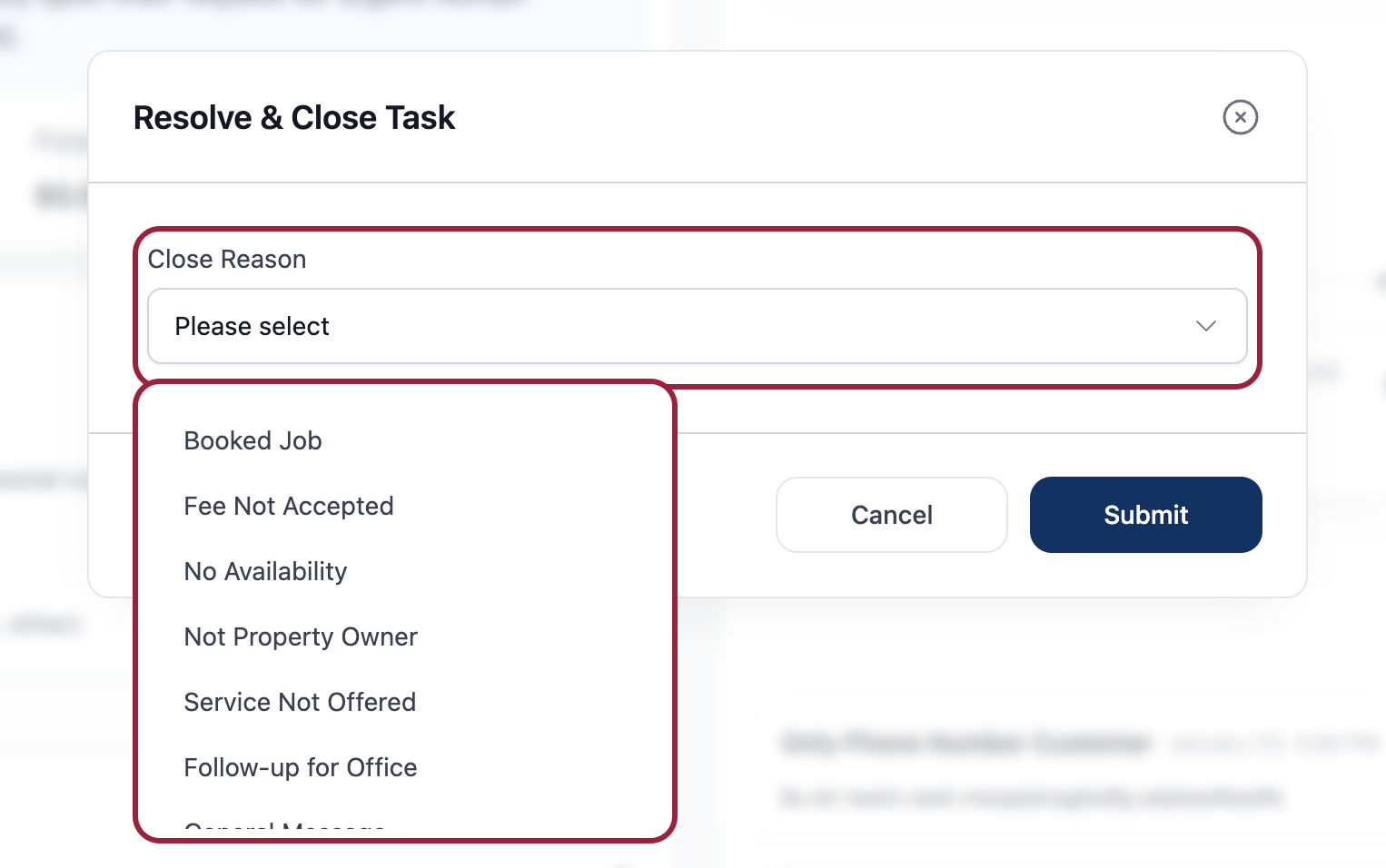
- Select the reason:
| Reason | When to Use |
|---|---|
| Booked Job | You scheduled an appointment |
| Provided Information | You answered their question |
| Issue Resolved | You fixed their problem |
| Unsuccessful Contact | Called 3+ times, no answer |
| Fee Not Accepted | Customer declined the price |
| No Availability | Couldn't fit their schedule |
| Service Not Offered | We don't do what they need |
| Spam/Junk | Not a real customer |
Example note:
"Scheduled HVAC repair for Tuesday 2 PM. Customer confirmed. Tech: John."
Option 2: Waiting for Answer
Use when the customer needs to:
- Call you back
- Check their schedule
- Ask someone else
- Think about it
Steps:
- Add a note about what you discussed
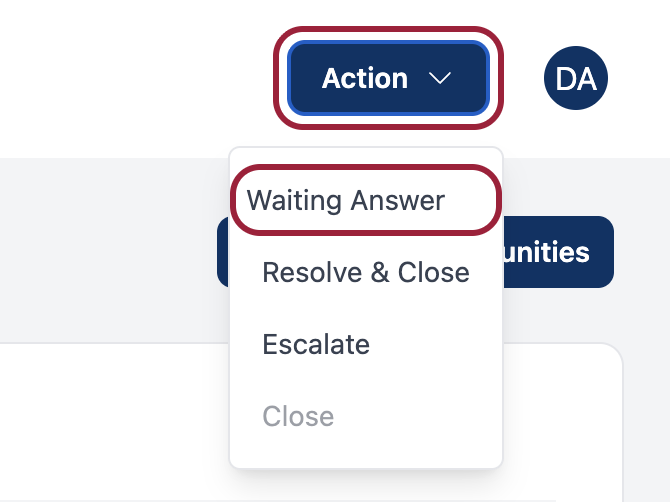
- Click "Waiting for Answer"
- Task goes on hold
Why is the button disabled?
"Waiting for Answer" button only works when YOU sent the last message.
- ✅ Button Active: You sent the last message → Customer needs to reply
- ❌ Button Disabled: Customer sent the last message → You need to respond first
If button is disabled: Send a message or call the customer first, then you can use "Waiting for Answer".
What happens: When customer responds, the task comes back (to you or another agent).
Option 3: Escalate
Use when you need the account team to handle it.
Steps:
- Click "Escalate"
- Select category
- Add notes about what you tried
Option 4: Close (Return to Queue)
Use when:
- You claimed the wrong task
- You can't handle it but it's not an escalation
- Task is duplicate
Steps:
- Click "Close"
- Task goes back to the queue
- Another agent can claim it
Note: Don't use this to avoid difficult tasks. Try first, escalate if needed.
Before You Close Any Task
Always:
- ✅ Check off completed sub-tasks
- ✅ Add a note about what happened
- ✅ Pick the correct close reason
Your note should include:
- What the customer needed
- What you did
- The outcome
- Any follow-up needed
Quick Tips
- ✅ Add notes before closing - Future agents will thank you
- ✅ Pick the right reason - It affects reporting
- ✅ Check sub-tasks - Make sure nothing is missed
- ✅ Don't leave tasks open - Close or escalate when done