Understanding the Interface
New Here?
This page explains what you see on screen. If you just need to get started: → 5-Minute Quick Start
The Main Layout
When you open a task, you'll see two main areas:
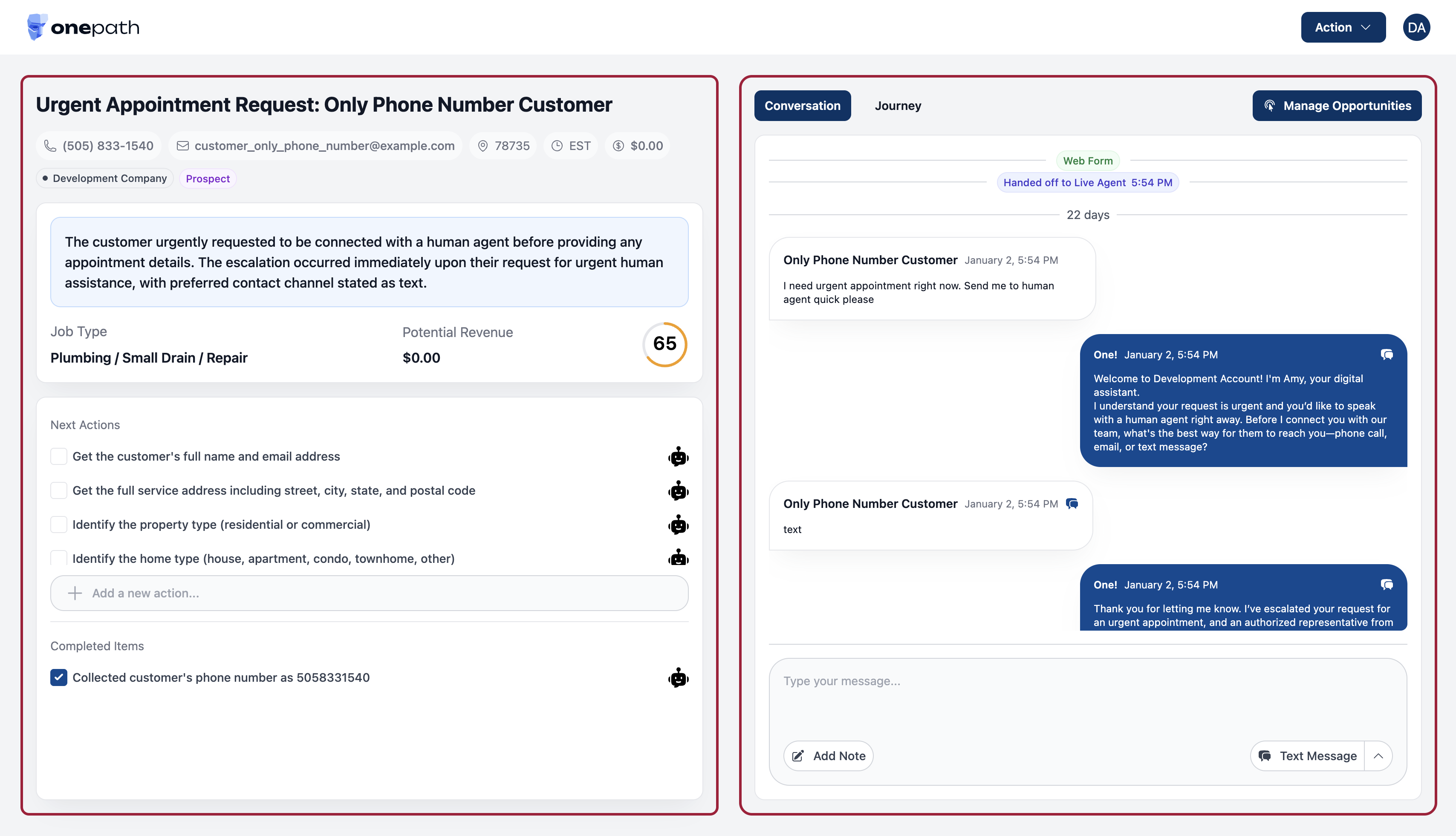
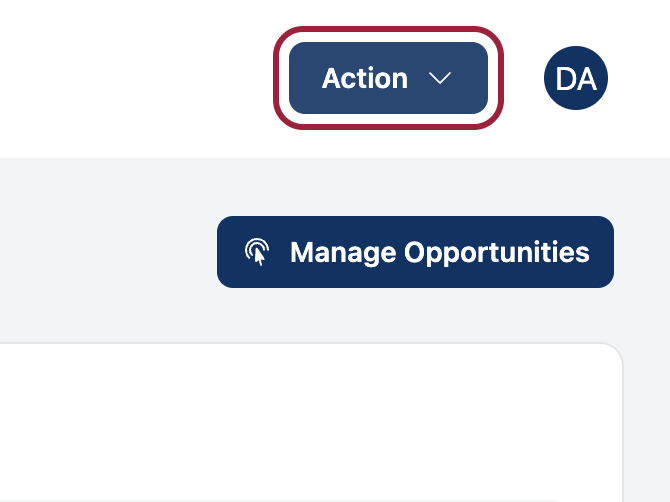
Top Bar - Action Buttons
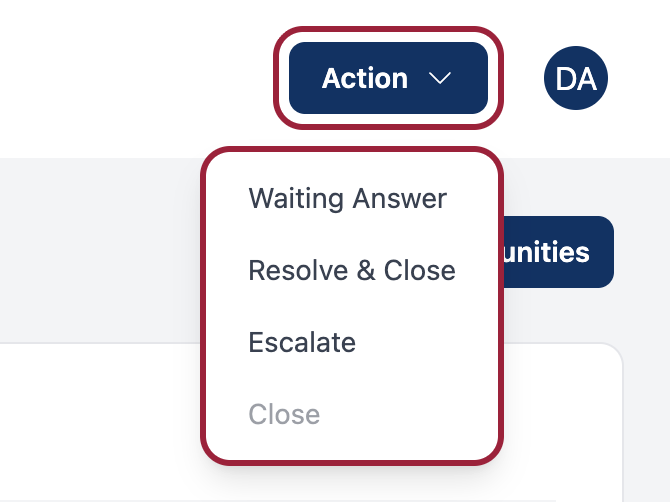
The buttons at the top are your main actions:
| Button | What It Does |
|---|---|
| Escalate | Send task to account team |
| Waiting for Answer | Put task on hold |
| Resolve & Close | Complete the task |
| Close | Return to queue |
Left Panel - Task Info
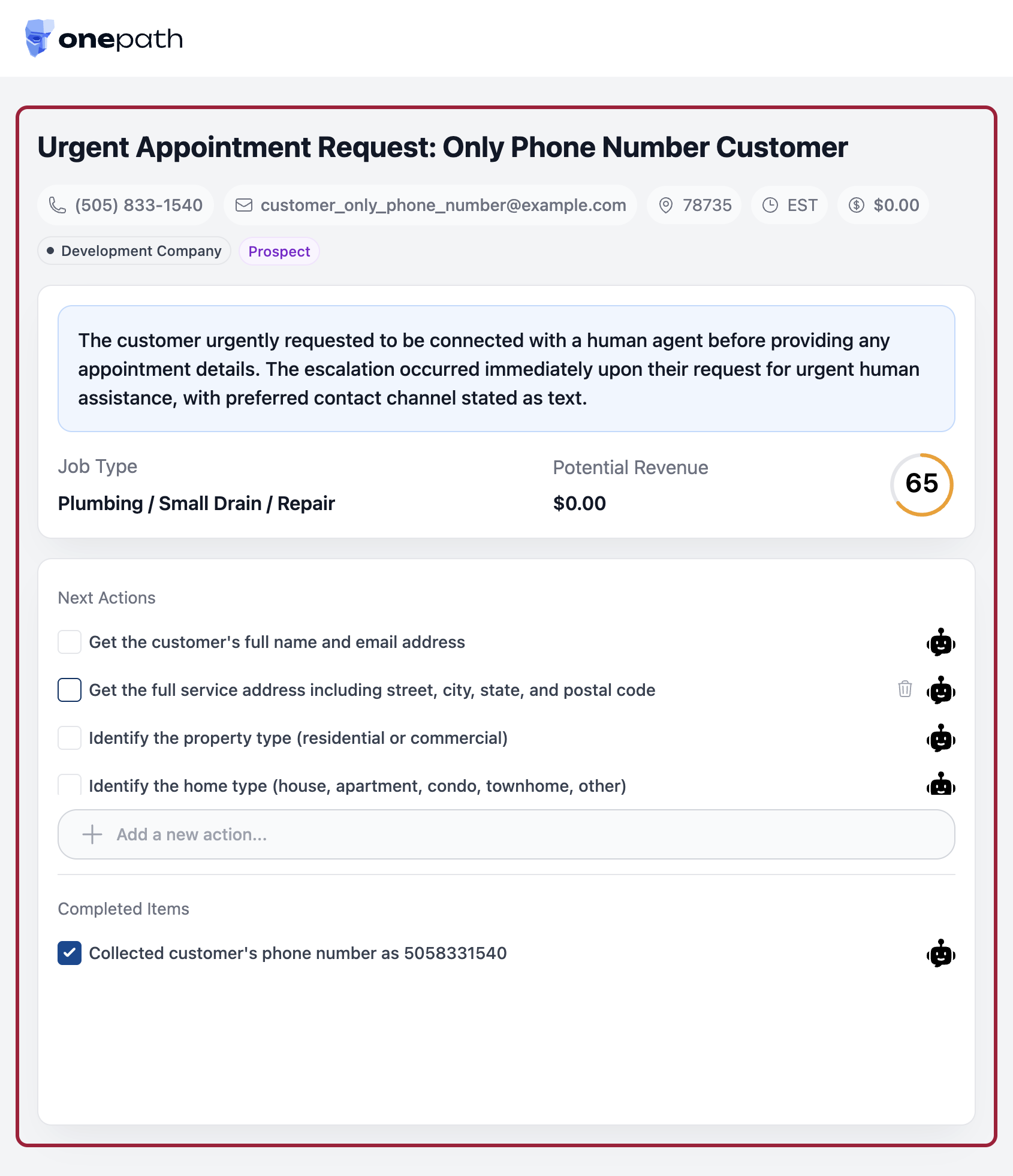
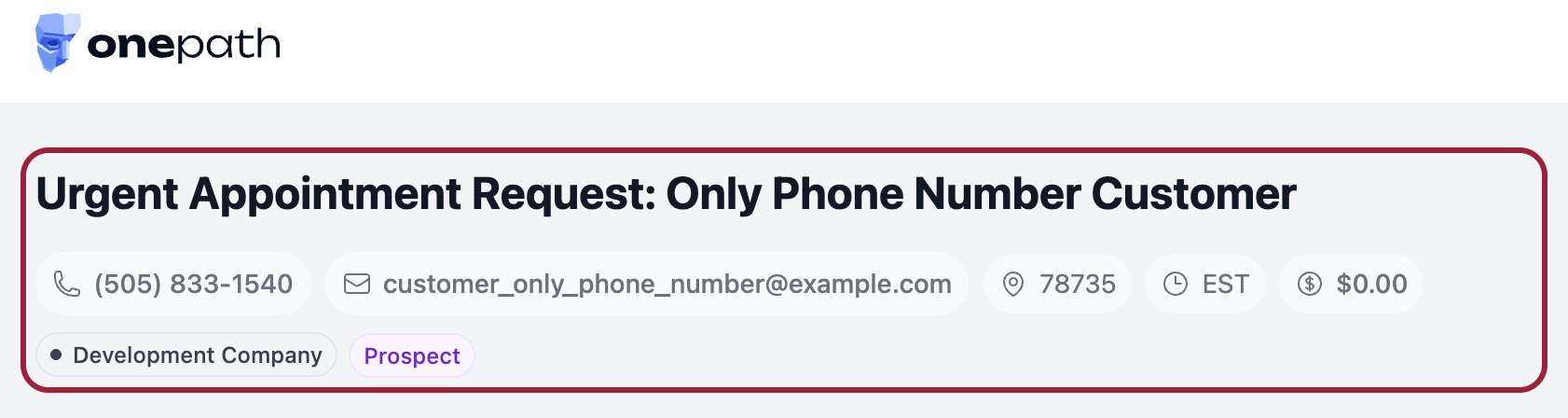
Customer Information
- Name - Who you're helping
- Phone - Click to see/add numbers
- Email - Click to see/add emails
- Address - Where they are
Task Summary
The AI-generated summary tells you:
- What the customer needs
- What's already been discussed
- Why this task was created
Read this first! It saves time.
Opportunity
Shows the potential service:
- Service type (HVAC, Plumbing, etc.)
- Job type (Repair, Install, etc.)
- Revenue potential
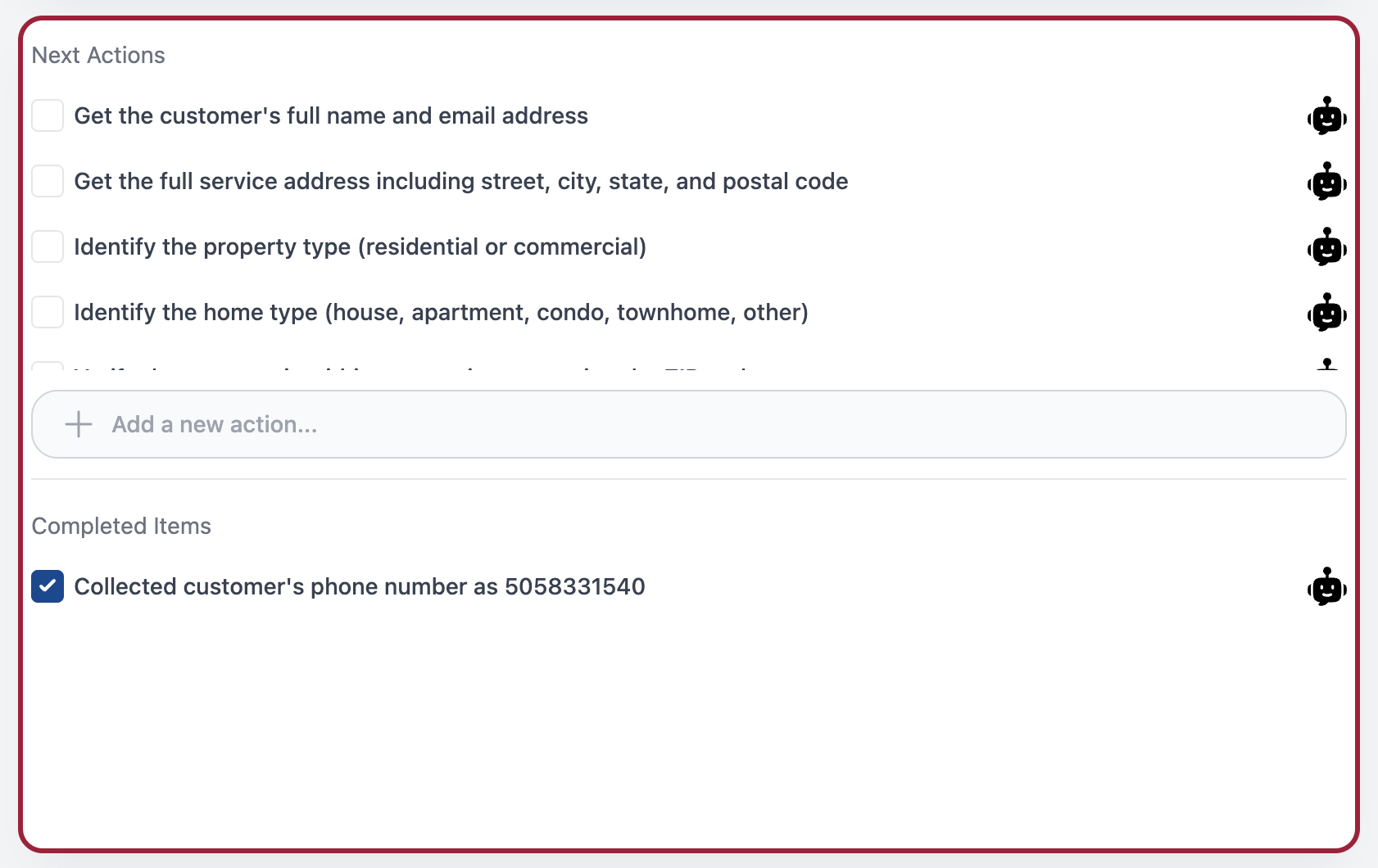
Sub-Tasks
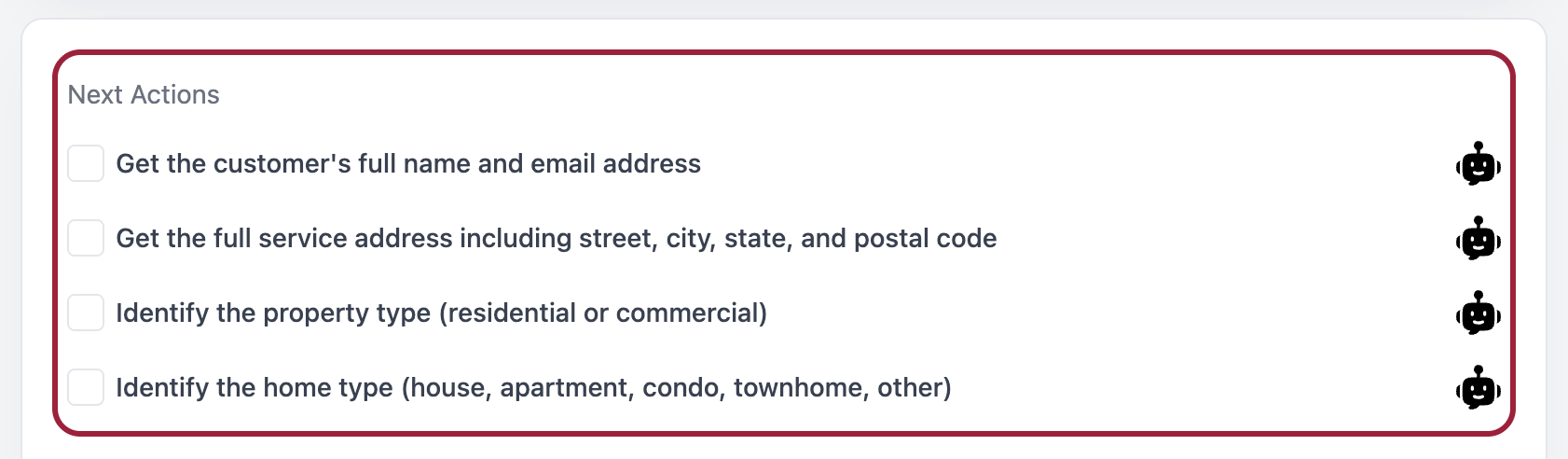
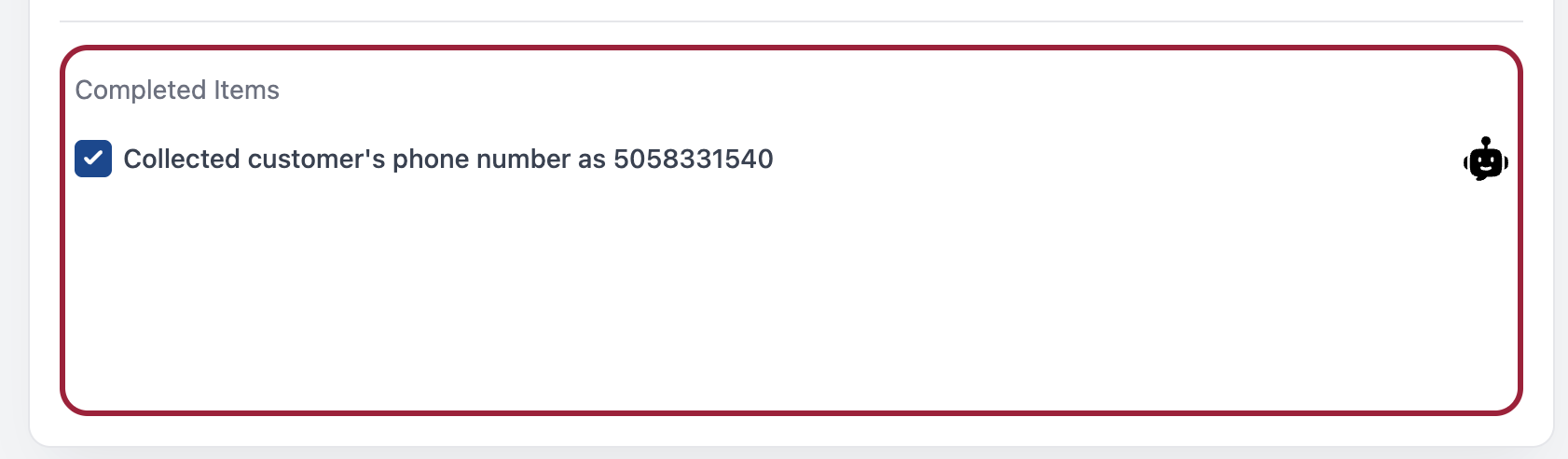
Your to-do checklist:
- ☐ Unchecked = To do
- ☑ Checked = Done
Click to check/uncheck. Add your own by pressing Enter after the last one.
Right Panel - Communication
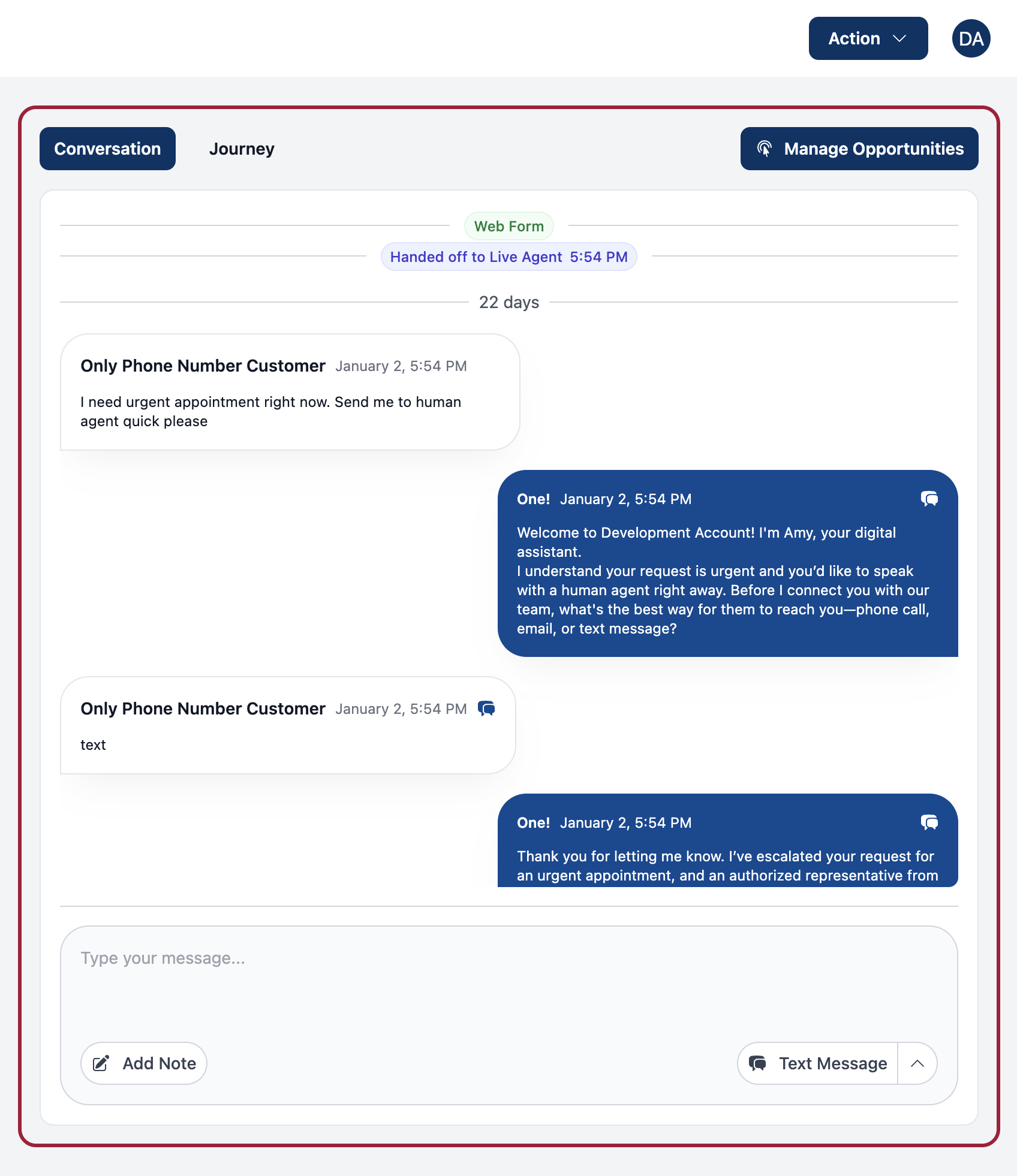
Conversation Tab
Shows all messages between customer and AI (and you).
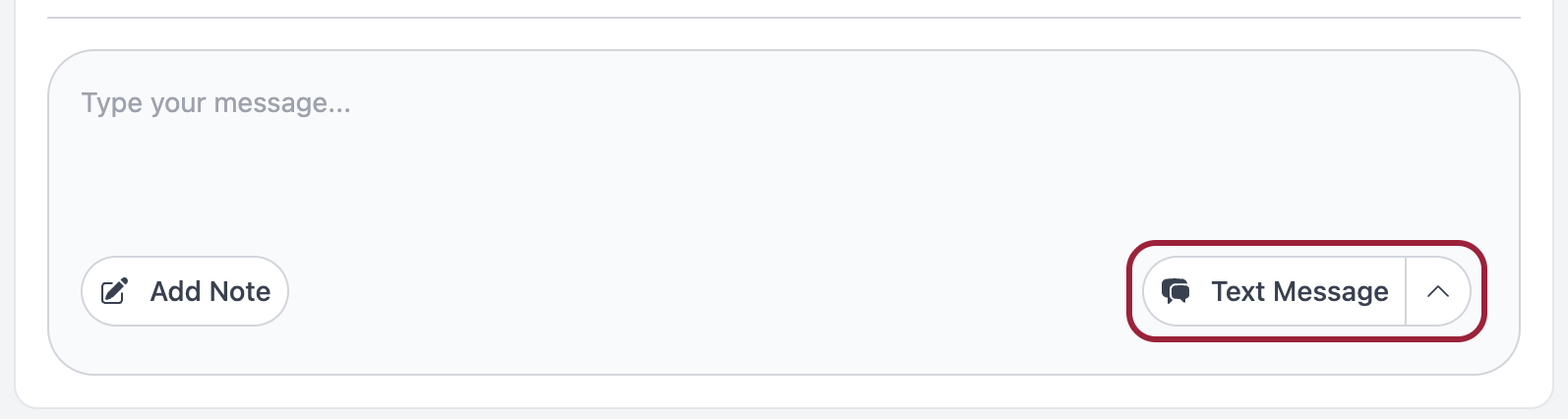
At the bottom: Communication widget
- Text Message - Send RCS
- Email - Send email
- Call - Make a call
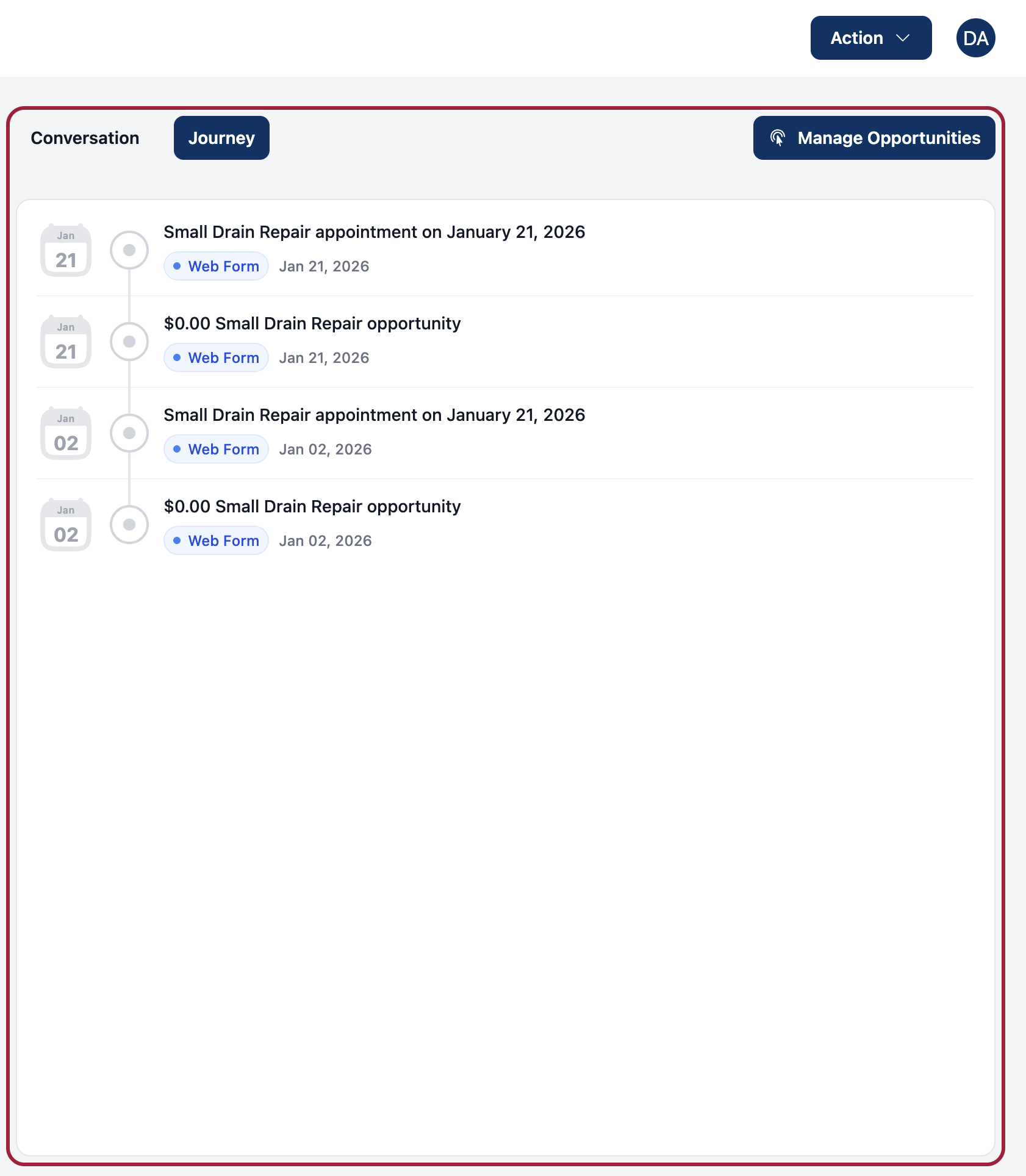
Journey Tab
Complete history of customer interactions across all channels.
Status Indicators
Look for these around the interface:
| Indicator | Meaning |
|---|---|
| 🟢 Green | Active/Good |
| 🟡 Yellow | Warning/Waiting |
| 🔴 Red | Urgent/Error |
Quick Reference
| Area | What's There |
|---|---|
| Top | Action buttons |
| Left | Customer info, summary, sub-tasks |
| Right | Conversation, communication |
| Bottom right | Call/Text/Email buttons |