Quick Fix Guide - Emergency Help
You Need Help RIGHT NOW?
Customer waiting? Pick your problem below and follow the steps. Takes 15 seconds.
Don't read everything - just find your problem in the table and do what it says!
Common Problems - Click to Jump
| I Need To... | Jump To |
|---|---|
| Customer is yelling at me | Escalate Now |
| Timeout warning popped up | Click Continue |
| Lost my task / can't find it | Find It |
| Can't call customer | Fix Phone |
| Don't know what to do | Check Summary |
| Made a mistake | Fix It |
| Task won't load | Refresh |
| Something else broke | Other Problems |
Customer Is Yelling
DO THIS NOW
30 Second Fix:
- Look for the Actions dropdown (top right of task)
- Click it → Select "Escalate to Account Management"
- Type quick reason: "Customer is upset"
- Click Escalate button
- Done! Task is now someone else's problem.
You won't get in trouble for escalating angry customers. That's what escalation is for!
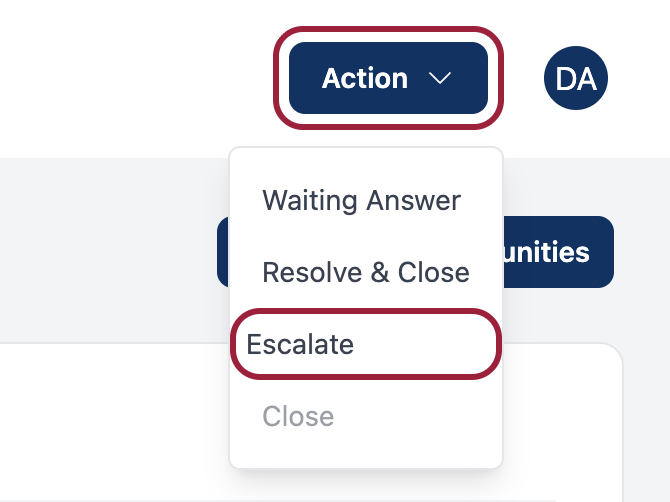
Watch this 30-second video to see exactly how:
How to Escalate an Angry Customer in 30 Seconds (Coming Soon)
What Happens Next
- Customer gets transferred to a manager
- You're free to take next task
- It's the RIGHT thing to do
Timeout Warning Appeared
DON'T PANIC
What You See: Big popup saying "Are you still working on this task?"
What To Do:
- Click "Continue Working" button (the blue one)
- That's it! Warning goes away.
- Keep working normally.
Why This Happened: You didn't move mouse/type for 2 minutes.
How To Prevent: Just move your mouse or type notes every minute while working.
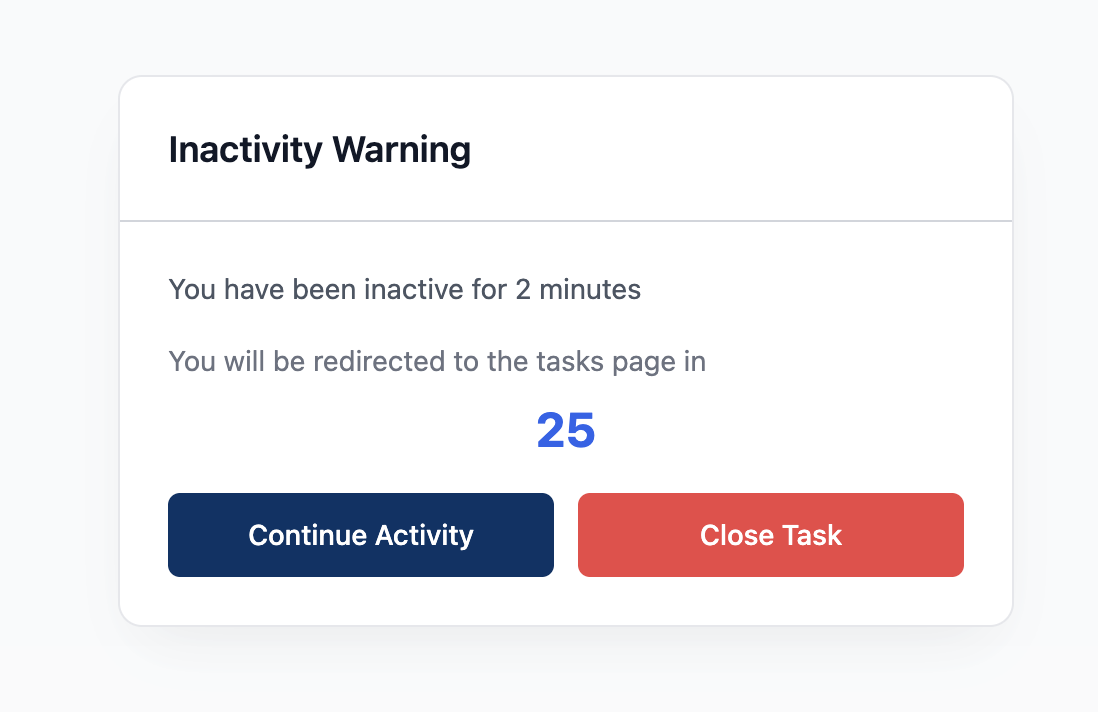
Watch this quick video:
What to Do When Timeout Warning Appears (Coming Soon)
If You Ignored It and Lost Task
- Task went back to queue (not your fault if you were actually working!)
- Check your email for next task
- Or wait for Five9 notification
- Claim a new task
I Lost My Task
FIND IT FAST
3 Ways to Find Your Task:
Option 1 - Email Link (Easiest)
- Open your email
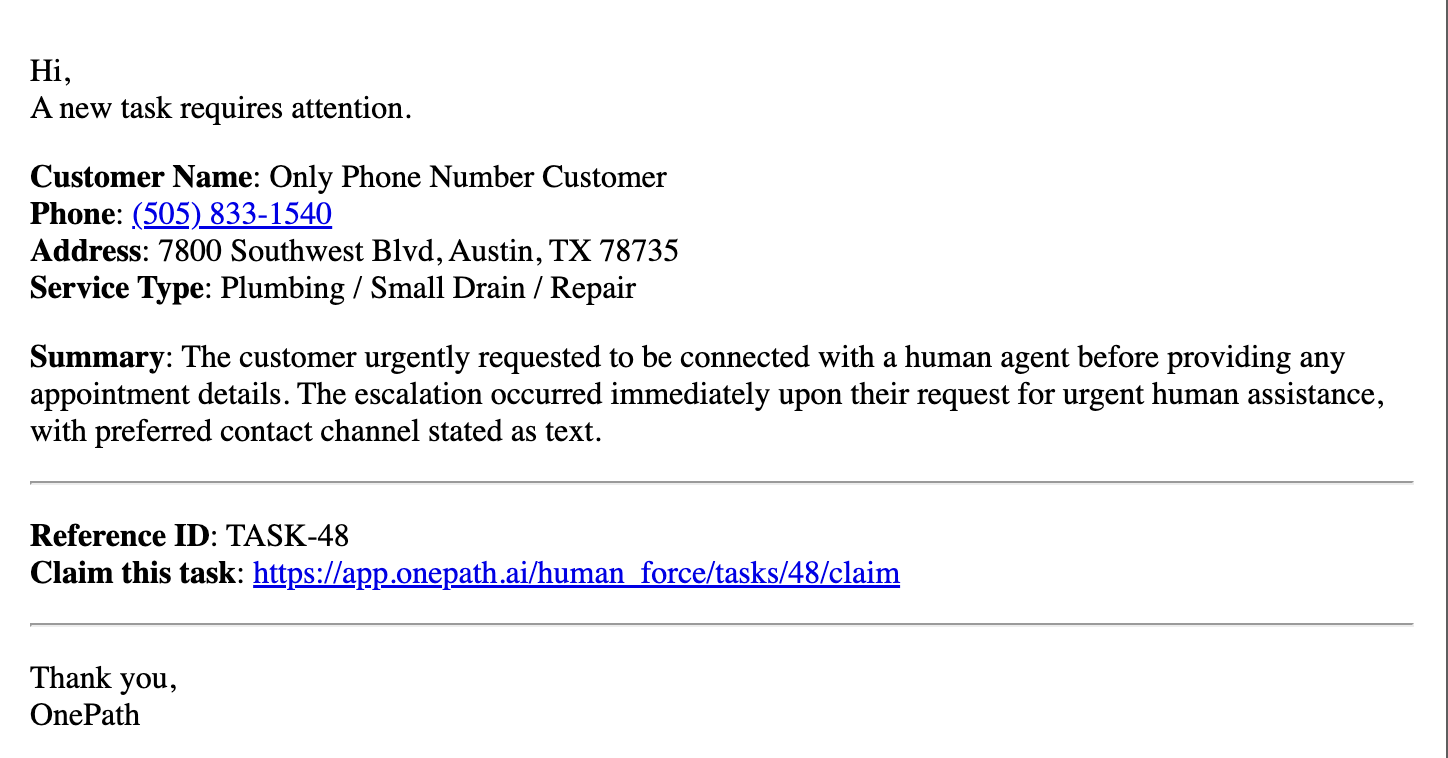
- Find latest HumanForce notification
- Click the link in email
- You're back in!
Option 2 - You're Already Logged In
- System automatically redirects you
- If you have active task, you'll see it
- If not, claim new task from email
Option 3 - It's Really Gone
- Task timed out (no activity for 2+ min)
- Someone else claimed it
- It was completed → Get next task from Five9 or email
Watch this video to see all 3 ways:
3 Ways to Find Your Lost Task (Coming Soon)
Prevention
- Bookmark your active task
- Keep email open
- Move mouse every minute to stay active
Can't Call Customer
QUICK FIX - 3 STEPS
Step 1: Check Microphone
- Browser will ask "Allow microphone?"
- Click "Allow"
- Try call again
Step 2: If Still Broken
- Look for dropdown next to customer name
- Click it → Find another phone number
- Try calling different number
Step 3: If Nothing Works
- Send RCS message instead (dropdown → "Send RCS")
- Or send email
- Add note: "Couldn't reach by phone, sent message"
Why Can't I Call?
- Browser blocked microphone (most common)
- Customer number disconnected
- Your internet is slow
- System issue
If it keeps happening: Tell your supervisor - it's a tech problem, not you!
Don't Know What To Do
START HERE
The AI Already Told You What To Do!
Look for "AI Summary" box at top of task:
- Tells you exactly what customer needs
- Shows you what to do
- Gives you talking points
Then:
- Read the AI summary (10 seconds)
- Follow the instructions it gives
- If still unsure → Check sub-tasks list
- Shows you checklist of things to do
- Do them in order, top to bottom
If AI summary is confusing or wrong:
- Click Actions → Escalate
- Reason: "Task unclear, need help"
Watch this 90-second video:
Reading the AI Summary and Sub-tasks (Coming Soon)
Common Task Types
- Schedule appointment → How to Book
- Call customer back → How to Call
- Answer question → Read AI summary, call customer with answer
- Verify information → Ask customer, update contacts
I Made a Mistake
HOW TO FIX
What You Did:
- Called wrong customer
- Scheduled wrong date
- Said wrong information
- Deleted something
What To Do:
- Don't panic - mistakes happen, they're fixable
- Add a note (Notes section):
- "Mistake: [what happened]"
- "Correction: [what's correct]"
- If customer affected:
- Call them back immediately
- Apologize: "I made an error, here's the correct info"
- If big mistake:
- Escalate to supervisor
- Explain what happened in escalation note
- They'll fix it
You WON'T get in trouble for honest mistakes if you report them!
Examples
Wrong Date Scheduled:
- Call customer: "I need to correct the appointment time"
- Re-schedule to correct date
- Add note explaining
Gave Wrong Info:
- Call customer back immediately
- "I need to correct what I said earlier"
- Give correct information
- Add note to task
Deleted Important Contact:
- Add it back if you remember
- Or escalate: "Accidentally deleted contact, need help recovering"
Task Won't Load
TRY THESE IN ORDER
Fix 1: Refresh Page
- Press F5 (Windows) or Cmd+R (Mac)
- Wait 10 seconds
- Should load now
Fix 2: Check Internet
- Other websites loading?
- If not → internet problem, contact IT
- If yes → go to Fix 3
Fix 3: Try Different Browser
- Chrome works best
- Firefox also good
- Safari can be problematic
Fix 4: Clear Cache
- Chrome: Press Cmd/Ctrl + Shift + Delete
- Select "Cached images and files"
- Click Clear
- Try again
Still Broken?
- Take screenshot
- Email technical support
- Request task be reassigned
Something Else Broke
Quick Diagnostics
Is it just you or everyone?
- Ask another agent in chat
- If everyone: system issue, wait or contact support
- If just you: try solutions below
Try These (In Order):
1. Refresh the Page
- Fixes 80% of problems
- Press F5 or Cmd+R
2. Check Your Internet
- Run speed test
- Close other tabs using internet (Netflix, YouTube)
3. Clear Browser Cache
- Cmd/Ctrl + Shift + Delete
- Clear cached files
4. Log Out and Back In
- Resets your session
- Often fixes weird errors
5. Try Different Browser
- Chrome recommended
- Edge or Firefox also work
6. Restart Computer
- Last resort but works
- Save any work first!
Still Broken? Contact Support
Before you call, write down:
- What you were trying to do
- Exact error message (take screenshot)
- What page you're on
- Task ID if you have one
Support: 555-1234 (24/7)
Quick Reference
| Problem | Solution | Time |
|---|---|---|
| Customer yelling | Actions → Escalate | 30 sec |
| Timeout warning | Click "Continue Working" | 5 sec |
| Lost task | Check email for link | 15 sec |
| Can't call | Allow microphone | 10 sec |
| Don't know what to do | Read AI Summary | 20 sec |
| Made mistake | Add note + escalate if big | 60 sec |
| Won't load | Refresh page (F5) | 10 sec |
| Something broke | Refresh → Clear cache → Call support | 2 min |
You're Doing Great!
Remember
- Everyone has these problems
- Asking for help is not failing
- Escalating is the RIGHT thing to do when unsure
- Technical issues are not your fault
- Mistakes happen - just fix them and move on
You've got this!
Need More Help?
- First Day? Start Here
- How do I...? Daily Tasks Guide
- Specific Problem? Troubleshooting
- Right Now Emergency? Call supervisor or support: 555-1234
Bookmark this page! Press Cmd/Ctrl + D → Keep it open in a tab.
Last updated: January 2026