How to Call Customer
Quick Answer - 30 Seconds
3 Steps: Bottom right → Click "Call" → Talk. Done!
Important: Click "Allow" when browser asks for microphone permission.
Step-by-Step: Make a Call
Step 1: Find the Communication Widget
Look at the bottom right corner of your screen. Click the "Text Message" button to expand options:
- Text Message
- Call ← Click this
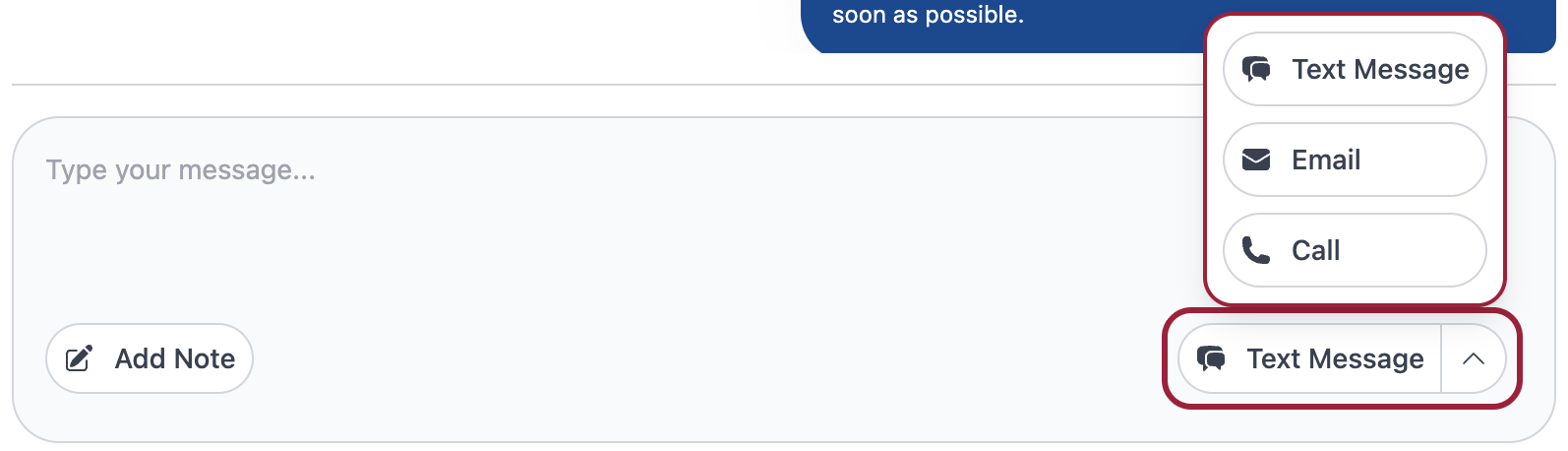
Step 2: Allow Microphone
When your browser asks for microphone permission, click "Allow".
You need this to talk!
Step 3: Talk & End Call
- You'll hear ringing → customer answers
- Talk normally → just like a regular phone
- Click "End Call" when done
Calls are automatically recorded and saved.
What to Say
Opening
"Hi [Customer Name], this is [Your Name] from OnePath. I'm following up on your [service request]. Is now a good time to talk?"
Ending
"Just to confirm, I've scheduled your service for Tuesday at 2 PM. Is there anything else I can help with today?"
During the Call
| Do | Don't |
|---|---|
| ✅ Speak clearly | ❌ Rush them |
| ✅ Listen carefully | ❌ Interrupt |
| ✅ Take notes (counts as activity!) | ❌ Use jargon |
| ✅ Confirm what you agreed on | ❌ Make promises you can't keep |
Common Situations
Customer is angry?
→ How to Handle Angry Customers
Can't hear customer?
- Check headset/volume
- Check browser microphone permission
- Ask them to speak louder
- If still broken → End call, try again or use text/email
Customer asks about pricing?
- If you know → Explain clearly, no hidden fees
- If unsure → "Let me connect you with someone who can help"
- Never guess prices!
Good to Know
- Calls are recorded - Just be professional, it protects you too
- During calls, you're protected from inactivity - Focus on the conversation
- Type notes while talking - Helps you remember + counts as activity
Quick Tips
- ✅ Use a headset (better audio)
- ✅ Find a quiet space
- ✅ Have customer info ready before calling
- ✅ Test your mic before first call
Still Stuck?
Need help? Call your supervisor or contact support: 555-1234
Want to learn more?