How to Claim a Task
Quick Answer - 30 Seconds
3 Steps: Check email → Click link → Click "Claim Task". Done!
Important: Be logged into HumanForce before clicking the email link.
Step-by-Step: Claim a Task
Step 1: Check Your Email
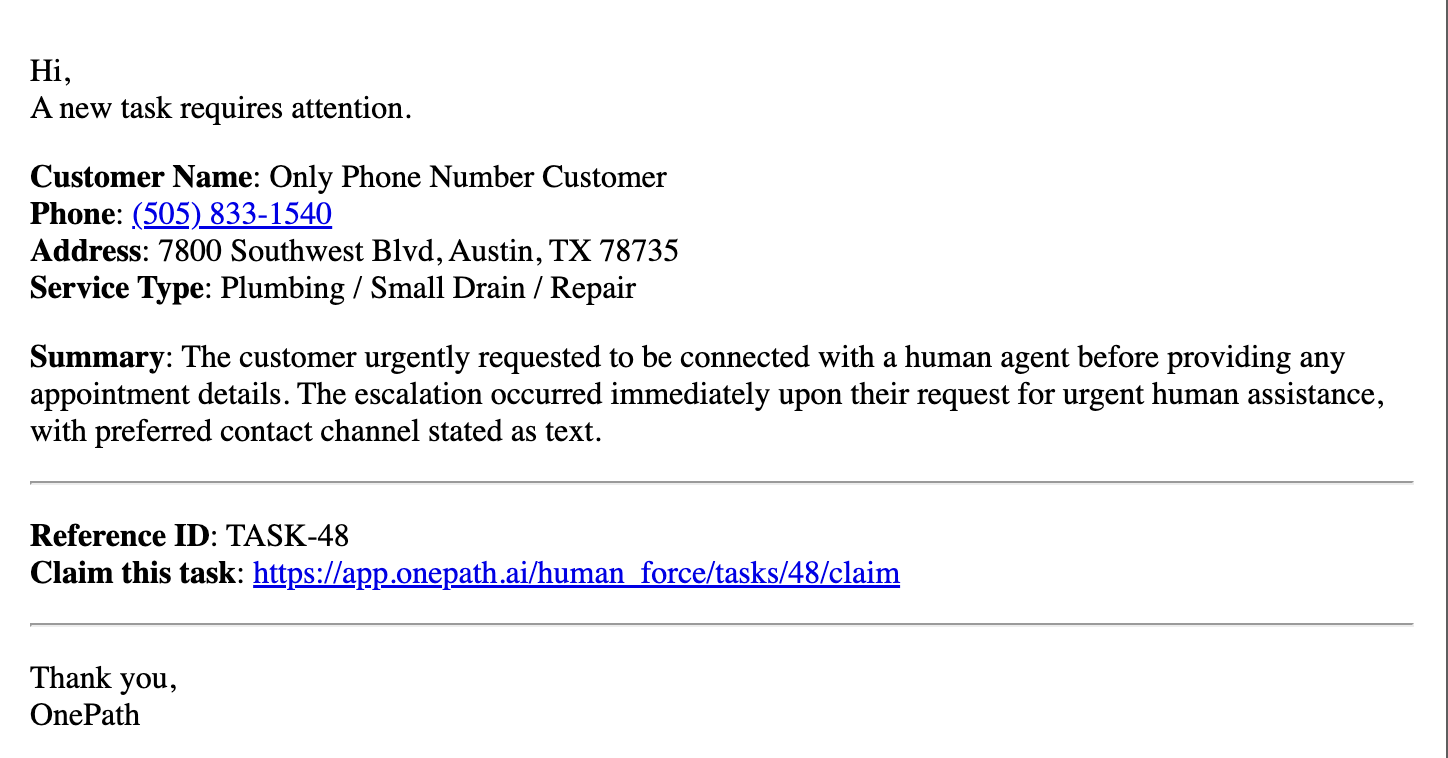
Five9 sends you an email when a task needs attention.
Look for subject: "A new task requires attention"
The email shows:
- Customer name and phone
- Service type needed
- Link to claim the task
Step 2: Click the Link
Click the link in the email → It takes you to HumanForce.
Not logged in? Log in first, then click the link again.
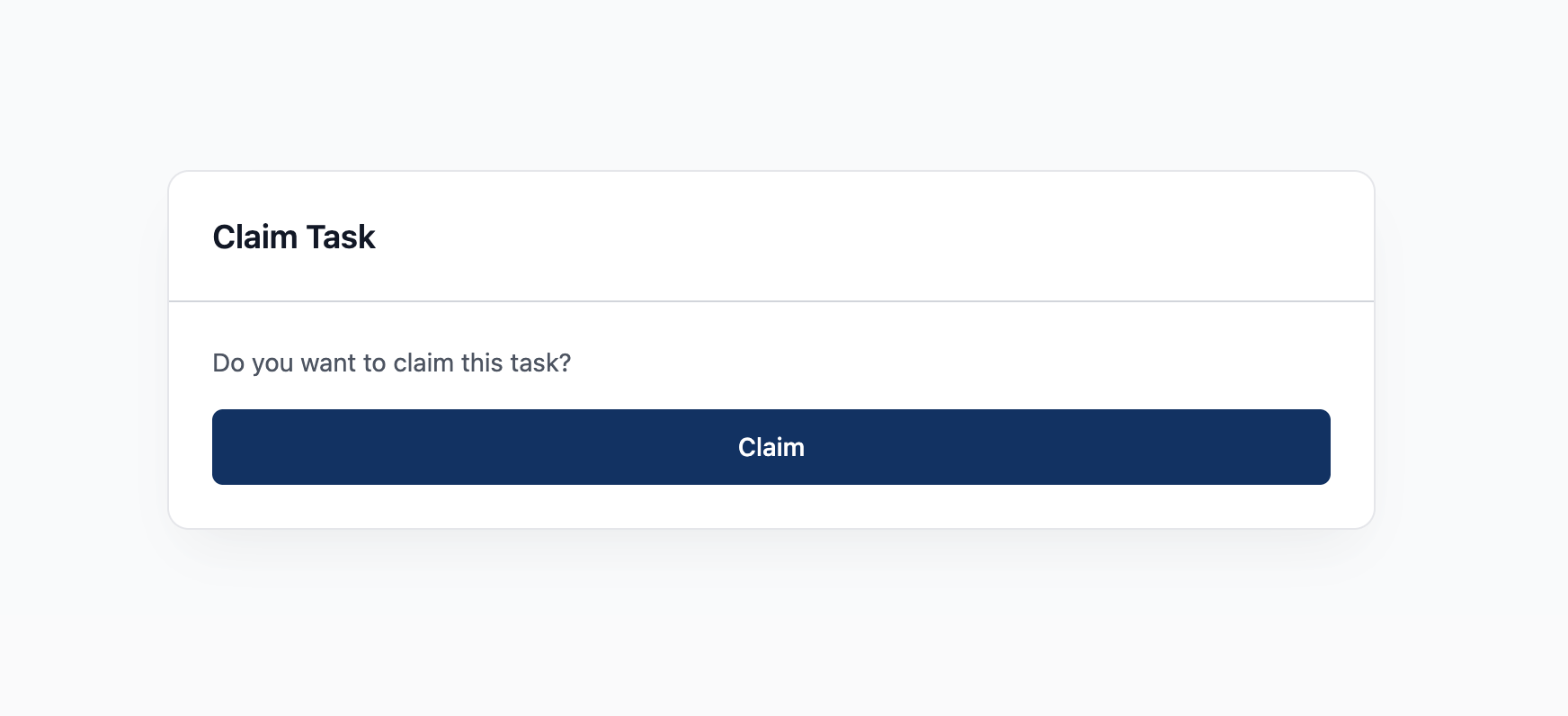
Step 3: Click "Claim Task"
You'll see the task page. Click "Claim Task" button at the top.
Done! The task is now yours.
What Happens After You Claim?
- Task is assigned to you (removed from queue)
- Inactivity timer starts (2 min warning if no activity)
- You'll see: customer info, AI summary, conversation history, sub-tasks
First thing to do: Read the AI summary - it tells you what the customer needs.
Quick Tips
- ✅ Click fast - Tasks are first-come, first-served
- ✅ Read AI summary first - Saves time
- ✅ Stay active - Move mouse or type notes every 2 min
- ✅ Check conversation history - See what's already been said
Still Stuck?
Need help? Call your supervisor or support: 555-1234
Learn more:
- Completing Tasks - What to do after claiming
- First Task Walkthrough - Complete guide
Video Tutorials
How to Claim a Task - Complete Walkthrough (Coming Soon)
Understanding Task Details (Coming Soon)