Booking Appointments
Quick Answer
To book an appointment:
- Check availability in the calendar picker
- Offer 2-3 options to customer
- Confirm date, time, address, service type
- Click Schedule → Done!
Customer can't decide? → Click "Waiting for Answer"
Step-by-Step: Book an Appointment
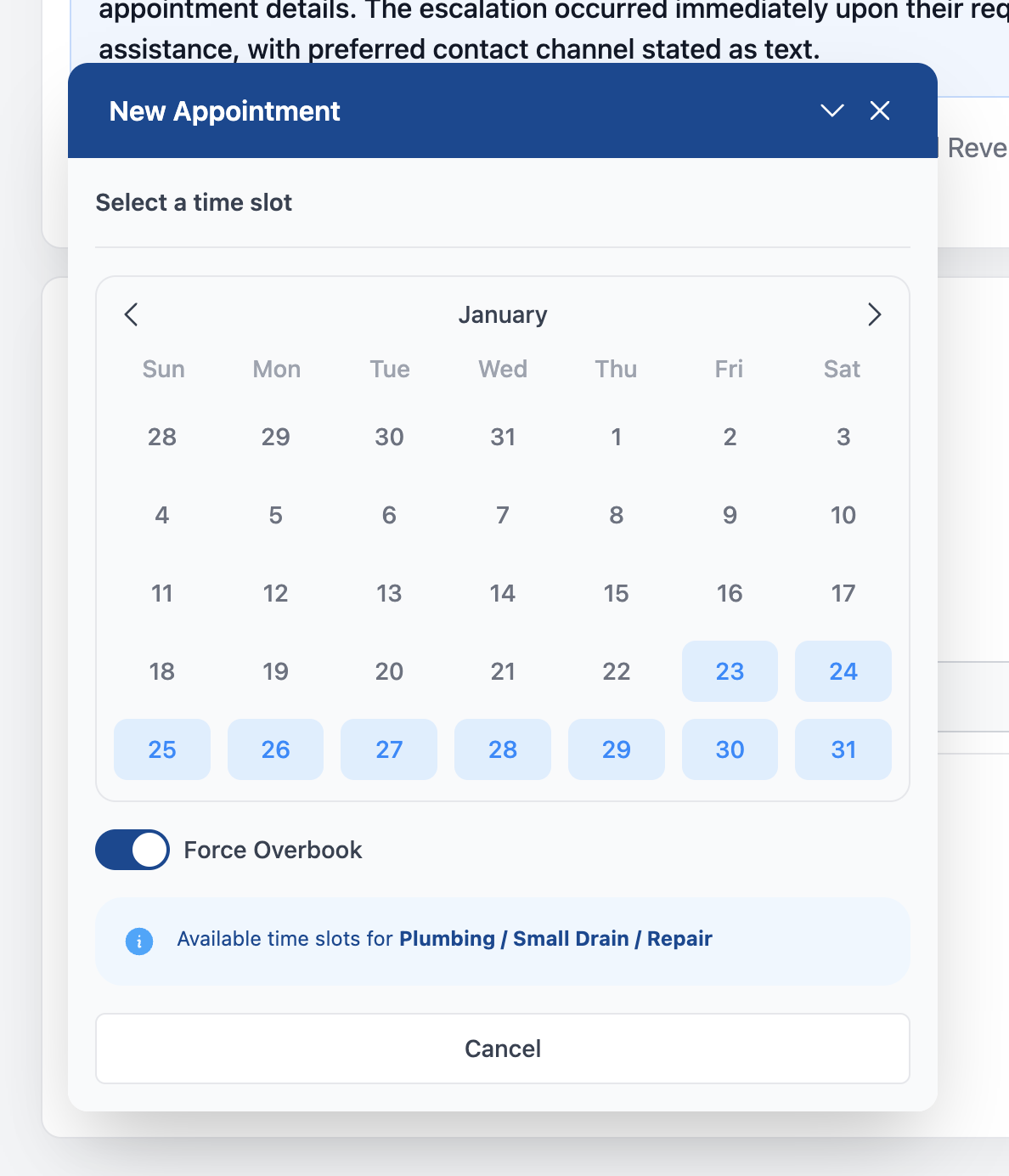
Step 1: Check Availability
Look for the availability picker in the task details.
You'll see:
- Available time slots
- Technician coverage
- Service area
Step 2: Offer Options
Give the customer 2-3 choices:
"We have availability on Tuesday at 2 PM or Wednesday at 10 AM. Which works better for you?"
Don't: Push one time over another Do: Let them choose
Step 3: Confirm Details
Before scheduling, confirm:
- ✅ Date and time
- ✅ Address (is it correct?)
- ✅ Service type (what they need)
- ✅ Contact phone (for technician)
"Just to confirm: HVAC repair at 123 Main St, Tuesday at 2 PM. The technician will call you when they're on the way. Is that correct?"
Step 4: Select Time Slot & Schedule
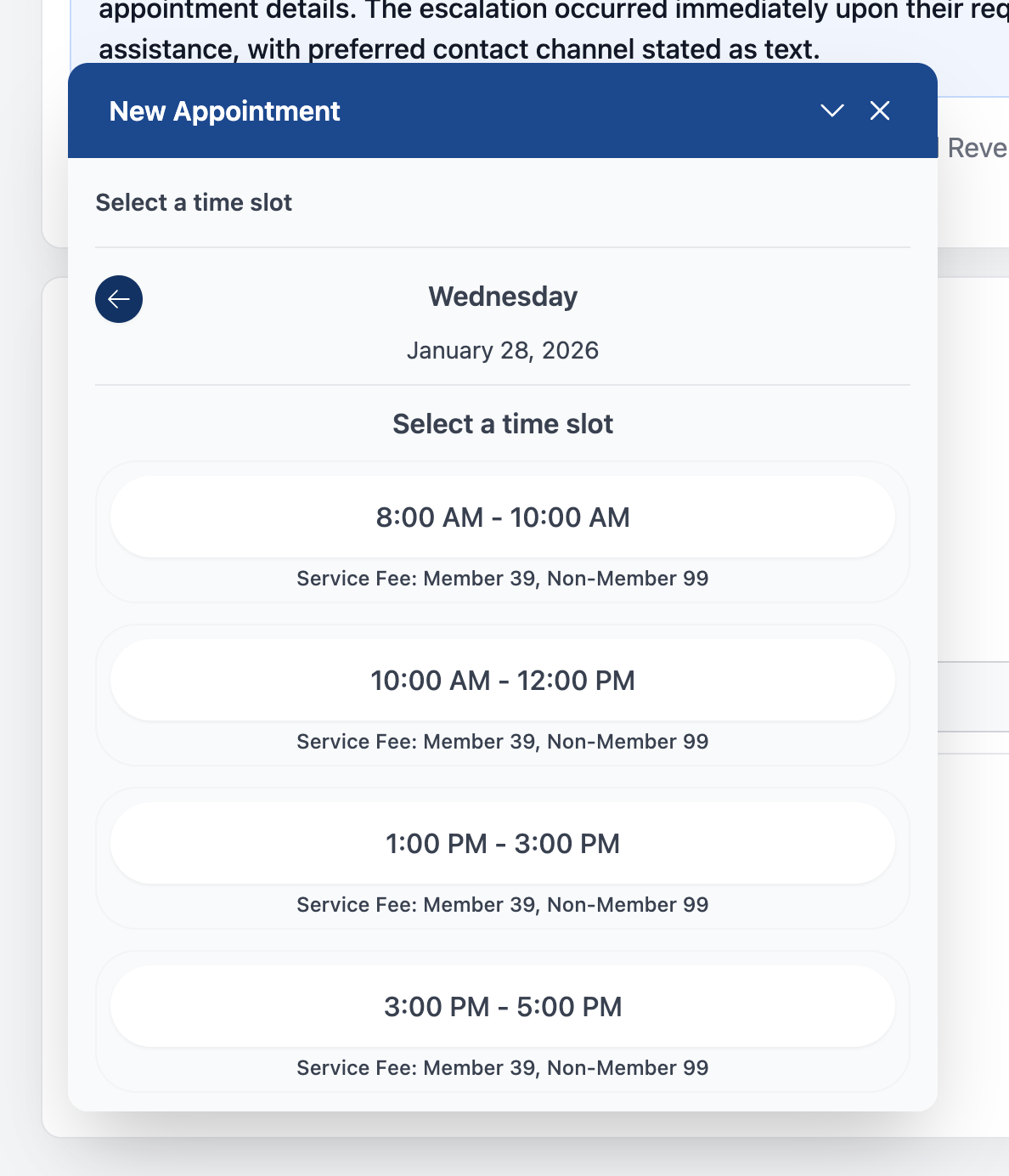
- Click Schedule to book the appointment
- System sends confirmation to customer
- Click Resolve & Close → Select "Booked Job"
If Customer Needs Time to Decide
Don't wait on the line. Instead:
- Tell them available options
- Click "Waiting for Answer"
- Task goes on hold
- When they reply → Task comes back to queue
"Take your time to check your schedule. Just reply to this message or call us back when you're ready."
Rescheduling Appointments
Customer wants to change their appointment?
- Find the existing appointment in task details
- Check new availability
- Offer alternative times
- Update the appointment
- Confirm the change
"I've moved your appointment from Tuesday to Thursday at 3 PM. You'll get a new confirmation text."
Cancelling Appointments
Customer wants to cancel?
- Ask why (helps us improve)
- Try to retain - Can you solve their concern?
- If they insist - Process the cancellation
- Document the reason
- Close with "Existing Job Cancellation"
"I'm sorry to hear that. May I ask why you'd like to cancel? ... I understand. I've cancelled your appointment. If you change your mind, just give us a call."
Common Situations
"No availability this week"
"I don't have anything available this week, but I have [next available date]. Would that work for you?"
If urgent → Check with supervisor for emergency slots
"Customer wants specific technician"
"I'll make a note requesting [technician name]. I can't guarantee, but we'll do our best."
Add note to appointment with technician request.
"Service area question"
Check if the customer's address is in your service area. If not:
"I'm sorry, but that address is outside our current service area."
Close with "Service Not Offered"
Quick Tips
- ✅ Always confirm address before booking
- ✅ Give 2-3 time options (not just one)
- ✅ Explain what to expect ("Technician will call when on the way")
- ✅ Use "Waiting for Answer" if customer needs time
- ❌ Don't double-book or guess availability
Related Pages
- Completing Tasks - How to close after booking
- Can't Reach Customer - If they don't answer