Selecting a Lead (Address)
Quick Answer - 30 Seconds
Click location badge (eye icon) → Pick address → Select Lead → Done!
New address? → Click "Add Address" button
Wrong address? → Click pencil icon to edit
Red badge on address? → See Common Badge Issues below
When Do You Need This?
You'll see the Select Lead modal when:
- Creating an opportunity - System asks you to pick an address
- Customer has multiple addresses - You need to choose the right one
- Address info is missing/wrong - You need to fix it before booking
Step 1: Click the Location Badge
Look for the location badge (eye icon) on your task screen.
What happens: The Select Lead modal opens showing all customer addresses.
Step 2: Select a Lead
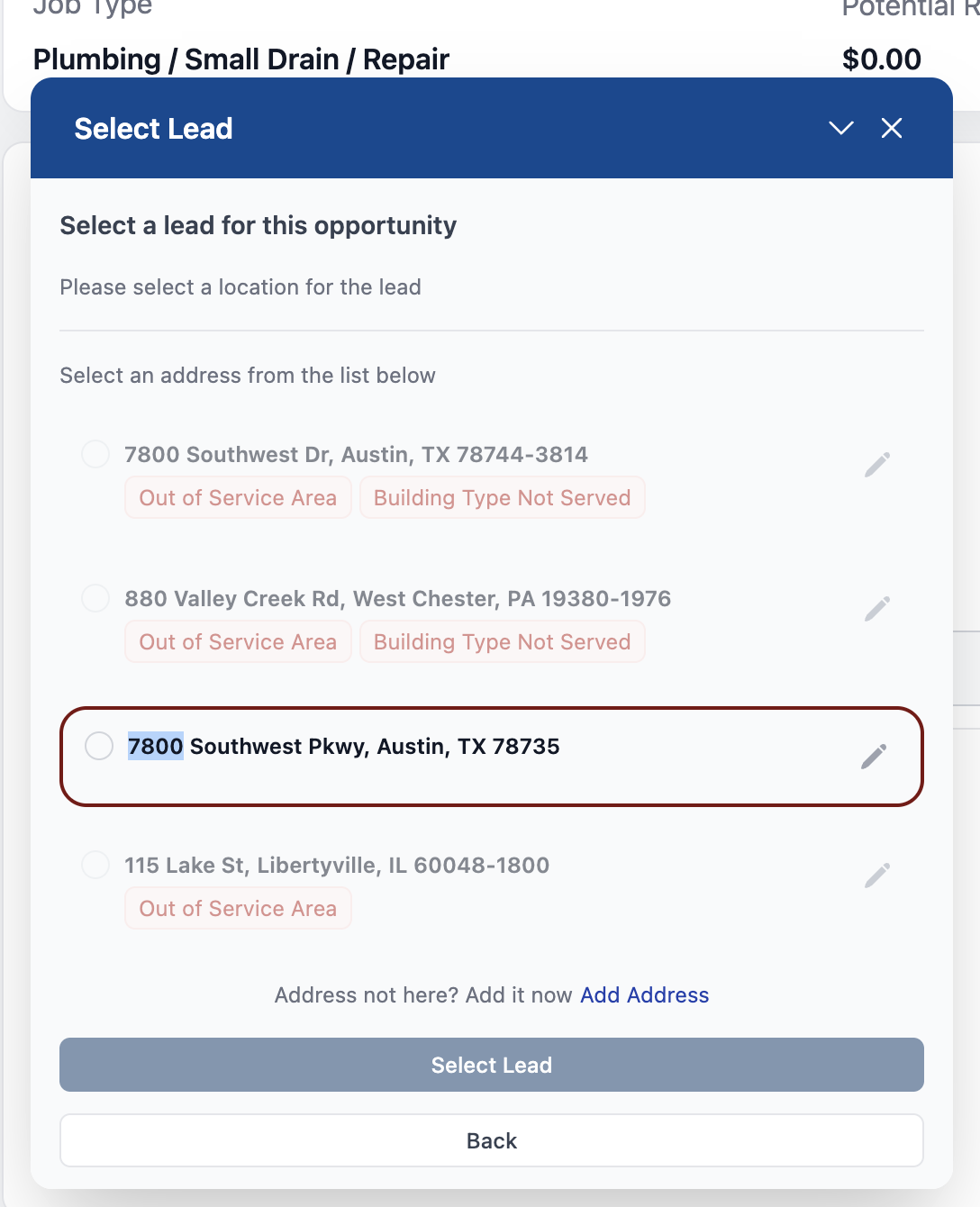
In the modal, you'll see a list of customer addresses.
- Look at the addresses - Each shows street, city, and status badges
- Click the radio button next to the correct address
- Click "Select Lead" button at the bottom
Step 3: If Building Type is Missing
Sometimes the system needs more info before you can select:
- Building Type dropdown appears - Select the correct type (House, Apartment, etc.)
- Is Authorized checkbox - Check if customer confirmed they're authorized
- Fill these in → Then click Select Lead
Choose Carefully!
If you select a building type your company doesn't service, you'll see a "Building Type Not Served" badge. Always confirm with the customer first!
Step 4: Adding a New Address (Optional)
If the customer's address isn't in the list:
- Click "Add Address" button
- Fill in the address form
- Select the new address
Step 5: Editing an Address (Optional)
If the address info is wrong:
- Click the pencil icon next to the address
- Edit the fields (street, building type, authorization)
- Save changes
- Select the corrected address
Common Badge Issues
"Out of Service Area" 🔴
Address is outside your company's service zone.
- Ask customer: "Do you have another address we can service?"
- Can't fix this - escalate if customer insists.
"Not Authorized" 🔴
Customer hasn't confirmed they're the property owner or authorized to schedule.
- Ask customer: "Are you the property owner, or do you have permission to schedule service here?"
- Fix: Click pencil icon → Check "Is Authorized" box → Save
"Building Type Not Served" 🔴
Your company doesn't service this type of building (e.g., commercial buildings).
- Ask customer: "Is this a house, apartment, or business?"
- Fix (if wrong): Click pencil icon → Change Building Type → Save
- Can't fix if correct - escalate or try another address.
"Location Type Not Served" 🔴
Your company doesn't service this location type.
- Ask customer: "Do you have another address?"
- Fix (if wrong): Click pencil icon → Change Location Type → Save
- Can't fix if correct - escalate or try another address.
Address is completely wrong?
Click pencil icon to edit, or use "Add Address" to create a new one.
Quick Tips
- Always verify address with customer before selecting
- Building type matters - It affects appointment scheduling
- "Is Authorized" checkbox - Customer must confirm they can schedule for this address
- Multiple addresses? - Ask customer which one they want service at
- Can't find address? - Use "Add Address" to create it
Related Pages
- Booking Appointments - After selecting a lead
- First Task Walkthrough - Complete task flow