Web Widgets
Buttons, links & context
Make any element open the scheduler or chat, attach the package a visitor picked to their booking, and pre-select the right service.
<div data-onepath-context
     data-onepath-serviceable-type="Water Heater"
     data-onepath-service-type="Estimate">
  <h3>Better Package</h3>
  <p>50 Gallon — $2,695</p>
  <button data-onepath-web-scheduler-trigger>Book this package</button>
</div>
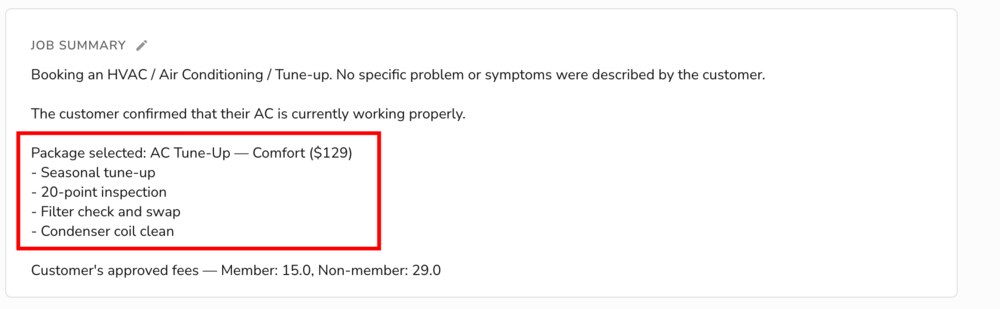
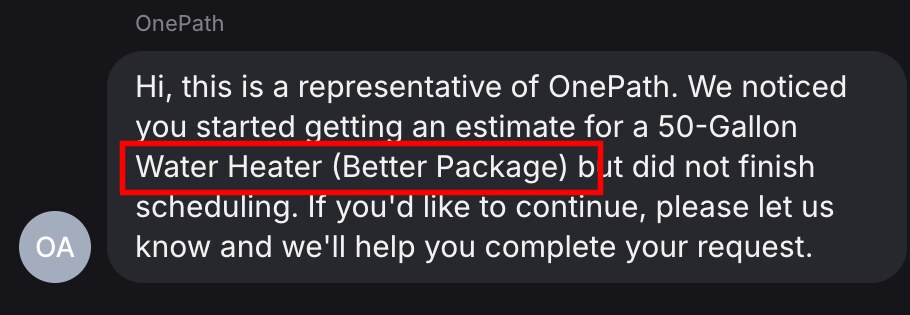
Clicking Book this package opens the scheduler with Water Heater → Estimate already selected, and "Better Package 50 Gallon — $2,695" attached to the booking as context.
Click triggers
| Attribute | Opens | Behavior |
|---|---|---|
data-onepath-web-scheduler-trigger | the booking scheduler | opens the modal |
data-onepath-web-chat-trigger | the chat form | toggles the panel open and closed |
- Works on any element:
<button>,<a>,<div>, an image. - The attribute's value is ignored. Bare,
="true"or="book"all work. - Elements added after page load work too, including buttons rendered by React or Webflow interactions.
- A click that happens before the widget has finished loading is remembered and replayed once it is ready. The visitor does not need to click twice.
Context attributes
Put these on the trigger itself or on any ancestor. The scheduler walks up from the clicked element and uses the closest match.
| Attribute | Effect |
|---|---|
data-onepath-context (bare) | The element's visible text, minus the trigger button's own label, is attached to the booking |
data-onepath-context="…" (with a value) | That exact string is attached, regardless of what is on screen |
data-onepath-serviceable-type="Water Heater" | Pre-selects the service |
data-onepath-service-type="Estimate" | Narrows the pre-selection when one serviceable_type has several service types |
The bare form is the least effort: wrap the package card, and whatever the visitor read is what your team reads. Use the valued form when the card contains prices, badges or marketing text you do not want in the job.
<div data-onepath-context="Better Package — 50 Gallon — $2,695"
     data-onepath-serviceable-type="Water Heater"
     data-onepath-service-type="Estimate">
  <button data-onepath-web-scheduler-trigger>Book this package</button>
</div>
Context is not shown to the visitor. It is saved verbatim on the booking.
Values must match the account's Services exactly
serviceable_type and service_type are compared against the services configured on the OnePath account, character for character. Water Heater works; water_heater or Water Heaters is silently ignored and the visitor picks the service themselves. Read the exact strings off the Services page: app.onepath.ai/settings/account/service_details (what that page controls). If you do not have a login, ask the account owner to copy them for you.
Same thing from JavaScript
For buttons you wire up yourself, dispatch the open event with the same fields. All fields are optional; an empty detail just opens the scheduler.
document.dispatchEvent(new CustomEvent('onepath:webscheduler:open', {
  detail: {
    context:          'Better Package — 50 Gallon — $2,695',
    serviceable_type: 'Water Heater',
    service_type:     'Estimate',
  },
}));
The event also accepts phone, name, email and address to pre-fill the visitor's details. See Open the scheduler from a form submit and the event reference.
URL parameters
Three query parameters on the page URL let a landing page or an ad deep-link straight into the right service, with no markup changes:
| Parameter | Effect |
|---|---|
onepath_serviceable_type=Water%20Heater | Pre-selects the service when the scheduler opens |
onepath_service_type=Estimate | Narrows the pre-selection |
onepath_template=summer-season | Loads that Web Scheduler template's set of services instead of the default (templates) |
https://www.example.com/water-heaters?onepath_serviceable_type=Water%20Heater&onepath_service_type=Estimate&onepath_template=summer-season
The scheduler still opens only from a trigger; URL parameters never open it by themselves.
Precedence
When more than one source sets the same thing, this is what wins:
| What | Order (first wins) |
|---|---|
| Pre-selected service | context attributes on the clicked trigger or the open event → URL parameters |
| Visitor's name, email, address | the customer record already on file for that phone number → what the visitor typed in this session → your pre-fill |
| Context | the attributes on the trigger the visitor clicked; each click resets it |
A visitor who is already a customer keeps the name on file, even if your form or attribute passed a different one.
Attribution
Campaign parameters on the URL the visitor landed on (utm_*, gclid, fbclid, msclkid, gad_source) are kept in the visitor's browser for 24 hours and attached to any booking they make, even from a different page. A new utm_source or a new click id replaces the stored set. A Reserve with Google token (rwg_token) is kept for 30 days. Nothing to configure on your side.
What it looks like downstream
The context travels with the booking into the job summary your team reads, and into the automatic follow-up sent when a visitor does not finish.
To confirm a booking went through from your own code, listen for onepath:webscheduler:appointment_created.